
How effective permissions are calculated
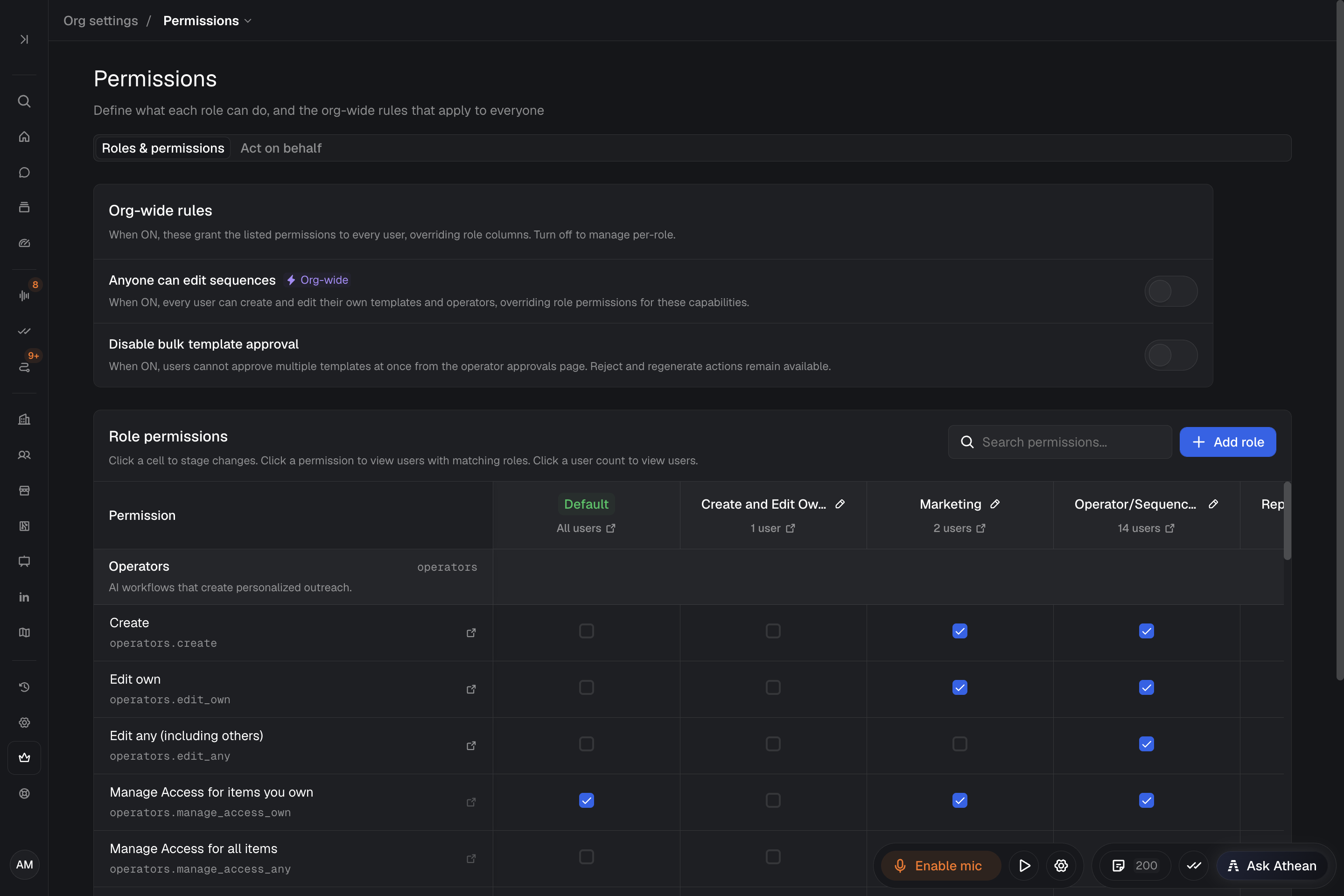
Organization administrators configure roles and permissions in Org settings → Permissions. A user's effective permissions are the additive union of all sources that apply to them:
- Org-wide rules: Global toggles at the top of the permissions page.
- Default column: Baseline permissions granted to every user in the workspace.
- Assigned roles: Roles assigned directly to the user in Org settings → User licensing.
- Automatic roles via groups: Roles bound to any Group the user belongs to.
- Individual grants: Permissions granted directly to one user. Ask Athean in Org settings → Admin chat to show or change them.
Because permissions are additive, unchecking a capability in one role does not remove that capability for a user if the Default column, an Org-wide rule, another role, or an individual grant still provides it. Organization administrators automatically hold all permissions.
Configure org-wide rules and the Default permission column
- Open Org settings → Permissions on the Roles & permissions tab.
- Configure Org-wide rules:
- Anyone can edit sequences: When enabled, all users can create and edit their own sequence templates and operators (locking those rows as Org-wide in the matrix). Turn this off to restrict sequence creation/editing to specific roles.
- Disable bulk template approval: When enabled, disables bulk approval in Prospecting → Sequences → Approvals so reps must review and approve operator drafts one by one (bulk reject and regenerate remain available).
- Use Search permissions... to locate specific capabilities in the Role permissions matrix.
- Toggle cells in the Default column to set baseline capabilities for all users, or toggle cells in custom role columns.
- Select Save changes in the sticky footer to apply staged edits, or Cancel to discard them.
Matrix edits are staged until you save them. Save or cancel them before you create, edit, or delete a role. The footer also saves pending changes on the Act on behalf tab.
Create and configure custom roles
- In Org settings → Permissions, select Add role.
- Enter a Name and optional Description, and choose whether to Start from Blank or copy an existing role.
- Select the capabilities for the role. Access to your own items and access to other people's items are separate capabilities. For example:
- Live call listening: Grants access to Workspace → Activity → Live calls without requiring full administrator rights (see Live listen).
- Automations: Create lets the user start new automations. Edit own lets them change, run, and delete the automations they own, and Edit any (including others) extends that to everyone's. View all (including others) lets them see every automation without changing it. Grant Create together with Edit own, because an automation runs only while its owner can edit it. Every automation run is real. Agent permissions do not include automations.
- Maximum owned: The Operators and Sequence templates groups each have their own Maximum owned field. One caps how many operators a user can own and the other how many sequence templates; they aren't a combined total. When several sources apply, the highest limit across the user's individual grants, roles, and the Default column wins. A blank field adds no limit of its own and doesn't cancel a limit set elsewhere. If no source sets a limit, ownership is uncapped. Organization administrators are exempt.
- Under Automatic membership, optionally select one or more Groups whose members should automatically receive this role.
- Select Create role. To change a role later, click its name in the matrix and select Save changes in the role dialog.
One-off scripts in Chat don't require automation permissions; their actions still use the person's normal permissions. Saving a script as an automation requires the automation permissions above. An AI assistant connected through MCP also uses the connected person's current permissions (see Use Athean from another AI assistant).
Assign roles to users or groups
- One user: Open Org settings → User licensing, open the user's row menu, select Manage roles, check the roles they need, and select Save. A user can hold more than one role.
- Several users: In User licensing, select their rows and select Set roles. Choose Add, Remove, or Replace, pick the roles, and select Apply. Replace removes every role you don't list.
- Automatic group assignment: Click a role's name header in Org settings → Permissions, select target groups under Automatic membership, and select Save changes. Everyone in a selected group holds the role while they're a member.
In a user's Manage roles dialog, roles inherited through groups are listed under Held automatically via groups and cannot be unchecked directly on the user; to remove an inherited role, update the group's rule or remove the group from the role's Automatic membership. Removing someone from a group doesn't remove a role they also hold directly.
Delegate sequence and email permissions (Act on behalf)
Use the Act on behalf tab in Org settings → Permissions to let a user (such as an SDR, BDR, or manager) start or manage outreach on behalf of specific teammates:
- Open Org settings → Permissions and select the Act on behalf tab.
- Select Add user and pick the user who will perform the delegated actions.
- Configure one or both independent scopes:
- Start sequences on behalf of: Select the senders for whom this user can enroll contacts into sequences, approve or reject operator drafts, and ask Athean to draft or schedule one-off emails from that sender's mailbox.
- Manage sequences on behalf of: Select the senders whose sequences this user can manage: pause, resume, or delete them, skip or queue their automated steps, and change their deadlines. This scope also lets them edit, reschedule, cancel, or select Send now on that sender's scheduled one-off emails, and reschedule that sender's scheduled sequence emails through Chat (see Email: sending and tracking).
- Select Save changes in the page footer. To remove access later, remove the sender from the selection, or remove the row, and save again.
Neither scope lets the user send an email themselves from another user's mailbox or complete another user's manual tasks; that needs the task's assignee or an organization administrator. Both users must be active in the same organization.
Users always have access to their own sequences, and organization administrators have access to every sender. For organization-wide delegation across all senders, grant Start sequences for any user or Manage sequences for any user in the Roles & permissions matrix. Removing a grant on the Act on behalf tab doesn't override administrator access or those role permissions.
Audit or delete roles
To audit why a user can perform an action, check all five additive sources: Org-wide rules, the Default column, direct roles in Manage roles, Held automatically via groups, and individual grants. Ask Athean in Org settings → Admin chat to show a user's individual grants and full effective permissions.
If saving reports a failure, read the message and retry the changes that weren't saved; a role can save while its group assignment fails.
To delete a custom role, click the role's name header in the matrix, select Delete role, and confirm. Deleting a role immediately removes it from every user and group that held it; permissions from other sources remain.