
Open the Accounts tab in Discover
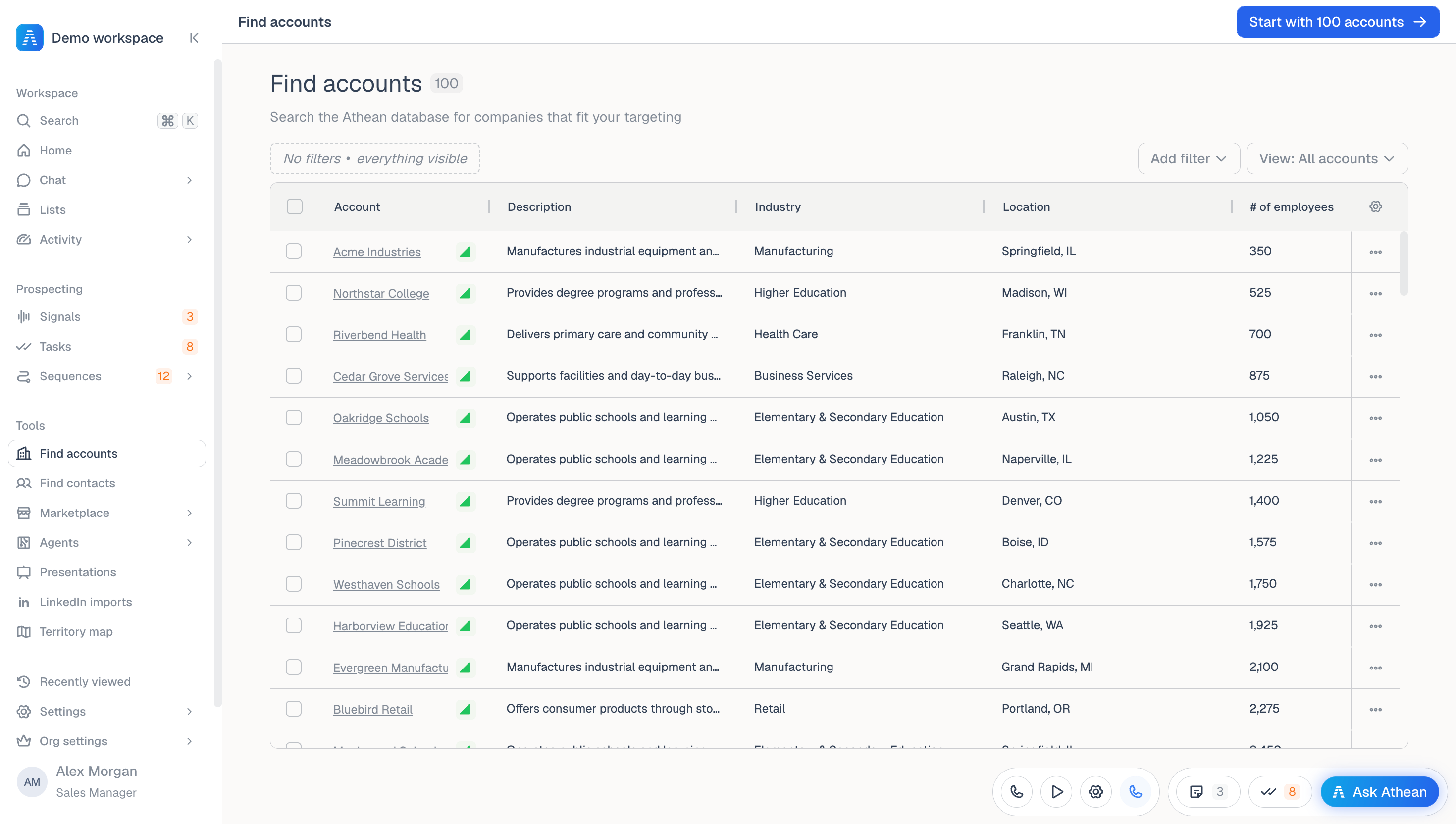
Open Tools → Discover and select the Accounts tab to search and filter the accounts in your workspace. Start with a clear description of your audience: where the companies operate, their industry, their size, and any relationship they already have with your team.
Discover searches accounts already in Athean, such as accounts synced from your CRM, imported from a CSV file or Sales Navigator, or added by Chat, agents, and automations. To find and import accounts that aren't in Athean yet, for example from public directories or SLED board listings, use Chat or Agents. New accounts are created only when your organization allows account creation. Chat asks for your approval before it imports contacts from LinkedIn or ZoomInfo or creates contacts from research, but it can add a single person you name without asking.
Check the selected view before adding filters. Opening Discover from the sidebar applies your group's Discover default view when one is assigned; a link that names a view or filters takes precedence.
Available filters and records depend on your organization's data and connections. CRM-specific filters need the relevant CRM connection and setup.
Filter accounts by Account, Contact, and Signal criteria
- On the Accounts tab, select Add filter.
- Choose from three groups of filters:
- Account: Company details such as Industry, Location, and Employee count; relationship and activity such as Account owner, Lists, and Last activity; Athean heat index; exclusions such as Exclude warm accounts, Exclude accounts in active sequence, and Exclude accounts with sequence completed in last 30 days; and any Salesforce filters your administrator added.
- Contact: Filters such as Job title, Department, or Seniority. On the Accounts tab, these find accounts with at least one contact who matches all of them. For example, add a Job title filter to find manufacturers that employ an operations leader.
- Signal: Signal type, Status, Assignee, and Signal date find accounts that have a matching signal.
- Review the active filters and the results together. Change a value or remove a filter if you have narrowed the search too far.
For the two sequence exclusions, choose Any sequence or Selected sequences. With Selected sequences, choose one or more templates or operators, so you exclude only the outreach that matters to your workflow.
If your team uses Salesforce, an administrator can add reusable filters in Org settings → Salesforce filters. They appear in the Account or Contact section of Add filter, depending on what each filter returns. See Salesforce filters.
Switch between the Accounts and Contacts tabs
Discover is one search with two tabs. Use the Accounts and Contacts tabs at the start of the filter bar to see the companies or the people that match your filters.
- Switching tabs keeps your filters and the selected saved view, so you can refine one search from both sides.
- Opening Discover from the sidebar starts a fresh search with your group's Discover default view, when one is assigned.
- Each tab shows how many results have loaded. A count ending in + means more pages are available.
- On the Accounts tab, Signal filters find accounts that have the signal. On the Contacts tab, they find people who have it.
If contact search isn't set up for your organization, the Contacts tab is unavailable, and Contact filters are marked Not applied and don't narrow account results.
Filter by Athean heat index
Athean heat index rates accounts and contacts High, Medium, or Low from prospect-side activity in the last 90 days, such as emails, meetings, calls, LinkedIn activity, opportunities, and signals. Athean recalculates it nightly. A record without a rating shows no heat badge and doesn't match the filter. Use the rating with your company criteria to choose which accounts to review first.
Select Add filter → Account → Athean heat index and choose the levels to include. In the results, hover over an account's heat badge for a summary, or select it to open the Heat index dialog. The dialog shows:
- The rating and since when, with any status such as In pipeline, Customer, or Declined.
- Drivers: the activity behind the rating, with each driver's Weight (High, Medium, or Low) and When. Select Show N more or Show all N to see more drivers.
- Holding it back: what keeps the rating from being higher, such as no meeting in the last 30 days.
- Next step: the follow-up Athean suggests, when it finds one.
- Supporting context: sentences that explain the rating, each with the activity it cites.
Check open work, add to lists, or save views
- Open tasks and Unactioned signals columns: Open tasks counts overdue and upcoming tasks on the account for all users. Unactioned signals counts signals from the past 90 days whose status is still Open.
- Add to list: Select account rows and choose Add to list to save them to an account list.
- Save as new view: Open the View menu and choose Save as new view... to save your filters, pinned filters, and optional column layout. See Saved views.
When expected accounts are missing
| Problem | What to do |
|---|---|
| An expected account doesn't appear | Check the active filters, exclusions, and selected View. If the account isn't in your workspace yet, bring it in through CRM sync, a CSV upload, Chat, or an agent. |
| The result count says "(some matches may be missing)" | A Salesforce or signal filter matched more records than one search can check. Narrow that filter, for example with a shorter Signal date, or add other criteria. |
| Results couldn't load | Select Try again. |
| The search expired or can't continue | A search expires after a period without activity. Select Start over to load results from the first page. |
| A Salesforce filter is missing | Salesforce filters need a Salesforce connection and an administrator's setup. See Salesforce filters. |