
How AI credits and monthly limits work
Athean measures AI work in credits. Usage includes Chat conversations, agent runs, sequence generation, AI drafting, research, meetings, account summaries, and web searches. It's counted per calendar month. The model chosen for a conversation or an agent affects how quickly its work uses credits; see Chat and Ask Athean.
| Organization setup | What applies |
|---|---|
| Tracking only | Athean records usage so you can review it. No credit limits are enforced. |
| Enforced limits | The organization shares one monthly pool, the Monthly allowance. Organization administrators can also give each person a monthly limit. New AI work stops when the pool or that person's limit is used up. |
- Personal limits draw from the pool. A limit caps how much of the shared pool one person can use. It doesn't reserve credits for them, so everyone's limits together can add up to more than the allowance. No individual limit means the person can use whatever is left in the pool. To plan limits, see Set up AI credit limits for your team.
- Monthly reset: usage resets at 00:00 UTC on the first day of each month, which can be the evening before in your time zone. Unused credits don't carry over.
- Who changes what: Athean sets the organization's allowance; to change it, contact Athean support. Organization administrators manage personal limits and limit requests in Org settings → AI usage, or by asking Athean in Org settings → Admin chat (see Manage AI credits in Admin chat).
Work charged to a person or to the organization
Every credit used comes out of the organization's pool. Work charged to a person also counts toward that person's monthly limit. Work charged to the organization counts only toward the pool, and administrators see it under View usage not tied to a person.
| Work | Charged to |
|---|---|
| Chat conversations | The person chatting |
| Agent runs | The person the run is for |
| AI drafting (emails, replies, call scripts, subject lines, and InMails) | The person drafting |
| Account research runs | The person who starts the run |
| Sequence generation for an AI operator | The person whose action starts it, such as adding contacts. When an automation starts it, the organization. |
| Live assist (cited knowledge-base insights generated during recorded meetings, for organizations with a knowledge corpus) | The organization. The insights appear in the meeting's transcript afterward; see Meetings. |
| Automation runs, including Run now | The organization |
| Account summaries | The organization. Opening an account page can generate one, so the person viewing it isn't charged. |
| Meeting summaries and call analysis | The organization |
| Daily briefings | The organization |
| Background processing | The organization |
Work that runs inside a Chat conversation or an agent run, such as research, drafting, sequence generation, or automation code, is charged to that conversation or run.
View your AI credit usage
- Select your name or photo at the bottom of the sidebar, then select AI usage. You can also open Your credit usage directly.
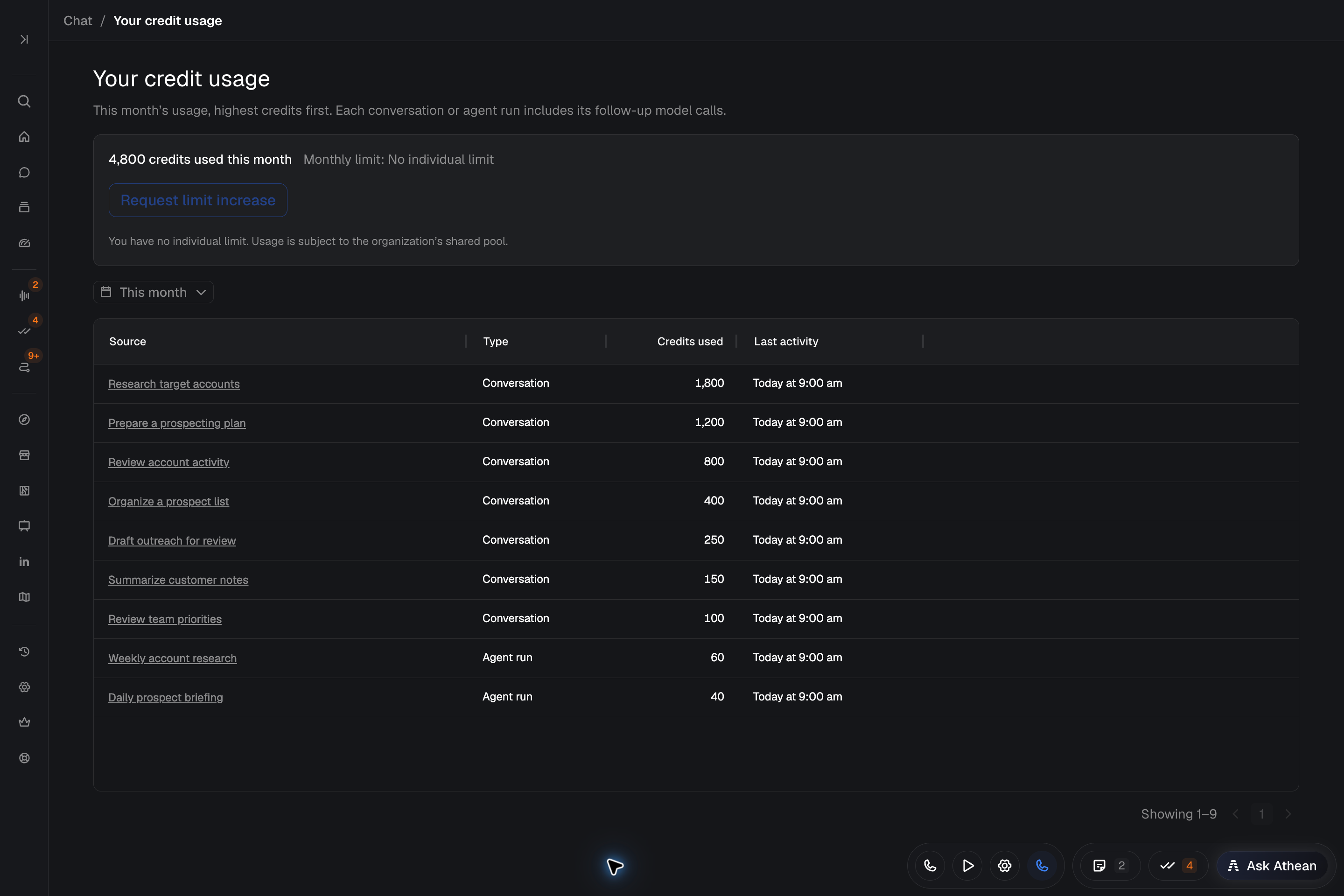
- At the top, check the credits you've used this month and your Monthly limit. If you have a temporary increase, the page shows when it expires.
- Choose This month or All time.
- Review the table: Source, Type, Credits used, and Last activity, with the highest credits first. Select a source to open the conversation, agent run, AI operator, or account behind it.
- Use the page controls at the bottom to see more rows.
The AI usage entry in that menu also shows your usage this month. When limits are enforced, it also shows your usage against your limit (if you have one), the credits left when you're close to it, Limit reached or Org limit reached when new work is blocked, and the reset time in your local time.
When limits are enforced and you have a monthly limit above 0, a warning appears when you've used 80% of it. It says You're nearing your monthly AI credit limit. and shows the credits left and when your limit resets. If you first see it after your limit is used up, it says You've reached your monthly AI credit limit. and tells you to ask an org admin to raise your limit. Select View usage to open your credit usage. The warning appears once a month in each browser you use, and not when the organization's pool has run out.
- A conversation or agent run includes the AI work it starts, such as research and drafting.
- Work you start elsewhere has its own rows. For example, all your AI drafting appears as one Drafts row, and research you run on an account appears as Research.
- Some work is charged to the organization's pool instead of to a person, such as account summaries, automations, briefings, and meeting and call analysis. It doesn't count toward your personal limit. See Work charged to a person or to the organization.
- Unavailable to open means the source was deleted or you no longer have access to it. Its usage still counts.
- If the table shows Could not load credit usage., select Retry. A loading error doesn't mean nothing was used.
Request a higher monthly limit
You can request an increase when your organization enforces limits, allows requests, and you have an individual monthly limit. With No individual limit, there's no personal limit to raise, and the page says your usage is subject to the organization's shared pool.
- On Your credit usage, select Request limit increase. If Chat refuses a message for credits, Review limit and request increase opens the same form.
- Check your current limit and usage. Optionally, explain the work in Why do you need more credits? (optional).
- Check which administrators will be notified, then select Send request.
The page then shows Request pending and when you sent it. You can have one pending request at a time, and any organization administrator can review it. If no administrators are set to get notifications, the request still waits in the admin review queue.
- Sending a request doesn't change your limit.
- You get the decision as a notification in Athean and by email. An approved increase lasts for the rest of the month or permanently.
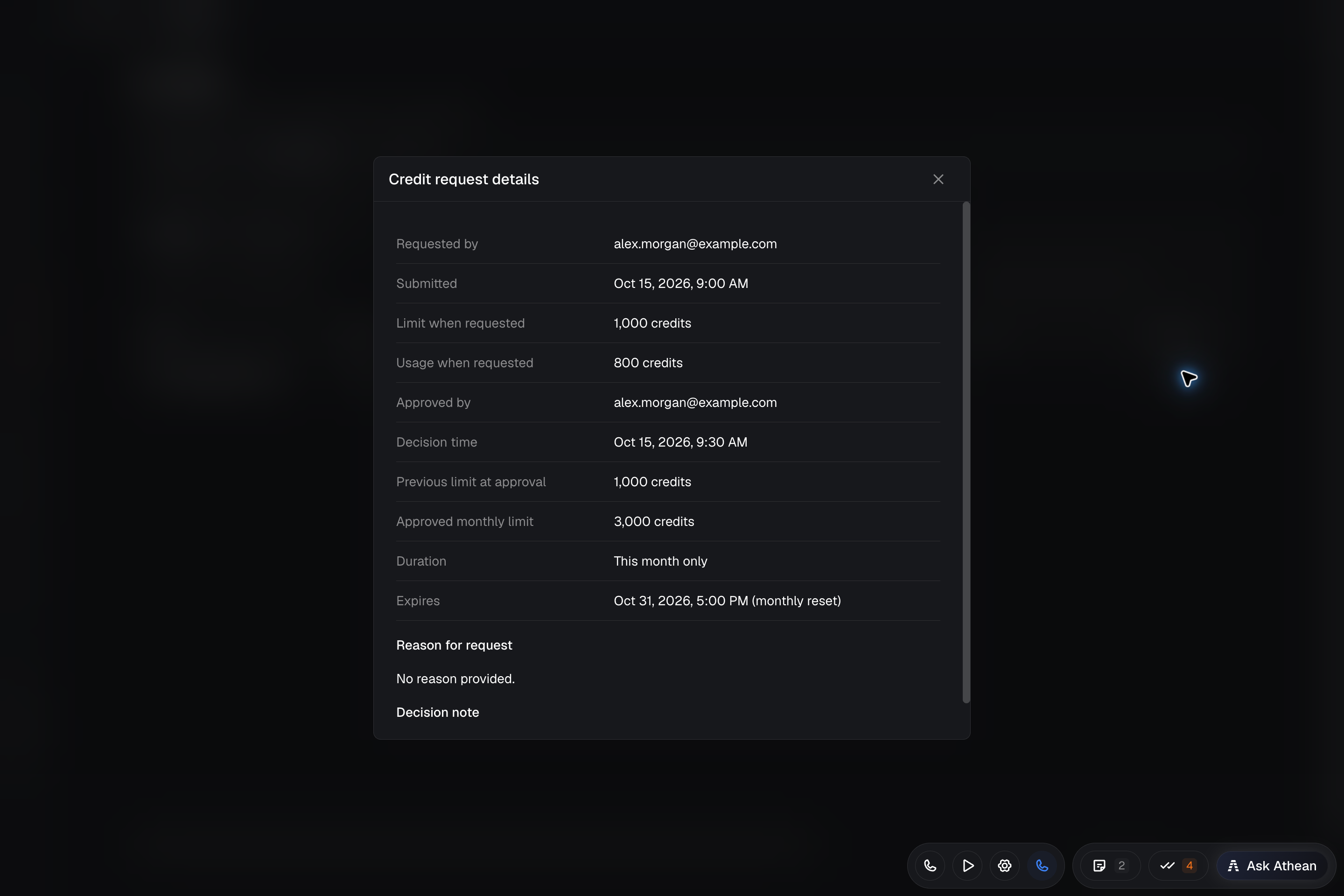
- To see earlier requests, select Your request history, then View details. Details show who reviewed the request, the decision note, the approved limit, the duration, and when it expires.
- If Request limit increase is unavailable, read the message below it and ask an organization administrator about your limit.
- If the organization's pool has run out, the page says so. A personal increase won't restore access; contact an organization administrator.
View organization credit and token usage
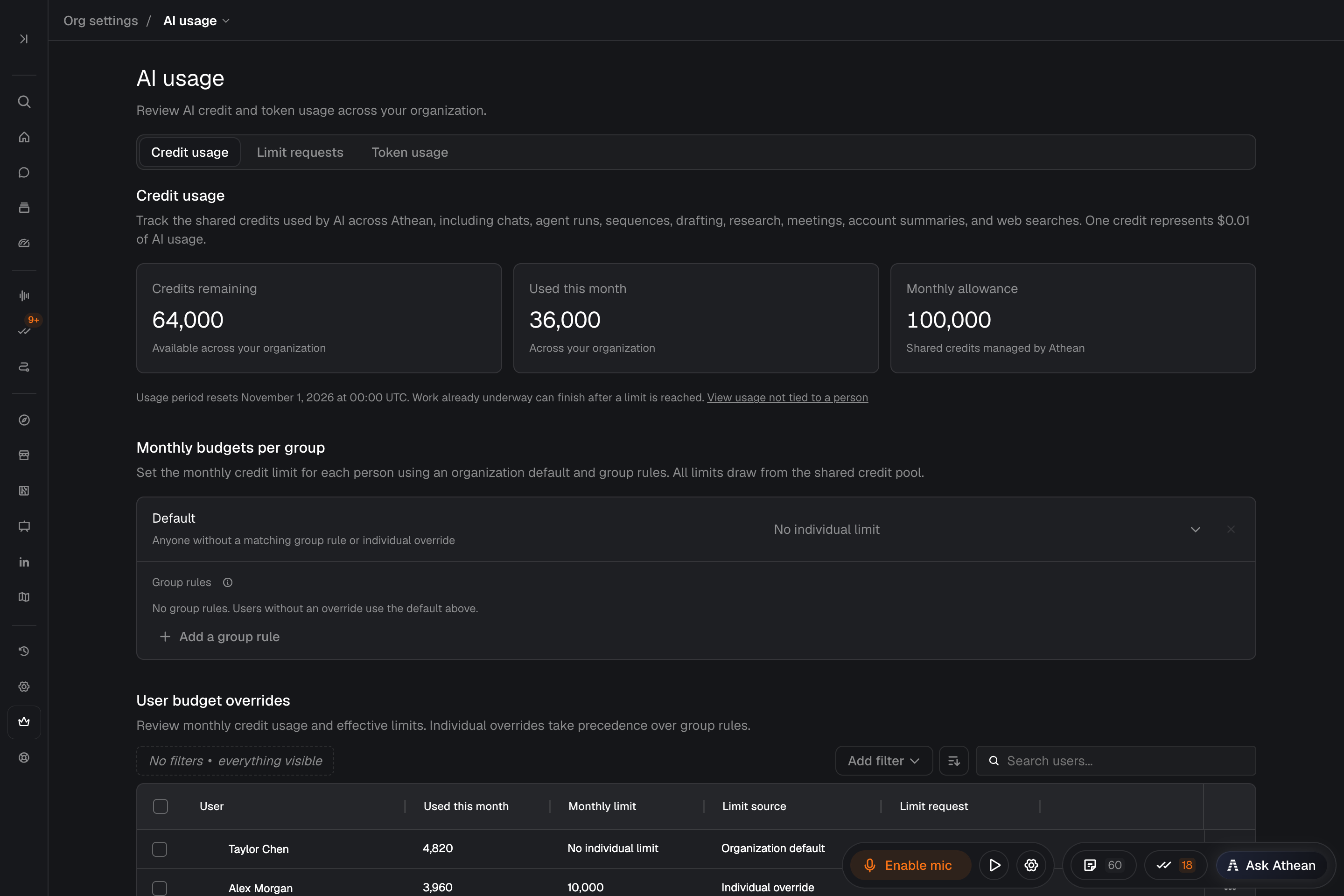
Organization administrators open Org settings → AI usage. The page has three tabs: Credit usage, Limit requests, and Token usage.
- On Credit usage, check Used this month for the whole organization. With enforced limits, the tab also shows Credits remaining and Monthly allowance. Without them, it shows Tracking only.
- Check the reset date below the totals.
- Select View usage not tied to a person to see work paid from the shared pool rather than by a person: account summaries, sequence generation, code automations, briefings, live assist, meeting and call analysis, and background processing.
- In the user table (User budget overrides with enforced limits, User usage otherwise), search for a person or sort by Most credits used or Name.
- With enforced limits, select Add filter to narrow the table by Usage (Near limit (80% or more) or Limit reached), Limit source (Organization default, Group rule, Individual override, or Temporary increase), or Group rule (people whose limit comes from that group's rule). Filters combine. Near limit (80% or more) leaves out people who have reached their limit, and people with No individual limit match neither usage option.
- Select a person, or View usage in their row menu, to see the work behind their total.
- With enforced limits, a person with a pending limit request shows Review request in the Limit request column and Review limit request in their row menu. Either one opens that request on the Limit requests tab.
- The organization total includes usage by people and usage not tied to a person. View usage not tied to a person shows only the second part.
- With enforced limits, every active organization administrator gets an email as the pool nears its allowance. AI credit emails, including this alert, new limit request emails, and decision emails, come from no-reply@athean.com.
Token usage is a separate view of AI model activity. Set Scope (All usage or User-attributed) and Time period, and use People to focus on selected people or groups. Choosing people switches to user-attributed usage, which leaves out automated and background activity. Token totals measure something different from credits, so use Credit usage to look into limits.
Set the organization default, group rules, and individual limits
With enforced limits, organization administrators set monthly limits on the Credit usage tab. A person's limit comes from the first of these that applies:
- A limit for this month only, from an approved request or set in Admin chat. It shows as Temporary increase, even when it's lower than the person's usual limit, and ends at the monthly reset.
- An individual limit set for that person.
- The first group rule in the list for a group the person belongs to.
- The Organization default.
To set the default and group rules, use Monthly budgets per group:
- Next to Default, select the current limit. Choose Custom monthly limit and enter Credits per month, or choose No individual limit, then select Done. Closing the editor any other way discards the change. Change an existing rule's limit the same way.
- Select Add a group rule, choose a group in Group, set its limit, and select Add rule. To create or change groups, see Groups.
- Put the rules in order with Move rule up and Move rule down. When someone belongs to several groups, the first matching rule sets their limit. Remove rule deletes a rule.
- Select Save changes.
- Check each person's Monthly limit and Limit source in User budget overrides. The source is a group name, Organization default, Individual override, or Temporary increase.
To set one person's limit, open their row menu and select Edit limit. In User limit, choose Use group or organization default, Custom monthly limit, or No individual limit, then select Save user limit.
To change several people at once, select them with the checkboxes in User budget overrides, then use one of these:
- Set limit: in Set monthly limit, under Limit type, choose Custom monthly limit and enter Credits per month, or choose No individual limit. Then select Set limit for N users. Each selected person gets that individual limit, which overrides group rules and the organization default. The change is saved for everyone selected or, if any part is refused, for no one.
- Reset to default: removes the individual limit or temporary increase from each selected person who has one, so their group rule or the organization default applies. When only some of the selected people have one, the button shows Reset to default (N). It saves as soon as you select it, with no confirmation, and it's unavailable when no one selected has an individual limit or temporary increase.
Saving with Save user limit or Set limit for N users, or selecting Reset to default, ends any temporary increase the person has, whichever option you save.
- A limit of 0, or a limit at or below what the person has already used this month, blocks new AI work for that person.
- Changing limits or group membership keeps the usage already recorded this month and doesn't add credits to the pool.
- A rule whose group was deleted no longer applies.
- Save or cancel changes to the default and group rules before you use Edit limit, Set limit, or Reset to default.
- If another administrator changes the limits while you're editing, your draft is kept but can't be saved. Cancel to load the latest limits, then make your change again.
- If the limits changed before you saved several people at once, nothing is saved. The table reloads with your selection kept, so check it and try again.
- With unsaved changes to the default or group rules, switching to another tab on this page asks first: select Stay to keep editing, or Switch tabs without saving to discard the changes. Leaving the page asks the same way, with Leave without saving.
Approve or reject limit increase requests
- Open Org settings → AI usage → Limit requests, then the Requests tab.
- Filter by Status, Request date, or Reviewed by, or search by requester email. Select Review on a request.
- For a pending request, read the reason and the person's Current credit usage: Monthly limit, Used this month, Limit source, and Organization credits remaining.
- Under Decision, choose Approve or Reject.
- To approve, enter a New monthly limit (credits) above both the person's current limit and their usage. Then choose a Duration: This month only (the default) or Permanent.
- Add a Decision note. It's optional when approving and required when rejecting, and the requester sees it.
- Select Approve increase or Reject request.
- This month only ends at the monthly reset, and then the person's usual limit applies again. Permanent sets an individual limit that overrides group rules and the organization default.
- Approving keeps usage already recorded and doesn't add credits to the pool. If the pool has run out, approving won't unblock the person.
- A request from someone who is no longer active, or who no longer has an enforced individual limit, can only be rejected.
- The requester gets the decision as a notification in Athean and by email.
- If limits change while you're reviewing, select Reload request before you decide. A decided request can't be reviewed again; Review then shows its details.
To decide several pending requests the same way, select them with the checkboxes on the Requests tab, then select Approve or Reject. Only pending requests can be selected: a decided request's checkbox is disabled and, when you point to it, shows Only pending requests can be approved or rejected together. For pending requests, the Current limit and Used this month columns show each requester's limit and usage now.
- Approve: choose Raise to and enter a New monthly limit (credits) that every approved requester gets, or choose Raise by and enter an Increase per user (credits) to add to each requester's current limit. Choose a Duration (This month only or Permanent), optionally fill in Decision note (optional), and select Approve N requests. With Raise to, the form warns when selected requesters already have a limit or usage at or above the amount you entered; their requests will be skipped.
- Reject: fill in Decision note (required) and select Reject N requests.
Each requester is notified in Athean and by email and sees any decision note. A request is skipped if it was already reviewed or, when approving, if the requester is no longer active, no longer has an individual limit, or wouldn't end up above both their current limit and their usage this month. The rest are saved. Skipped requests stay selected, and their reasons are listed above the table; select Dismiss to hide the list.
To control requests, open the Notifications tab under Limit requests. Set Allow credit increase requests, choose in Notify these admins who gets an in-app notification and an email for each new request, and select Save changes. Recipients are optional: without them, people can still send requests, and administrators find them on the Requests tab. Turning requests off keeps pending requests and history. With unsaved notification changes, switching tabs asks first: Stay keeps your changes, and Switch tabs without saving discards them.
Manage AI credits in Admin chat
Organization administrators can ask Athean in Org settings → Admin chat about AI credit usage and have it change limits and requests, for example "Who is close to their limit this month?" or "Set Jordan Lee's limit to 2,000 credits for this month only." Admin chat is available only to active organization administrators, and Athean checks that you still are one each time it reads or changes credit settings.
Athean reads these without asking for approval:
- Each person's usage this month, monthly limit, Limit source, when a this-month limit expires, and any pending request.
- What used a person's credits, or the organization's usage not tied to a person.
- Limit requests and the request notification settings.
Each change shows a Needs approval card in the chat, and nothing is saved until you select Approve:
- Individual limits: a custom limit, No individual limit, or back to the group rule or organization default, for one person or several. Athean can also set a custom limit for this month only without a request, which the AI usage page can't do. It shows as Temporary increase, ends at the monthly reset, and leaves the person's usual limit in place for afterward.
- Limit requests: approving (raising limits to or by an amount, for this month only or permanently) or rejecting with a note. Requests that can't take the decision are skipped, as on the Requests tab. Each requester is notified in Athean and by email.
- Organization default and group rules: Athean replaces them together, and the card shows both before and after the change.
- Request settings: turning limit requests on or off, and choosing which administrators are notified of new requests.
A change worked out separately for each person, such as each person's usage this month plus a set amount, or a change for a large number of people, runs as code instead. Athean previews who gets which limit, asks you to confirm in the chat, and then saves without an approval card.
Code that runs as an organization administrator, such as a code automation the administrator owns, can also read credit usage, limits, and requests and set individual limits, without an approval card. Reviewing requests, changing the default and group rules, and changing request settings are available only on the AI usage page and in Admin chat.
As on the AI usage page, a change keeps the usage already recorded this month and doesn't add credits to the pool. If the limits changed after Athean read them, nothing is saved until Athean reads them again.
What happens when credits run out
With enforced limits, Athean checks credits before it starts new AI work. Work that has already started finishes, and work running at the same time can take usage past a limit.
| Work | When credits run out |
|---|---|
| Chat | Your message is kept, but Athean doesn't reply. The notice starts with AI credit limit reached, says whether your limit or the organization's pool ran out, and offers Review limit and request increase. |
| Agents | A run uses the credits of the person it runs for. A scheduled run that can't start shows Skipped and doesn't run later; the next scheduled run starts normally once credits are available. Run now is refused. |
| Adding contacts to an AI operator | Athean queues the contacts your credits cover and shows Some contacts were not added for the rest. When credits are available, select Retry deferred. |
| AI drafting (emails, replies, call scripts, and InMails) and account research runs | Refused before they start. Nothing is generated or charged. |
| Account summaries | Show the last saved summary with a note that it wasn't refreshed. They update once credits are available. |
| Live assist | Checked when Athean starts transcribing a meeting. If the organization's pool is used up then, no insights are generated for that meeting. Recording and transcription continue. |
| Daily briefing | Still sent, without the AI meeting prep, and it says why. |
| Automations | Keep running, including Run now, and still count toward the pool. |
| Meeting summaries, call analysis, and background processing | Keep running and still count toward the pool. |
To continue:
- Your limit is used up: request an increase or ask an organization administrator, or wait for the monthly reset.
- The organization's pool is used up: an organization administrator can contact Athean support about the allowance. Otherwise, wait for the monthly reset.
- After credits are available, retry the work that was refused. A skipped agent run isn't replayed, so check whether its work is still needed before you start it with Run now.
- Running out of credits doesn't cancel outreach that's already scheduled in a sequence. Check the sequence's status before you add the contact again.
- AI credits could not be checked means the check itself failed. Try again shortly.