
Saved views vs. lists
| Feature | Behavior |
|---|---|
| Saved view | Saves filter values and pinned filters on a page such as Discover, Signals, Tasks, or a list. On Discover, Signals, and Tasks, it can also set a column layout: visible columns, their order, frozen columns, and sort. The results update as records change. |
| List (see Lists) | Holds specific accounts or contacts that you add or remove. A saved view can narrow a list to the records you want to work with today; changing the view doesn't remove records from the list. |
Pin filters to the filter bar
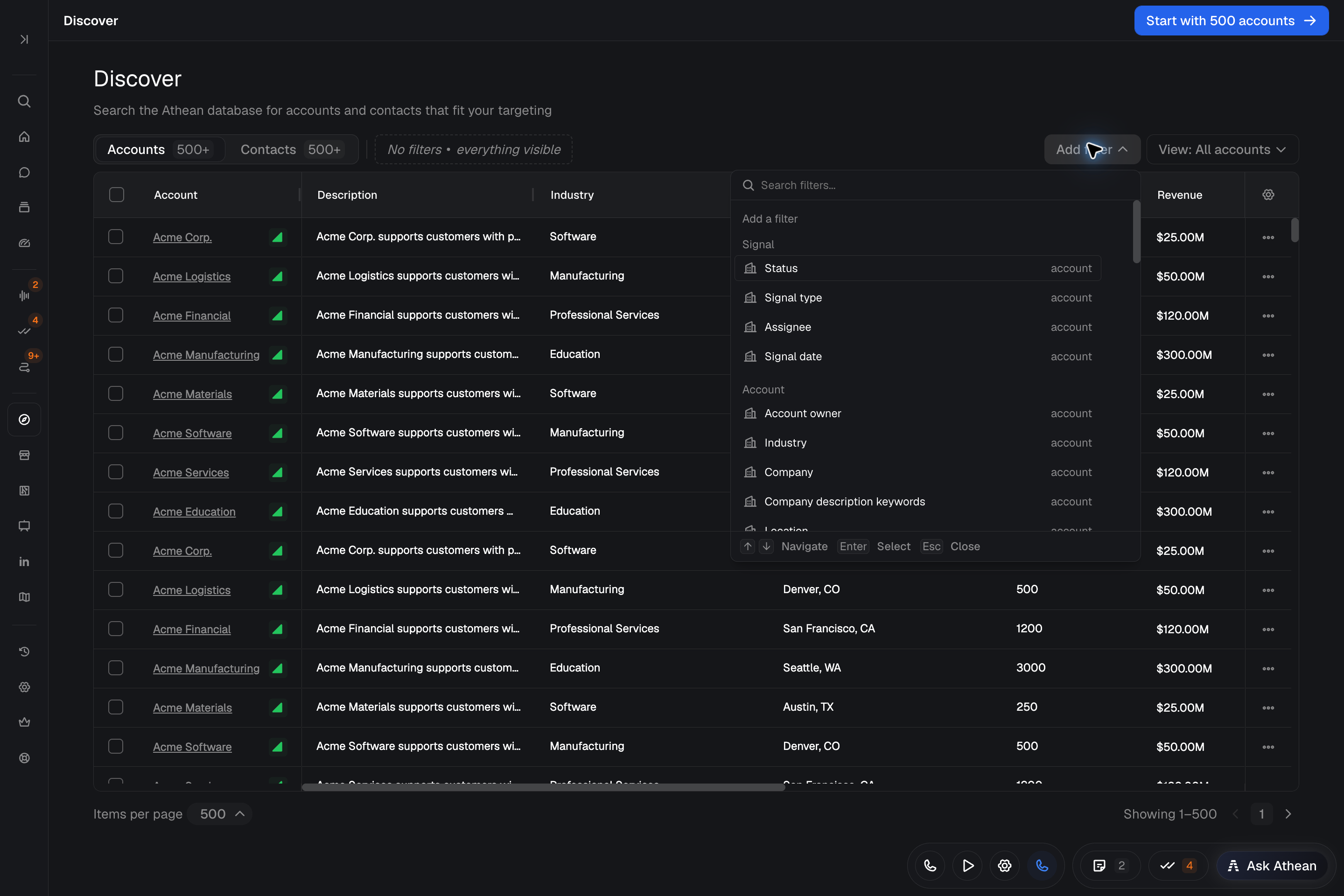
- Open Add filter, or an active filter's popover, and select the pin beside a filter such as Industry.
- The pinned filter stays on the filter bar showing Any until you choose a value, so you can use it without reopening Add filter.
- Save a view to keep your pinned filters for next time.
A pin by itself doesn't narrow the results. Clearing a pinned filter's value keeps the control on the bar; unpin an empty filter to remove it.
Save a new view and column layout
- Open a page that supports saved views, such as Tools → Discover, Signals, Tasks, a list, Agents, or Automations.
- Add the filters you want to reuse, or pin a filter. A view needs at least one active or pinned filter.
- Arrange the columns, frozen columns, and sort if you want the view to set them.
- Open the View menu and select Save as new view.... The button shows your current view, for example View: All accounts or View: Custom.
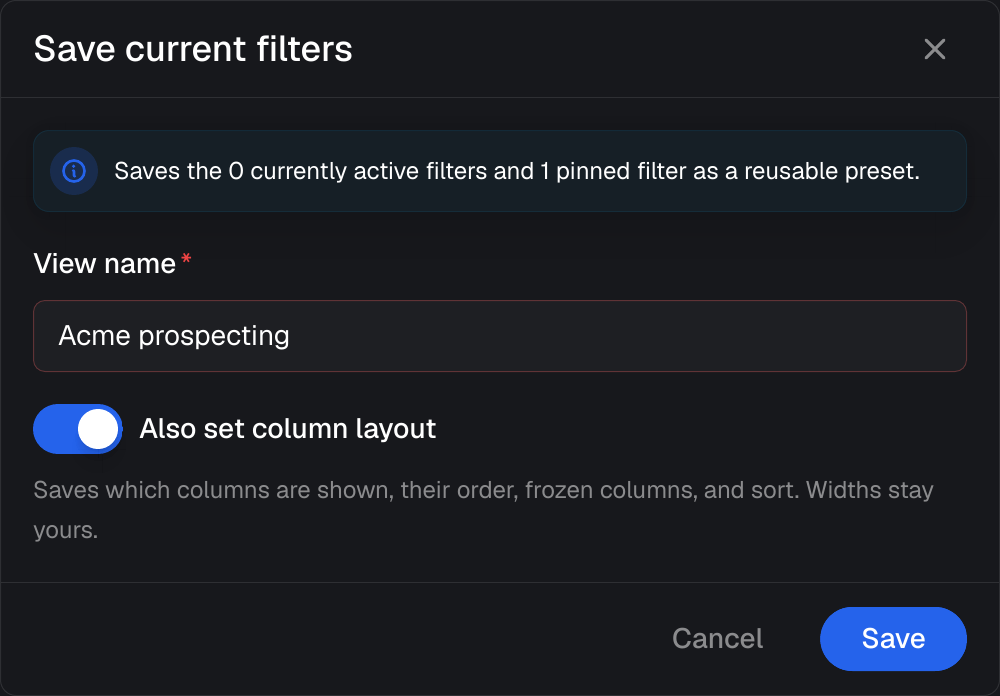
- Enter a View name. On Signals and Tasks, Also set column layout is on by default and saves visible columns, their order, frozen columns, and sort. Column widths stay personal. Turn it off if the view should set only filters and pins. On Discover, set the column switches described below. On a table without these switches, a view saves filters and pins only. On Discover, Signals, and contact lists, turn on Use viewer in owner filters to make the view's owner and assignee filters match whoever opens it, so each person sees their own records. Other filters stay the same.
- Select Save.
On Discover, a view is available on both the Accounts and Contacts tabs and can hold a separate column layout for each. The dialog shows Also set column layout for Accounts and Also set column layout for Contacts. The switch for your current tab starts on. Turn on the other to save that tab's current columns too, even if you haven't opened it. Tabs left off keep each person's own columns. The Contacts switch is unavailable when contact search isn't set up for your organization.
Understand which view opens first
Administrators and configuration managers can assign default saved views for Discover, Signals, and Tasks by group in Layout configuration. Opening one of those pages normally loads your group's default. A link that names a view or filters takes precedence for that visit, and you can switch views from the View menu.
Discover has one default for both tabs. Opening Discover from the sidebar applies it, while switching between the Accounts and Contacts tabs keeps your current search and view.
If no default is assigned, or the assigned view isn't available to you, the page opens in its usual starting state.
Reopen recently used filters
The View menu on Discover, Signals, Tasks, lists, and other tables with saved views has a Recently used section once you have history there. It lists your most recent filter combinations on that kind of table, newest first, with how long ago you used each. Filters count as used once they've stayed on screen unchanged for a short time, however you applied them.
- A saved view you left unchanged is listed by its name. Selecting it reopens the view, including its columns. If the view has since been deleted, the entry shows its filters instead.
- Other filter combinations are listed by their filters, as the filter chips read. Selecting one leaves any selected view, so that view's columns no longer apply, and applies those filters.
- An entry whose filters no longer exist is unavailable. Hover over it to see Some of these filters are no longer available.
Your history is saved to your Athean profile, so it follows you to other browsers and devices. Each kind of table keeps one history: Discover has one for both tabs, all contact lists share one, and all account lists share one.
Open saved views from Chat
Ask Athean in Chat to list your saved views or to give you a link to one. Athean lists the views in your View menus: views you own, and views shared with you whose Access and Show in Saved views both include you.
- Discover, Signals, and Tasks: the link opens the view's current saved definition, even after it's renamed or edited. If the view can't be opened, the page reads This saved view is unavailable, you don't have access to it, or it cannot be opened from this link. with Open Discover.
- Other pages with their own address, such as Agents and Automations: the link opens that page with the view selected.
- Tables that belong to one account or list, such as an account list: views saved there have no standalone link. Open them from that table's View menu.
A custom dashboard can also show a list of saved views (see Custom dashboards). Each signed-in viewer sees their own views, and the list can't load on an external share link.
When a view looks wrong
- Columns didn't change when you selected a view: On the tab you are viewing, open View → View settings... and check Also set column layout (on Discover, Also set column layout for Accounts or Also set column layout for Contacts). Column widths stay personal.
- Column changes don't mark the view changed: The view doesn't set those columns, so they're your own. On Discover, that tab's switch is off. To have the view set them, turn on Also set column layout (on Discover, the tab's switch) in View → View settings... and select Save.
- Saving shows "Couldn't read the Contacts columns. Open the Contacts tab and try again.": Athean couldn't load that tab's columns to save them. Open the tab the message names (Accounts or Contacts), then save again.
- A Discover link shows "This saved view is unavailable or you don't have access to it.": The view was deleted, or you don't have Access to it. Select Try again, or ask the view's owner to check View → Share....
- A link from Chat shows "This saved view is unavailable, you don't have access to it, or it cannot be opened from this link.": The view was deleted, you don't have Access to it, or it can't be opened from a link. Select Open Discover, or ask Athean to list your saved views again.
- Results look wrong: Check the selected view, its active filters and pins, and any changes you made since opening it. A pinned filter showing Any doesn't narrow the results.
- A shared view is missing from someone's menu: Check both Access and Show in Saved views in View → Share....
- A view can't be deleted or its sharing can't be reduced: It is assigned as a group default in Layout configuration. An administrator or configuration manager must replace or remove that assignment first.