
Compose and send an email
Start an email from a contact, or from an email task in Prospecting → Tasks. Before you send, connect your work Google or Microsoft account in Settings → Integrations (see Connect your tools) and set up your signature in Settings → Emails.
To reply, select Reply on an email in the contact's activity feed. The reply goes in the same conversation to the email's sender and other To recipients, keeping its Cc recipients. You're left off, Bcc recipients aren't copied, and replying to an email you sent keeps your original recipients. Remove anyone you don't want before sending. Reply is unavailable on an email you weren't on. To have Athean write the reply, see Reply to an email through Chat.
- Snippets and scheduling links: Insert reusable content with snippets (see Create and use snippets), and add your scheduling link when you invite the recipient to book a meeting (see Scheduling links). Check any personalized variables before sending.
- Attachments: Attachments can total up to 3 MB per email. They work when you send now and on one-off scheduled emails, but not when you schedule a sequence's manual email task for later.
- Reply reminders: Select Remind me to follow up, set the number of days (1 to 90), choose If no reply or Always, and select Apply. Athean notifies you after that many days; with If no reply, only if no one outside your company has replied. Replies from teammates, automated replies such as out-of-office messages, and bounces don't count. A reminder doesn't send anything.
- AI drafting: AI drafting uses credits. If generation is unavailable because of a limit, see AI usage and credit limits. Check any message that was already drafted before you send it.
Select Send to send the email now, or open the menu beside it to send it later.
Emailing opted-out recipients
If a To or Bcc recipient, or the contact the email is linked to, has opted out of email, Athean asks Are you sure? before sending. Select Send anyway only if the message isn't promotional or you have their explicit permission to email them; your confirmation is recorded. Cancel sends nothing and keeps your draft. If you already confirmed when you started the email from the contact, you aren't asked again. After you confirm, everyone stays on the email, including opted-out Cc recipients; without a confirmation, an opted-out Cc recipient is removed from the email. Scheduled and automated emails can't override an opt-out, including when you use Send now on a scheduled email.
Unsubscribe link
When an organization administrator turns on Unsubscribe link in Org settings → Email settings, Athean adds a line at the end of every email sent from Athean, including sequence emails: "If you'd like me to stop sending you emails please click here." It also adds standard unsubscribe headers, so mail apps such as Gmail can show their own Unsubscribe option next to the sender. A recipient who unsubscribes sees a confirmation page, and the email's To recipients are marked as opted out of email, so scheduled and automated emails to them stop.
Links Athean won't send
Athean won't send an email or LinkedIn message that contains an Internal source link from your Knowledge corpus, or a record link that opens a page inside Athean (Chat uses these links to cite records). Athean shows This message contains an internal-only link that can't be shared with prospects. Remove the link and send again. Athean checks for those exact links, not for a web address or domain, so other links, including your scheduling link, send normally.
Schedule an email to send later
A scheduled email is a one-off message. It keeps its To, Cc, and Bcc recipients, its attachments, and any reply reminder. Scheduling an email for a contact who is already in a sequence doesn't enroll them or change their sequence.
- In the composer, open the menu beside Send and select Send later.
- Choose the time zone: Contact local time zone (uses your browser's time zone when the contact has none) or User local time zone.
- Choose the reply condition: Send if no reply cancels the email if a new email arrives from a recipient before it sends, and Send anyway sends it regardless. With Send if no reply, an out-of-office reply with a return date postpones the email instead, and automated replies, such as calendar responses, are ignored.
- Select a suggested time (morning or noon on the next business day, or Next week) to schedule the email right away. For a custom date and time, use Select date & time, then select Schedule.
- Check the Scheduled email card in the contact's activity feed.
A scheduled email sends at the time shown unless it's canceled or rescheduled. If your daily sending limit has already been reached, it moves to the next business day; if its delivery deadline passes first, it's canceled instead. To change or stop it, see Edit, reschedule, or cancel a scheduled email.
When you're working on a sequence's manual email task, Send later schedules that task's email as part of the sequence instead. These emails don't support attachments yet: remove the attachment before scheduling, or send the email now.
Edit, reschedule, or cancel a scheduled email
To open a one-off scheduled email, find its Scheduled email card in the contact's activity feed and select View scheduled email. It's also listed in Recent activity on the account and contact pages. To see everything scheduled for a day, open Prospecting → Sequences → Active sequences, expand Scheduled load, select the day, and check One-off emails.
The page shows the email's status and send time in your local time zone. Edit the message if needed, then choose an action:
- Save: Keeps your changes and the current send time.
- Reschedule: Choose a new send time from the menu beside Save.
- Send now: Sends the email immediately, from the same menu. It isn't held by your daily sending limit, but opt-out and delivery deadline checks still apply.
- Discard changes: Returns to the saved version.
- Cancel email: Stops the send. A canceled email can't be scheduled again.
Open Delivery settings to control when the email can still go out. Turn on Delivery deadline and choose a date and time to cancel the email if it can't be sent by then; without a deadline, it waits for sending capacity. Cancel on incoming email cancels the email if a new email arrives from a recipient before it sends (Send if no reply turns it on). An out-of-office reply with a return date postpones the email instead, and automated replies, such as calendar responses, are ignored. Select Save settings to apply.
You can change your own scheduled emails. To change a teammate's, you need Manage sequences on behalf of that teammate; see Permissions and roles. Sent and canceled emails are read-only, and View sent email opens a sent message. An email that misses its delivery deadline is canceled, and the page shows why.
Change an email scheduled in a sequence
An email scheduled by a sequence, or from a sequence's email task, is part of that sequence. Select Show beside the upcoming follow-ups in the contact's activity feed, open the email, and Save your changes, Reschedule it, or select Send now. You can reschedule the sequence's current scheduled step when you have permission to change it.
To stop a sequence's pending send, select Pause in the contact's upcoming follow-up bar. This pauses the contact's sequence and cancels its pending scheduled steps; resuming schedules them again. Pausing a sequence doesn't cancel a one-off scheduled email.
Once an email has been sent, rescheduling it or pausing the sequence can't recall it. Check the latest activity before you act.
Review emails drafted or scheduled in Chat
When you ask Athean in Workspace → Chat to draft an email to a contact or schedule one for a specific time, the email opens beside the conversation and is listed under Conversation items. It's a one-off email: it doesn't enroll the contact in a sequence or change their sequence. Athean schedules an email without asking for approval first; to keep it as a draft, ask for a draft only.
- Check the status at the top. Draft · Not scheduled means nothing is queued until you schedule or send it. Scheduled with a time means the email will go out then.
- Review and edit the recipients, subject, message, and signature. Save keeps a draft unscheduled.
- Open the menu beside Save and select Schedule to choose a send time, or Send now to send it immediately. Select Cancel email if it shouldn't be sent.
An email Athean schedules goes out at the time shown unless you change it, so review it when it opens. A scheduled email also appears in the contact's activity feed, and you can change it like any other scheduled email, including its Delivery settings. To find a draft again, open its conversation and select it under Conversation items.
Scheduling and sending need the sender's connected Google or Microsoft account; a draft doesn't. Creating a draft or scheduled email from a teammate's account requires Start sequences on behalf of that teammate. Changing, scheduling, sending, or canceling an existing email requires Manage sequences on behalf of them, even if you created it. See Permissions and roles.
Find and reschedule scheduled emails through Chat
Ask Athean in Workspace → Chat to find scheduled emails, including emails a sequence scheduled, by content, recipient, contact, sequence, status, or send time, and to reschedule them. Results can also include drafts and sent or canceled emails. A later sequence step that hasn't been scheduled yet doesn't appear.
- What changes: Rescheduling changes the send time of the existing emails. Athean doesn't create new emails or change their content, recipients, or sequence steps.
- Approval and permissions: Athean acts directly, without an approval card, on your own emails and on a teammate's when you have Manage sequences on behalf of them. See Permissions and roles.
- Sequence emails: Only the email for an active sequence's current step can be rescheduled, to a time before the sequence's completion deadline (see Approve and manage sequences). Through Chat, Athean can't edit or cancel a sequence email; open it from the contact's activity feed or pause the sequence (see Edit, reschedule, or cancel a scheduled email).
- One-off emails: Athean can also edit or cancel one-off emails. A canceled email can't be scheduled again.
- New send time: Athean reads a day or time such as "tomorrow at 9 AM" in your time zone unless you name another. Sending limits can move an email later than the time you asked for (see Sending settings and limits); Athean reports each email's new time. Athean can't send an email immediately; to send one right away, open it and select Send now.
- Several emails at once: When you reschedule several emails, some can succeed while others fail, so check each result before asking again.
Sent and canceled emails can't be rescheduled.
Configure email open tracking and signatures
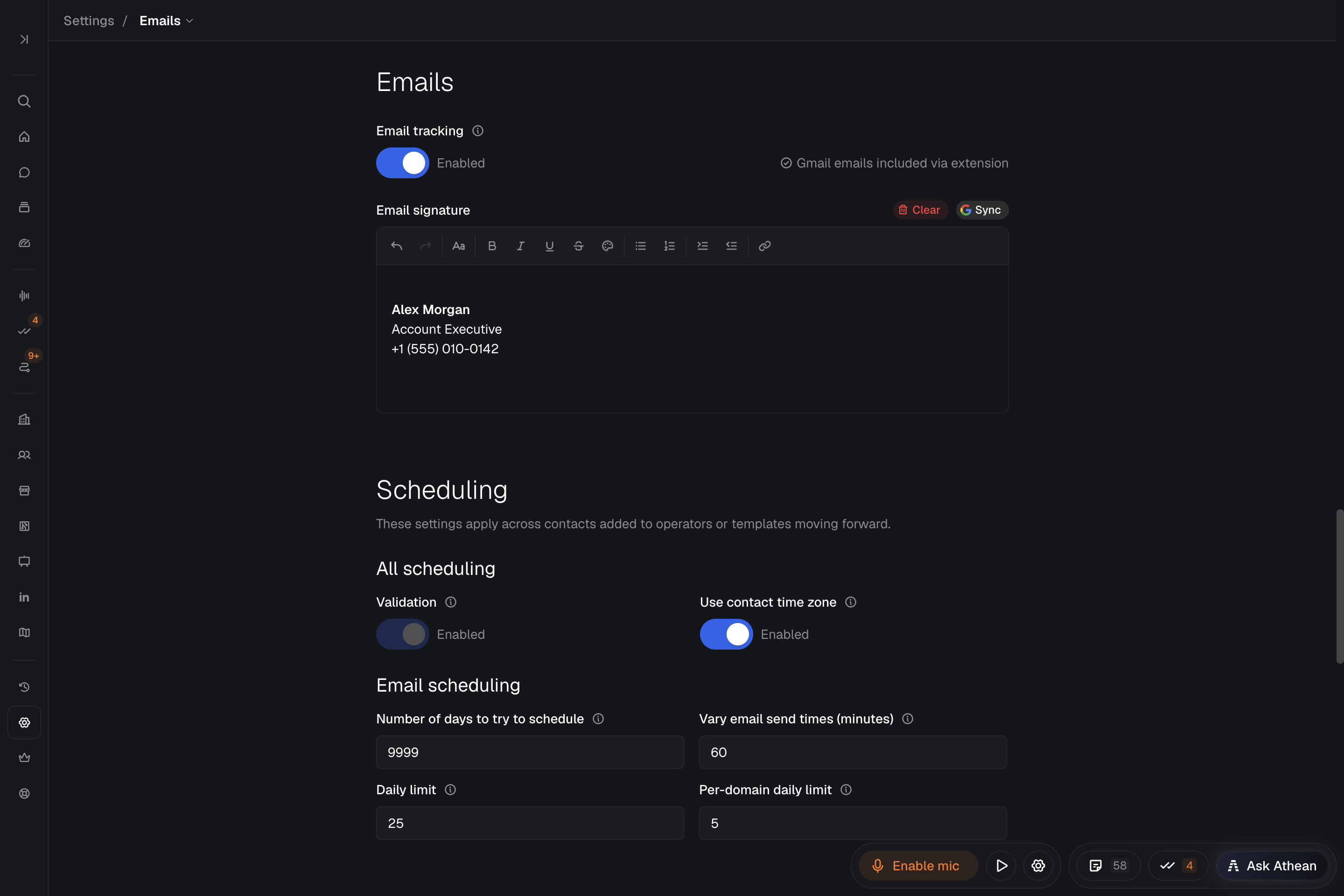
Open Settings → Emails to manage tracking and your signature, then select Save changes:
- Email tracking: Tracks when emails you send from Athean are opened. Turn it on before you send the emails you want to track. Organization administrators choose whether it starts on or off for new users with Default email tracking mode in Org settings → Email settings.
- Link clicks: Clicks on links to your organization's hosted PDF pages are tracked, on your document address or on the custom domain assigned to Document hosting (see Custom domains). Each visit from a link in an email you send from Athean is credited to the recipient, whether or not email tracking is on (see Knowledge corpus). Clicks on other links aren't tracked.
- Emails sent from Gmail: If you sign in with Google and tracking is on, you can also track emails you send directly from Gmail. Select Install extension to add the Athean Chrome extension (see Chrome extension). When it's connected, the page shows Gmail emails included via extension.
- Email signature: Edit your signature in the editor, or select Clear to remove it. If you sign in with Google, select Sync to copy your signature from your Google account.
For Gmail's own tracking toggle, open indicators, and reminders, see Use Athean in Gmail.
Interpret email open counts and statuses
Open a sent email in the contact's activity feed or activity detail to see its tracking:
- Open count: The number of recorded opens. Hover over it to see when each open was recorded and the device type (Mobile, Desktop, or Unknown).
- No opens yet: The email was tracked, and no countable open has been recorded.
- Not tracked: The email has no tracking data.
Athean leaves known automated image loads, security scanners, and in-app previews out of open counts. If a recipient replies to a tracked email and no open was measured, Athean records an inferred open. An inferred open's time is approximate, not the exact time the email was read.
Open tracking depends on the recipient's email app. An open isn't proof that a particular person read the email, and no recorded open doesn't mean the email went unread. Use replies and conversation history along with opens to decide your next step. For open and reply rates across sequences, see Analyze sequence performance.