
Meetings page views and default recording settings
Workspace → Activity → Meetings shows your meetings under Today, Upcoming, and Past meetings. By default, it covers the past 30 days through the next 7 days. Search by meeting title or attendee email, and use the date range and user filters to find a meeting. The date range only controls what you see; it isn't a recording-retention limit.
To have the Athean notetaker join your calendar meetings automatically, select Enable meeting recording on the Meetings page or set your default in Settings → Meeting recording. To send a notetaker now, even with automatic recording off, use Join with a link.
Administrators can turn on Record all meetings in Org settings → Meeting recording to record meetings by default for new users. It doesn't change existing users' settings.
Select Ask Athean to chat with Athean about a meeting (see Ask Athean about a meeting). For cited answers from your team's material, your organization needs a Knowledge corpus. This page was previously named Meeting assist; the link in Home's Today's meetings block and the breadcrumb on a meeting's page still say Meeting assist.
Toggle recording for individual calendar meetings
Open an upcoming meeting in Meetings and use the Recording toggle to turn the notetaker on or off for that meeting only. This overrides your default for that meeting.
- 15-minute cutoff: You can't turn recording on within 15 minutes of a meeting's scheduled start. Use Join with a link instead, or Join now once the meeting has started. You can turn recording off at any time.
- Meetings already in progress: If a meeting has started without a notetaker, expand it, check or paste the Zoom, Google Meet, Microsoft Teams, or Webex link in Meeting link, and select Join now. Admit the notetaker from the waiting room if prompted; recording starts after it joins.
- Stop recording: Select Stop recording to remove the notetaker and stop recording, including when a meeting runs past its scheduled end.
Recording and chat controls work only for meetings associated with you. Meetings you see through a teammate filter are view-only.
Send a notetaker to an ad-hoc meeting URL
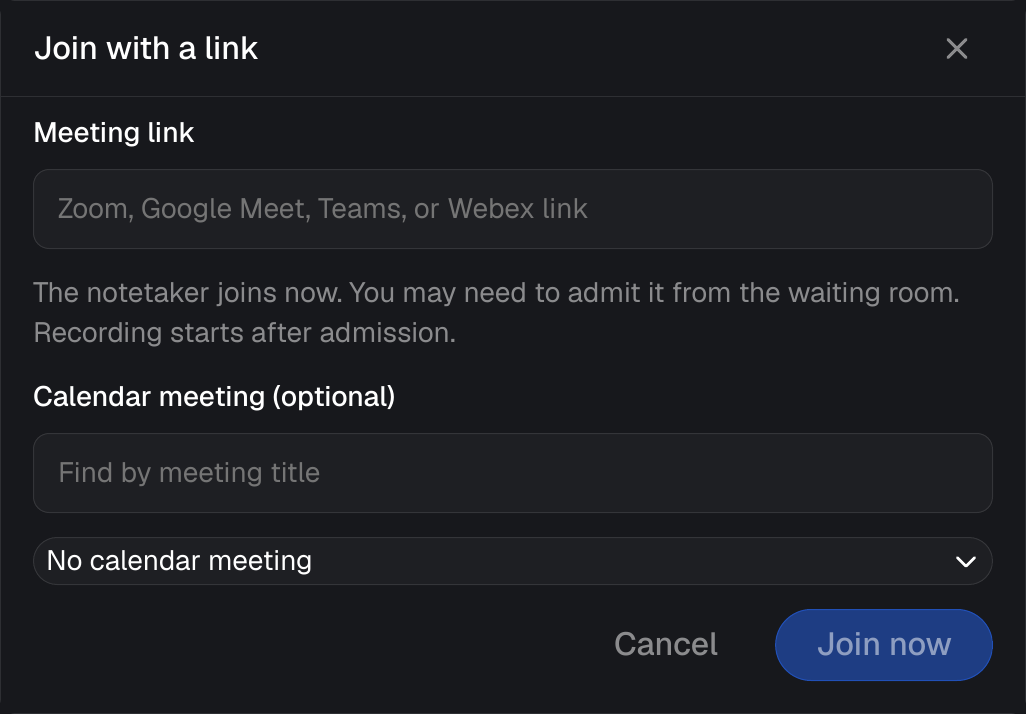
Use Join with a link to send the Athean notetaker to a meeting right now, including a meeting that isn't on your calendar or starts within 15 minutes.
- Open Meetings and select Join with a link.
- Paste a Zoom, Google Meet, Microsoft Teams, or Webex link into Meeting link.
- In Calendar meeting (optional), choose the matching meeting associated with you, or select No calendar meeting.
- Select Join now and admit the notetaker from the meeting's waiting room if prompted. Recording starts after admission.
The recording's status shows its progress; the recording, transcript, and summary appear when they're ready. While the notetaker is active, select Stop recording to stop it. After it ends, Join again opens the link dialog to send a notetaker again. These controls are available for recordings you created or are associated with.
To link a recording made without a calendar meeting, open the recording, select Associate with a meeting, choose the calendar occurrence, and select Associate recording. The existing recording and summary are kept.
If something goes wrong
- The link is rejected: Use a Zoom, Google Meet, Microsoft Teams, or Webex meeting link.
- The calendar selection blocks joining: Choose a meeting associated with you, or select No calendar meeting.
- Associating a recording fails: The recording is still saved. Choose a meeting you can access and try again.
- Stopping fails: The notetaker may still be in the meeting. Select Stop recording again and check its status.
Ask Athean about a meeting
Select Ask Athean on the Meetings page to open a chat with Athean in the side panel. If you opened a meeting's chat and haven't closed it, that chat comes back. Otherwise the chat opens for your recorded meeting in progress, or without a meeting when none is in progress. To open the chat for a specific meeting, select one of your recorded meetings while it's in progress. That meeting shows Chat open, and the panel shows the meeting's title.
- What Athean is given: The meeting's title, invited attendees, linked accounts, and scheduled times. It isn't given the live transcript; the panel shows Live transcript isn’t shared with this chat.
- Starting prompts: Search our knowledge, Research an account, and Draft a follow-up start a message for you to finish. You can also type any request you'd make in Chat (see Chat and Ask Athean).
- After the meeting: Once the recording is processed, you can ask for the meeting's summary or transcript.
- Conversations: Each meeting has its own conversation, which reopens in the same browser. Select New chat (the plus icon) to start over, or Close chat to close the panel. Closing the chat doesn't stop the recording.
Athean doesn't post suggestions in the panel during the meeting. Messages use AI credits like any Chat conversation; see AI usage and credit limits.
When your organization has a Knowledge corpus, Athean still generates cited knowledge-base insights during recorded meetings. They're charged to your organization's AI credits, listed as Live assist in AI usage, and appear in the meeting's transcript afterward (see Review meeting recordings, transcripts, and summaries). If your organization is out of AI credits when a recording starts, that meeting gets no insights. Some workspaces don't generate these insights.
Review meeting recordings, transcripts, and summaries
After a meeting, select the meeting in Meetings to open its page. Ended meetings with a recording show Recap. Meetings that ended today stay under Today; earlier meetings are under Past meetings, newest first. A meeting without a recording shows Not recorded. Recordings without a calendar meeting appear under Today or Standalone recording history. For a calendar meeting with several recording attempts, use its Recordings list to open each one.
A recording has two views:
- Summary: The meeting summary, with a control to copy it.
- Recording & transcript: Playback, the transcript (which you can download), and any cited knowledge-base insights generated during the meeting, placed where they occurred. Select an insight's time to jump to that point in the recording, or open its source link to check the material behind it.
Processing can take time after a meeting ends. If the notetaker left before recording began, there may be no recording or transcript. If transcript processing fails, any recording and transcript that are available stay available.
To track what you agreed, create follow-up tasks for the contacts (see Tasks). Use the recap as context for your follow-up email (see Email: sending and tracking) or a presentation (see Presentations).