
Bring Athean into your inbox
The Athean Chrome extension adds tools to Gmail's compose window and a contact panel beside your conversations. Use them to prepare a relevant reply, remember to follow up, and understand the person's current sequence and contact details.
- Follow Set up the Chrome extension to install Athean Copilot and sign in to Athean in the same browser.
- Check your work Google connection in Settings → Integrations. Follow Connect your tools if it needs setup or reconnection. This connection supports your email activity in Athean.
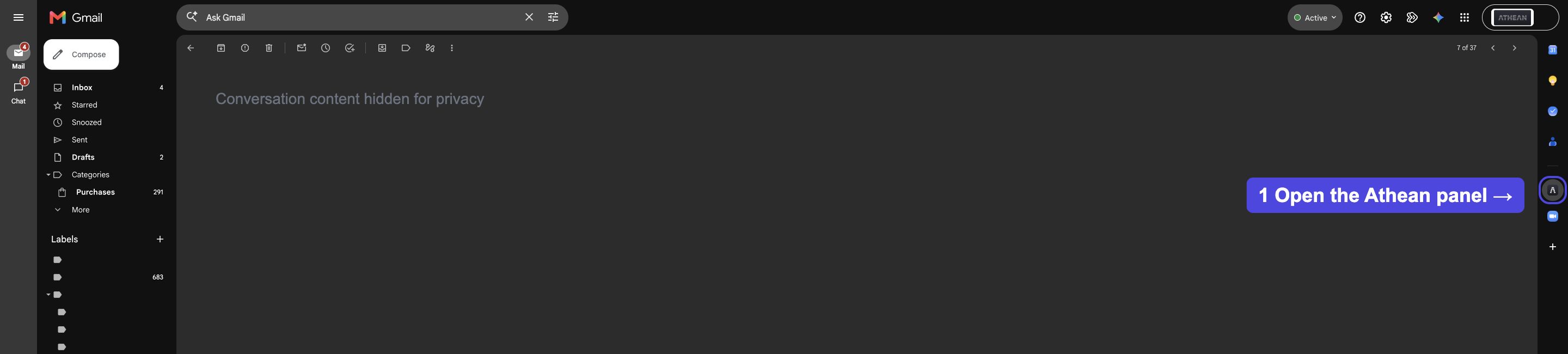
- Open Gmail and a conversation with a contact. Find Athean's A icon in the vertical side panel at Gmail's far-right edge, marked in the overview below. Hover over the icon to confirm Athean, then select it.
The contact panel starts closed. Select the Athean icon to open it; the extension remembers your choice. To reuse prepared content, first create or subscribe to Snippets in Athean.
1. Review the person behind the conversation
- Open the Gmail conversation and select Athean's A icon in the vertical side panel at the far-right edge. See the Gmail overview for its location.
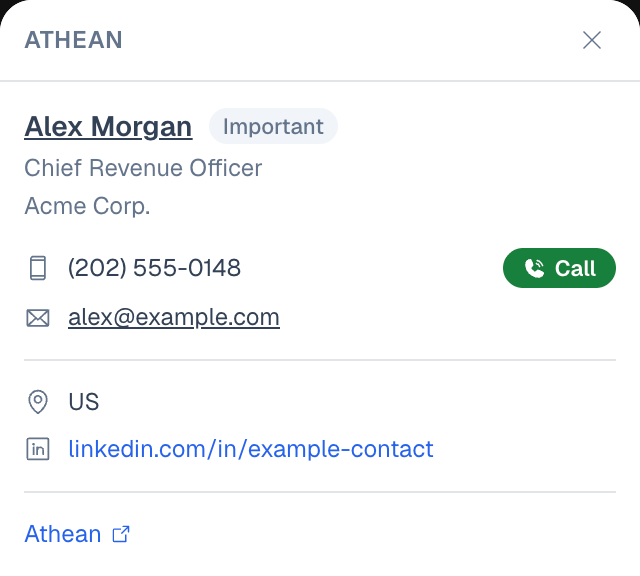
- If the conversation has several participants, use Contact in thread to choose the person you want to review.
- If that email address matches several records, use Athean record to choose the relevant account and contact.
- Review the available company, job title, contact details, location, local time, and LinkedIn profile. Check the active sequence and step, along with any list memberships, before deciding what to do next.
The panel shows existing Athean information. Email badges can include Opted out, Bounce likely, or High potential; a contact can also be marked Left company. Use these signals with the conversation history when deciding how to respond.
Select the contact's name or Athean to open their record in Athean. The company name opens the account. Links to Salesforce, HubSpot, and ZoomInfo appear when the corresponding record and connection information are available. To change a sequence, list membership, or contact record, open Athean and make the change there.
Find the Athean controls when you compose
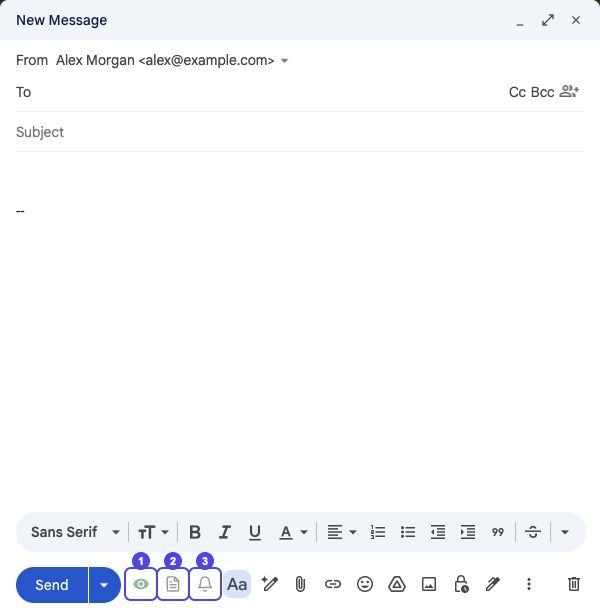
Select Gmail's Compose button, or start a reply. Find the Athean controls in the bottom toolbar, immediately to the right of Send. The numbered overview shows:
- Eye: email tracking. Hover to confirm Email tracking on or Email tracking off. See Choose whether to track opens.
- Document: Insert snippet. Opens the reusable-content picker shown in the next step.
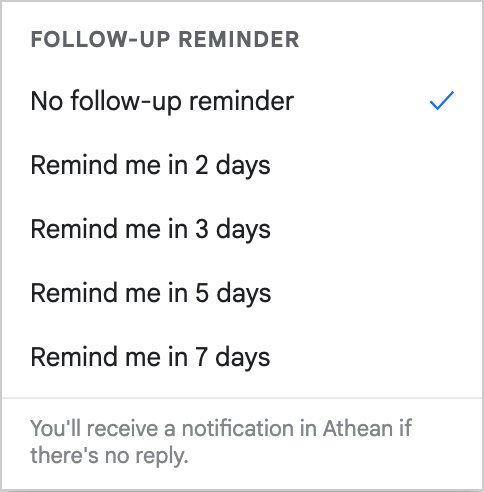
- Bell: Remind me to follow up. Opens the no-reply reminder choices.
The close-ups below show the menus opened by these controls. Use this overview to locate each control first.
2. Write your message with a snippet
- Start a new email, reply, or forward in Gmail and add the recipient.
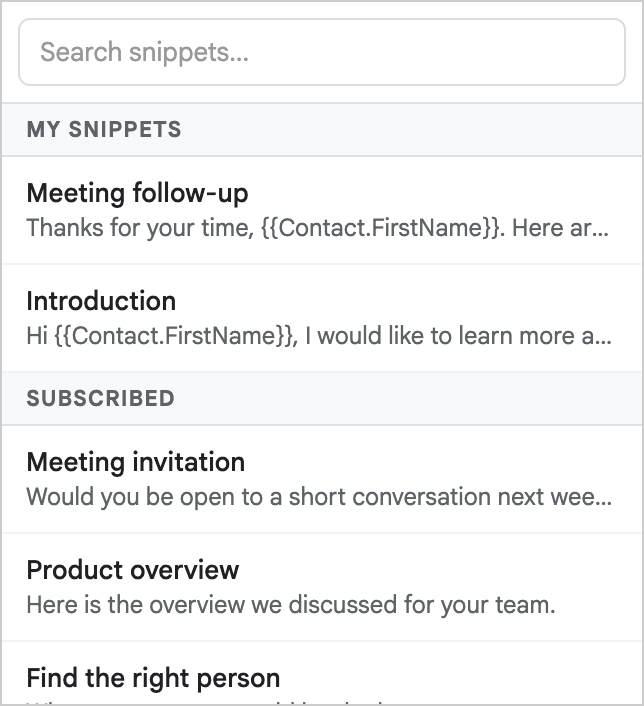
- Place the cursor where the reusable content should appear. In the bottom toolbar beside Send, hover over the document icon to confirm Insert snippet, then select it. It is marked 2 in the compose overview.
- Browse My Snippets, Subscribed, or Endorsed, or search by words in a snippet's name or content.
- Select a snippet to insert it at the cursor. Review and edit the message before sending.
Athean uses the first recipient to resolve the snippet's contact variables. Check names, company details, and any remaining placeholders, especially when writing to several people or changing recipients after inserting a snippet.
Use the Snippets guide to create and manage the reusable content that appears here.
3. Choose whether to track opens
Use the eye button immediately to the right of Send, marked 1 in the compose overview, to choose Email tracking on or Email tracking off. Hover over it to check its current label. Tracking starts enabled, and the extension remembers your choice for later messages.
Choose the setting before you send. Tracking applies to messages sent with tracking enabled; turning it on later does not add tracking to an earlier email. If Athean shows that email tracking is paused, use Log in to Athean to restore your session before sending a message you want to track.
Gmail still sends your message if tracking cannot be prepared in time. Check the resulting tracking indicator before assuming that a sent message is being tracked.
4. Set a reminder if there is no reply
- In the bottom compose toolbar, select the bell to the right of the snippet icon. Hover to confirm Remind me to follow up; it is marked 3 in the compose overview.
- Choose Remind me in 2 days, Remind me in 3 days, Remind me in 5 days, or Remind me in 7 days.
- Check the bell's updated reminder label before sending. Choose No follow-up reminder if you change your mind.
The reminder is set for this message when you send it. You will receive a notification in Athean if the conversation has no reply within the selected period. Each new compose starts without a reminder, and reminders work independently of the email tracking toggle.
This reminder helps you decide when to follow up; it does not send another email. For a planned series of outreach steps, use Sequences.
5. Send and review engagement
- Review the recipients, subject, message, snippet variables, tracking choice, and reminder.
- If Gmail shows that a recipient has opted out, review the recipient and your next action before sending. Athean checks To, Cc, and Bcc recipients. The notice is a warning; it does not prevent Gmail from sending.
- Send the message using Gmail's normal Send control.
- Check the conversation's open count in the Gmail message list. Open the conversation to see the indicator beside each tracked message's timestamp.
- Hover over an open count to see recorded event times and detected device types, such as Mobile, Desktop, or Unknown.
A tracked message can show not opened until a countable open is recorded. An absent indicator does not establish that an email was unread. Counts refresh periodically, and Athean filters events classified as automated.
Use open activity together with replies and conversation history. Email clients and image loading affect tracking, so an open is an indication of engagement, not proof that a particular person read the message. See Read engagement in context for how to interpret tracking in Athean.
Your message is sent from Gmail. Return to Athean's notifications to review a No reply yet reminder when the selected period has passed without a reply.
Continue the conversation with a call
The contact panel can hand a call to Athean dialer. Complete the dialer setup first, including your caller number and microphone access. The Gmail Call button appears when your call mode supports Athean dialer.
- In the Gmail contact panel, check Contact in thread and Athean record when those selectors appear.
- Find the phone number you want to use. Expand the additional numbers when available.
- Select Call beside the number. If the contact is marked as opted out of calls, review the warning before choosing whether to continue.
- Continue in the Athean tab that opens or comes to the front. Check the dialer for the actual call status and use its call controls.
Gmail hands the request to Athean; call audio and controls are in the Athean web app. A handoff message in Gmail is not confirmation that the contact answered.
When something is missing
- The Gmail controls are missing: check that Athean Copilot is installed and enabled in the same Chrome profile, sign in to Athean, then reload Gmail. Follow the Chrome extension guide.
- Tracking is paused or the panel asks you to log in: select Log in to Athean or the panel's login link. After signing in, use Re-check Login in the panel or reload Gmail.
- No Athean contact found: check the selected participant's email address. The panel looks for an existing contact with that email. Open Athean to find the right record or follow Import contacts to bring in the contact.
- No snippets found: clear the search and check your own, subscribed, and endorsed snippets in Athean. Review any unresolved variables before sending.
- A sent email has no tracking indicator: confirm tracking was on before sending, check your Athean session, and allow the indicators to refresh. A missing indicator is different from a tracked message with no recorded opens.
- The Call button is missing: check your call mode in Settings → Calls and follow the Athean dialer setup.
If the problem continues, contact support with the action you were taking and the message shown.