
Group sequences into lists
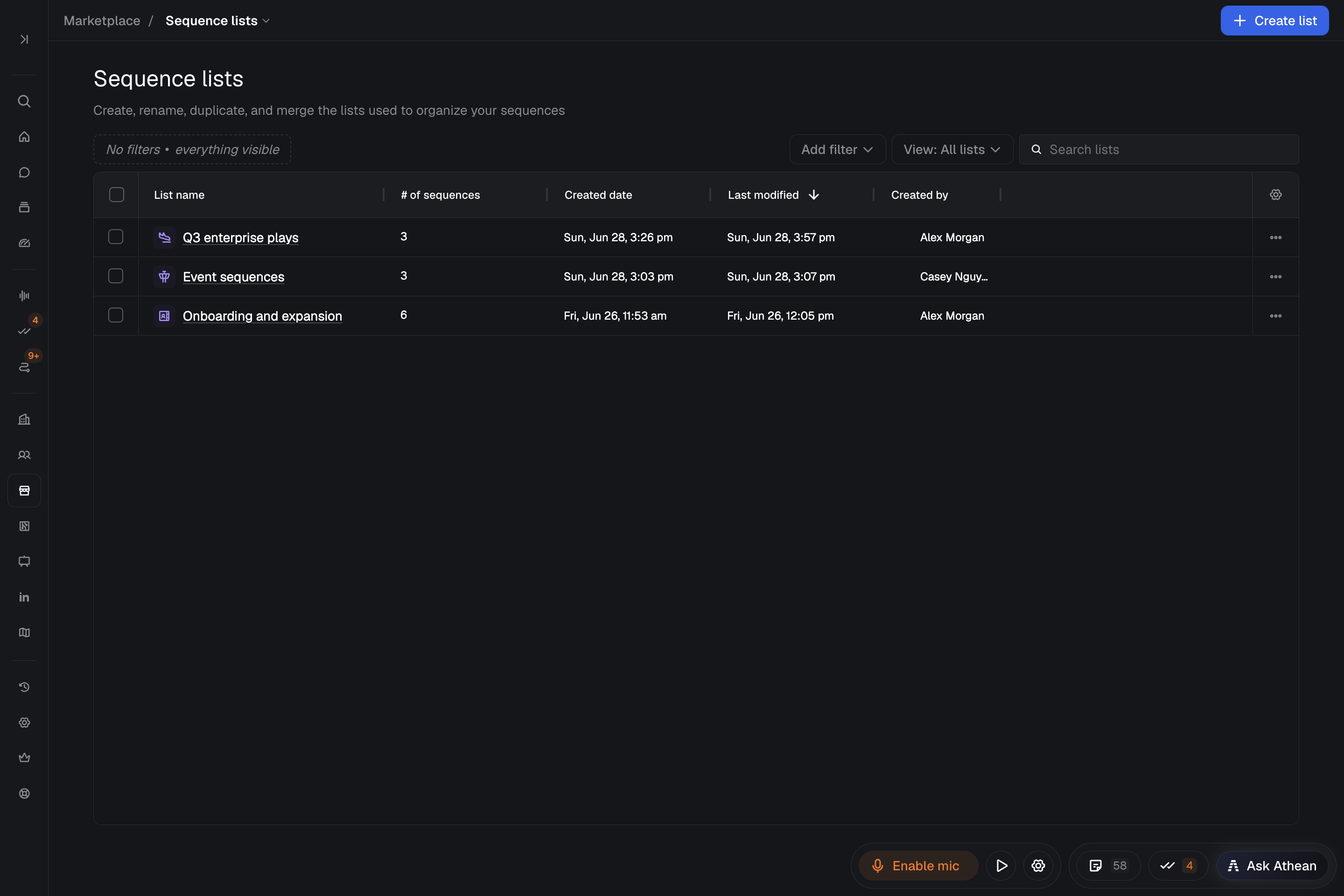
Tools → Marketplace → Sequence lists lets you organize reusable sequence templates and operators into named collections by campaign, persona, or play. A sequence can belong to more than one sequence list.
Adding a sequence to a list only organizes it. Enrolling contacts is a separate step; see Sequences. To group accounts or contacts instead of sequences, use Lists.
Create a sequence list and add sequences
- Open Tools → Marketplace → Sequence lists and select Create list.
- Enter a List name, choose an Icon, and select Create.
- Open the list and select Add.
- In Search sequences, find an operator or template and select it to add it. Sequences already in the list don't appear in the search.
Creating or duplicating a list requires the Sequence lists Create permission; if Create list is unavailable, ask your administrator. Anyone in your organization can add sequences to a list or remove them. Only organization administrators can change system lists.
Access rules for sequences in a list
Adding a sequence to a sequence list doesn't change who can use it or whose library it's in:
- Each sequence's own Access setting decides who can view and use it. To change it, open the sequence in Marketplace and choose Share from its actions menu; see Marketplace.
- Putting a sequence in a list doesn't grant access to it or add it to anyone's library.
- On a list's page, a count shows the sequences in that list that are unavailable or that you don't have access to. Check the sequence's sharing with its owner or an administrator.
Rename, edit, duplicate, or merge sequence lists
| Action | Who can do it | What it does |
|---|---|---|
| Rename | Anyone in your organization (only organization administrators for system lists) | Changes the list's name only. |
| Edit list | Anyone in your organization (only organization administrators for system lists) | Changes the list's name and icon. Select Save to apply. |
| Duplicate | People with the Sequence lists Create permission | Creates a new list. Keep Add the same sequences selected to copy the original list's sequences, or clear it to start with an empty list. It doesn't create copies of the operators or templates. |
| Merge | Only someone who owns every selected list, even an administrator | Select two or more lists you own in the table, select Merge, enter a New list name, and confirm. The merged list combines their sequences and replaces the selected lists. |
Rename, Edit list, Duplicate, and Delete are in each list's actions menu in the table. On a list's own page, More list actions offers Rename, Duplicate, and Delete.
Remove sequences or delete a sequence list
- Remove sequences from a list: Open the list, select one or more sequences, and select Remove from list. This removes them from the list without deleting the sequences. Anyone in your organization can do this, except in system lists, which only organization administrators can change.
- Delete a sequence list: Choose Delete from the list's actions and confirm. Only the list's owner can delete it; administrators can't delete or merge a list someone else owns. Deleting a list doesn't delete the sequences in it. Deleting a sequence list can't be undone.
If Delete or Merge is unavailable, hover over it to see why, and ask the list's owner to make the change.