
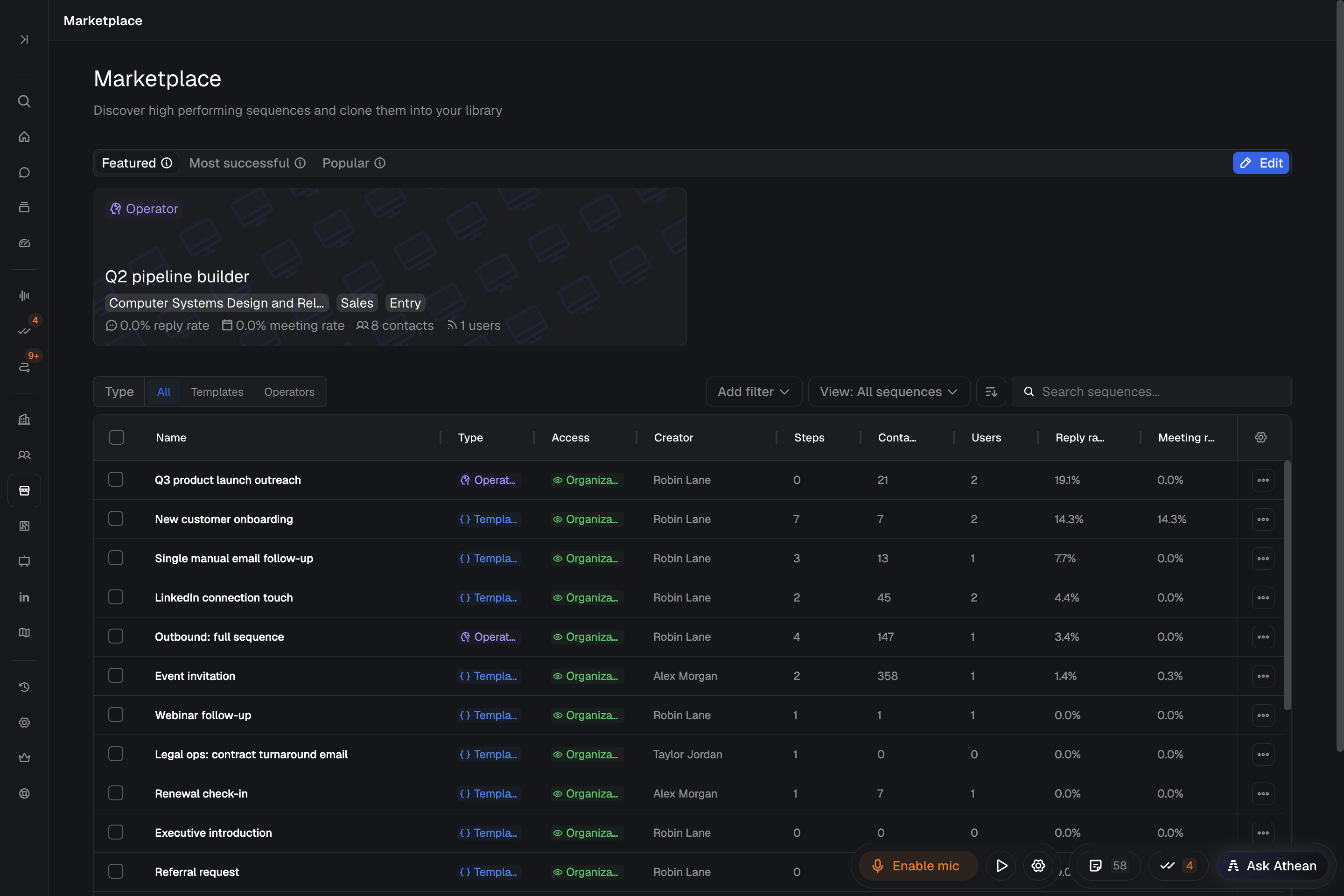
Browse and filter sequences in Marketplace
Tools → Marketplace shows the sequence templates and AI operators that are listed in Marketplace and that you have access to. Templates use predefined steps with variables that fill in for each contact. Operators research each contact and generate personalized sequence drafts. To create either, see Build sequences and operators.
- Use the Featured, Most successful, and Popular tabs at the top to see highlighted sequences. Featured shows sequences pinned with Feature in Marketplace, Most successful shows those with the highest meeting rates, and Popular shows those used by the most people. Most successful and Popular include only sequences that pass the Hide low-activity sequences filter.
- In the table, choose All, Templates, or Operators under Type.
- Use Search sequences, or select Add filter to narrow by Lists, Team, Excluded people, Industry, Department, or Seniority. Hide restricted sequences and Hide low-activity sequences are also in Add filter. Lists are your workspace's sequence lists; see Organize sequence lists.
- Use the sort control to order the table by Reply rate, Meeting rate, Open rate, Recently edited, Most contacts, or Most popular.
- Select a sequence to open it.
Inspect sequence steps, instructions, and performance
A sequence's page in Marketplace shows its creator, when it was created and last edited, and these sections:
- Performance: lifetime Total contacts, Replied, and Meetings, plus Open rate, Users, and Top persona. Select View full performance to open the performance dashboard filtered to this sequence; see Analyze sequence performance.
- Settings (operators only): the operator's Instructions.
- Steps: each step's day, channel, whether it is Auto or Manual, and its template content or step prompt.
A sequence with automated LinkedIn steps, or an operator that researches LinkedIn profiles, asks you to connect LinkedIn before you save it, duplicate it, or add contacts. Connect in the Connect LinkedIn dialog, then select Continue. When you are duplicating, you can choose Duplicate as email-only template or Duplicate as email-only operator instead. That copy doesn't need a LinkedIn connection: automated profile views and post reactions are removed, other LinkedIn steps become manual, and an operator's LinkedIn profile research is turned off.
Save a sequence to your library or duplicate it
| Action | What it does |
|---|---|
| Add to my library | Saves the shared sequence itself, not a copy, to Prospecting → Sequences → My library. New enrollments use the owner's latest saved template steps or published operator. The button reads Save to my library when the sequence is already in your library because it was added for you, a group you belong to, or the entire organization. |
| More actions (⋯) → Duplicate | Creates an independent copy that you own. Enter a Name and select Duplicate, then open the copy and select Edit to change it. Later changes to the original don't reach your copy. For an operator, the copy uses the published version; unpublished edits aren't included. The copy isn't listed in Marketplace or added to anyone else's library until you share it. |
Saving or duplicating a sequence doesn't enroll any contacts. You can also use Add to my library and Duplicate from the ⋯ menu on a sequence's row in the table.
Sequences you create always appear in your library (In my library). A sequence that was added for you, a group you belong to, or the entire organization can't be removed from your library individually. Remove my save removes only your own save, and the sequence stays in your library through that placement.
Drafts waiting for approval and contacts already in an active sequence keep their content when the original changes; see Build sequences and operators.
Add contacts to a sequence from Marketplace
- Open the sequence in Marketplace and select Add contacts.
- Choose Upload CSV to import a file, or Build contact list to select contacts in Athean. Athean limits how many contacts a CSV batch can add, and the upload step shows that number. For an operator, how many contacts you can add also depends on how many of your drafts are still generating or waiting for approval; contacts over that limit are deferred.
- Select Add to template or Add to operator (the button shows how many contacts you selected). In the confirmation dialog, review Priority sequence, Completion deadline, and Cc recipients, and Auto-enrich when ZoomInfo is connected. Then confirm. These settings are explained in Approve and manage sequences.
- If Review contact deliverability opens, review the warnings and choose which contacts to include; see Approve and manage sequences.
- Check the result. For a template, a progress dialog adds the contacts one at a time; Cancel stops the contacts that haven't been added yet. For an operator, Some contacts were not added lists contacts that couldn't be queued. If the operator draft queue is full, select Open approvals, approve or reject pending drafts, then select Retry deferred. If your AI credits don't cover them, retry once more credits are available.
Marketplace adds contacts with you, the signed-in user, as the sender. It has no option to send as someone else.
Template contacts start right away according to the step timing. Operators research each contact and generate personalized drafts, which takes several minutes. Each draft must be approved in Prospecting → Sequences → Approvals before it starts. For an operator, the enrollment settings apply when each draft is approved, and approvers can change them first.