
Open Chat or Ask Athean
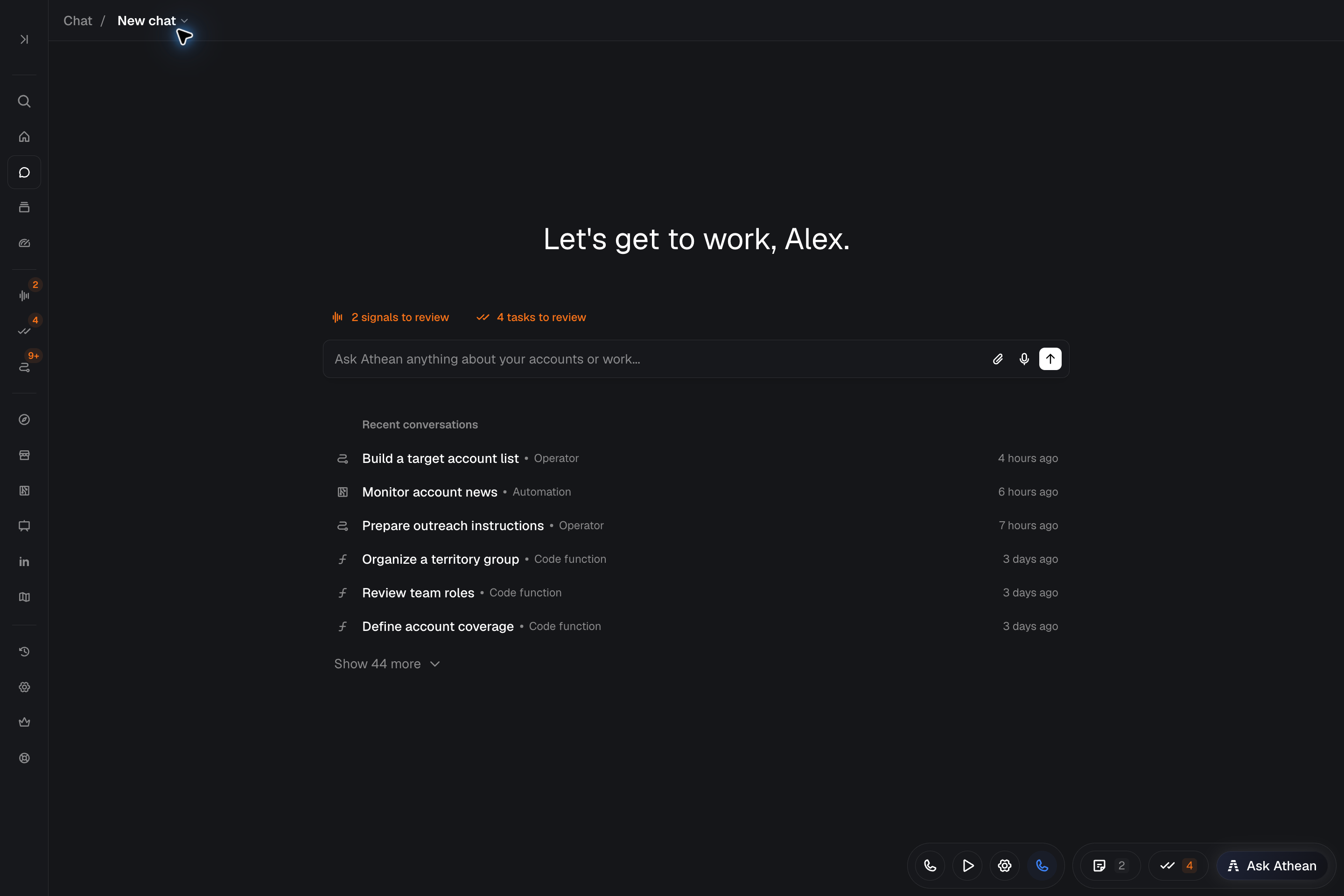
Chat is where you work with Athean, the AI in your workspace. Athean works from your account and contact records, activity, signals, shared company guidance, and web research to answer questions, build lists, draft and schedule outreach, manage tasks, and set up agents. Open Chat from any of these places:
- Workspace → Chat: the full Chat page, with Projects and Recent conversations under the message box.
- The Ask Athean block on Home, if your Home tab has one (add it with Add block; see Layout configuration).
- Ask Athean in the bar at the bottom of the screen, which opens Chat over the page you are on.
In each of these places, the message box has a project picker, set to Personal, that chooses where a new chat goes. Leave it on Personal for a personal chat, or choose a project to start the chat in that project, where the project's members can read it (see Projects). The message box also has a model menu (see Choose a model).
Chat acts as you: what it can see and do depends on your workspace's connected tools and your permissions.
What you can ask Chat to do
| Task area | What Chat does, with an example prompt |
|---|---|
| Find accounts and contacts | Searches your workspace, researches companies on the web, explains why people fit, and saves them to a list (see Lists). Example: "Find VP and Director of Operations contacts at my manufacturing accounts and save them to a list." |
| Prepare for a meeting | Summarizes recent emails, calls, meetings, and signals for an account. Example: "Summarize recent emails, calls, and open signals on Acme Corp. before my call." |
| Prepare outreach | Drafts and schedules one-off emails, replies to an email in its existing conversation, finds and reschedules scheduled emails (including a sequence's next email), enrolls contacts in sequences, and saves a personalized outreach draft for one contact to Approvals (see Sequences and Email: sending and tracking). Scheduling an email or a reply and enrolling contacts start real outreach. A draft saved to Approvals waits there for review; saving it doesn't enroll the contact or send anything. Say "draft only" when you want a draft. Example: "Move my scheduled follow-up to Acme Corp. to tomorrow at 9 AM." |
| Check availability and book meetings | Finds open times on your calendar under your scheduling link's rules and books meetings. Booking sends the invitations right away. Athean needs an active scheduling link and a connected Google or Microsoft calendar it can add events to (see Scheduling links). Example: "Book 30 minutes with jordan.lee@example.com on Thursday afternoon to review the proposal." |
| Prioritize your day | Reviews your open signals and tasks due. You can also create and manage tasks through Chat within your permissions. Example: "Where should I focus today?" |
| Work with data and files | Compares a CSV with your account records, calculates a summary, prepares a file you can reuse, or builds a sheet: an editable spreadsheet that opens beside the conversation (see Sheets). It can also write or open a Markdown or text file for you to edit beside the conversation (see Edit Markdown and text files beside the chat). Athean can run a one-off script for this work without permission to create automations. |
| Repeat work on a schedule | Turns instructions that worked into an agent (see Agents). Creating the agent asks for your approval. |
| Reporting and product help | Explores activity and sequence results. Answers how-to questions from these guides and links to the relevant one; if the guides don't cover a question, it says so. Example: "How do I customize my Home?" |
Choose a suggested prompt
Click the empty message box on the Chat page or in the Ask Athean block on Home (if your Home tab has it) to see Suggested for you. Suggestions depend on your permissions and the work waiting for you. Selecting one puts it in the message box without sending it, so you can edit it first.
When signals or tasks are waiting for you, shortcuts such as signals to review and tasks to review appear above the message box with a count. Select one to open Signals or Tasks.
You can also start broadly, such as "What can you help me with today?" or "Help me work on Acme Corp." Athean asks follow-up questions when it needs more direction.
Start a conversation and build on its results
Each request in a conversation builds on the context and results already in it. For example:
- Open Workspace → Chat, or use the Ask Athean block on Home (if your Home tab has it).
- Ask for research or people, such as "Help me work on Acme Corp." Answer any follow-up questions, then review the suggested people and why they fit.
- Ask "Save these contacts to a list called Acme operations outreach." Athean creates the list right away; open it to check its members.
- Ask "Draft a three-step email sequence for these contacts." Athean may ask whether everyone gets the same message (a sequence template) or a message written for each person (an Athean operator). A template asks for your approval before it's created. An operator is created right away, live and private to you. Adding the contacts is a separate request. For a template, it starts outreach as soon as Athean runs it. For an operator, it puts each contact's draft in Approvals, unless you ask Athean to approve the drafts automatically, which starts outreach.
Select New chat to start unrelated work. In a project chat, New chat opens the project's page, and the next chat starts in that project.
Choose a model
The model menu in the message box chooses the AI model Athean uses for a conversation. It shows the selected model's name; select it to see the available models, each with a short description. The menu appears in the message box on Workspace → Chat, in the Ask Athean block on Home, in the Ask Athean panel, and in your own conversations, including chats beside presentations, dashboards, and agents.
- Your default: the model you choose becomes your default for new chats. Each conversation keeps its own model, so changing your default doesn't change conversations you already started.
- Switching during a conversation: in a conversation that already has messages, choosing another model opens Switch to model? to confirm. It explains that switching models mid-conversation isn't recommended, because the new model uses the chat's history but may interpret it differently; for the most consistent results, start a new chat. Select Switch model to switch or Cancel to keep the current model. Your unsent message stays in the message box.
- When you can't switch: the menu is unavailable while Athean is responding or an approval is waiting, and its tooltip reads "Finish the current response or approval before switching models." Only the person who started a conversation can change its model, so the menu doesn't appear in a conversation someone else started.
- No automatic switching: Athean doesn't change a conversation's model on its own.
- Admin chat (organization admins): the menu appears on the start page of Org settings → Admin chat, where your choice sets your default model, which the next Admin chat you start uses. The menu doesn't appear inside an Admin chat conversation.
- AI credits: models use AI credits at different rates (see AI usage and credit limits).
- Agents: agent runs use the model set in the agent's own settings, not your chat default (see Agents).
Dictate a message and review it before sending
Use the microphone beside the message box when you want to speak your request. Allow microphone access if your browser asks.
- Hold the microphone button while speaking and release it to finish, or click once to start and again to stop.
- Wait for the transcript to finish. It is added after any text already in the message box.
- Correct names or wording, then select Send. Dictation does not send the message automatically.
Each recording can last up to 2 minutes. Dictation then stops on its own and keeps the transcript. Press Escape to cancel dictation. The microphone control appears only in browsers that support it. During a supported live call, Athean temporarily mutes the call while you dictate and shows Call muted.
Add a follow-up while Athean is working
You can keep writing while Athean responds. Sending a message during the response adds it to Queued messages; Athean sends queued follow-ups in order after the current response finishes.
- Edit: open a queued message's options to revise its text, then select Save.
- Remove: use the trash button to remove a follow-up you no longer want sent.
- Steer: stop the current response and send that queued message first when the conversation is ready. Use this to change direction before Athean continues.
Stop also pauses queued messages. Review the queue and select Resume when you want them to continue. If Athean cannot confirm that the conversation is ready, the queue stays paused and offers Retry. Queued messages have not yet been acted on.
Check citations, progress, and approvals
- Citations: Cited records such as emails, meetings, calls, notes, opportunities, and signals appear as chips. Hover over a chip to preview the record, or select it to open the record. People and accounts appear as mentions.
- Progress: Athean's reply appears as it's written. While it works, a status line at the end of the conversation shows what it's doing and how long the response has taken. Its actions appear in collapsed groups between parts of the reply. A running group shows the current action, such as Searching contacts…; a finished group shows the action's name or a count such as 3 tool calls. Select a group, or Thoughts for Athean's thinking summaries, to expand it. An action that failed, stopped, or is waiting stays visible and is marked failed, stopped, or waiting. Check the final result and the affected records before treating a request as complete.
- Conversation items and record cards: When Athean opens or changes a record that has a panel, such as a scheduled email, sequence, operator, agent, automation, presentation, dashboard, sheet, or file, the reply shows a card with the record's name and type, and the record is listed under Conversation items. A sheet's card shows the type Table, and a dashboard's shows Site. Select the card or the item to open the record beside the chat. From the Ask Athean panel, this opens the full chat on that record. A dimmed card marked Published or Discarded is a record whose work has ended: a draft that was published, or a record that was deleted or discarded. A dot marks a record with an approval waiting for you.
Your permissions apply to everything Athean does in Chat. Some actions ask for approval first. Athean shows an Agent request card marked Needs approval that describes the action. For some requests, such as an edit to an operator's prompt, the card also shows the proposed change. Select Approve to carry it out or Reject to decline it. Nothing changes until you approve. After you decide, the card shows Approved or Rejected. A card marked View only is in a conversation someone else started; only the person who started the conversation can decide it.
- Asks for approval: creating or editing an agent, running an agent now, creating a sequence template, editing an operator's prompt, activating an automation version, running an automation on past events, importing contacts from LinkedIn or ZoomInfo, creating contacts from details such as names, titles, and emails, importing contacts into your CRM, approving operator drafts, and admin changes in Admin chat, such as roles and permissions.
- Runs directly, with no approval card:
- Outreach: enrolling contacts in a sequence template; creating an Athean operator; assigning contacts to an operator (drafts wait in Approvals unless you ask Athean to approve them automatically, which starts outreach); saving an outreach draft to Approvals, which doesn't enroll the contact or send anything; scheduling a one-off email; scheduling a reply to an email; rescheduling scheduled emails, including a sequence's next email; and editing or canceling a one-off email.
- Records: adding a contact from a Salesforce record; adding a single person you name as a contact; creating a list; creating, editing, completing, skipping, or deleting tasks; creating, editing, or deleting a sheet (deleting a sheet can't be undone); and changing a dashboard's sharing, which doesn't send the link or notify anyone.
- Calendar and other services: booking a meeting on your calendar, which sends the invitations right away, and calling another service's API with an API secret, including requests that change data in that service (see API secrets).
- Automations and scripts: saving an automation or a new version of one (a new automation is saved paused, and a new version doesn't become active), running a scheduled automation now, and changes made by a one-off script.
Enrolling contacts and scheduling an email or a reply start real outreach, booking a meeting sends invitations right away, and an API request can change data in the other service. A one-off script can change records or send messages without a separate approval card for each action, so agree on the intended changes in the conversation before asking Athean to run it. If you want research or a draft only, say "draft only". Creating a saved automation requires the separate Automation permission (see Event-triggered automations).
Check results where they live: open a list to confirm its members, review a sequence's contacts and steps in Sequences, and review a one-off email Athean drafted or scheduled with Email: sending and tracking. To repeat work that went well, ask Athean to turn it into an agent, then review the agent's audience, schedule, and instructions before you approve it (see Agents).
Attach files and images in Chat
Athean draws on your account and contact records, signals, activity, and the shared guidance in your organization's knowledge corpus. The sources it can use depend on your workspace's connected tools (see Connect your tools) and your access. You can also add material to a message:
- Files: Select the paperclip (Attach files) to add a PDF (
.pdf), Word (.docx), PowerPoint (.pptx), text (.txt), Markdown (.md), CSV (.csv), or HTML (.html) file, an SVG logo (.svg), or a font file (.woff2,.woff,.ttf, or.otf). Each message can include up to 5 files of up to 10 MB each. A scanned PDF uploads, but Athean can't read text from it. - Logos and fonts: Athean can inspect attached images, SVG logos, and font files and, when you ask, add them to your organization's shared asset library, the Assets tab in Presentations (see Presentations). Adding an asset doesn't need the Manage themes permission; creating or changing a theme does.
- Images: Paste an image into the message box or add it with the paperclip. Each message can include up to 3 images in PNG, JPEG, WebP, or GIF format. Athean shrinks large images, and each must be 1 MB or less after shrinking. GIFs aren't shrunk, so a large GIF is rejected; use a smaller one.
- Upload status: Send stays unavailable until every file and image has finished uploading and no chip shows an error. For a failed file, read the error, remove its chip, and attach it again after fixing the problem. For a failed image, select Retry on its preview or remove it.
Tell Athean what to do with the material, such as summarize it, compare it with an account, or use it to draft a message. Remove a chip before sending if you no longer need that file.
Attachments give the conversation source material. Each file and image you attach is also saved in the attachments folder of the chat's files: your personal files in a personal chat, or the project's files in a project chat, where every project member can open it.
To reuse a result later, ask Athean to save it as a file. In a personal chat, it's saved to your personal files, which your other personal chats, agents, and automations can use. In a project chat, it's saved to the project's files, which only that project's chats can use. Project chats can't use your personal files (see Projects). Temporary scratch files can expire, so ask for a saved result when it needs to last.
Attaching a file doesn't add it to your organization's shared knowledge. Organization administrators manage shared documents in Org settings → Knowledge corpus; see Knowledge corpus.
Edit Markdown and text files beside the chat
Ask Athean to open a saved Markdown (.md) or plain text (.txt) file, or to write one and open it, and the file opens in an editor beside the chat. You edit the saved file itself, not a copy, and Athean reads and changes the same file. The reply shows a card for the file (type File); select it, or the file under Conversation items, to reopen the editor. In a project chat, the file is one of the project's files, so other members can open and edit it too (see Projects).
- Views: Markdown files have Source, Preview, and Split. Plain text files show the source only, marked Plain text.
- Toolbar: Undo, Redo, Find and replace, Save, and Download. Find and replace has Match case, Replace, and Replace all. Press Cmd+S or Ctrl+S to save, and Cmd+F or Ctrl+F to find.
- Saving: edits save automatically shortly after you stop typing, and before your next message is sent. The status at the bottom of the editor shows Saving…, Saved, Unsaved changes, Not saved, or Save conflict.
- After Athean's turn: when Athean finishes responding, the editor loads the latest version of the file if you have no unsaved edits.
- Limits: the editor opens UTF-8 text files of up to 1 MB. Temporary scratch files can't be opened in the editor; ask Athean to save the file first.
If a save fails, or the file changed elsewhere while you had unsaved edits, the editor keeps your draft and shows the problem with Download draft, Retry save, and Discard draft and load latest. Until you resolve it, your next message stays in the message box. Select Download draft to keep a copy of your edits before you discard them. If the file was moved, deleted, or is no longer accessible to you, the editor says so, and you can still select Download draft to keep your edits.
Return to earlier conversations
Open Workspace → Chat to see Recent conversations, each with its type and when it was last updated. Select Show N more to expand the list and Load more to load older conversations. Recent conversations also appear under Chat in the sidebar. Within a conversation, use Earlier chats to return to your history or New chat to start separate work.
Recent conversations also lists chats in projects you can access, including chats other members started; on the Chat page, those rows show who started the chat. Organization admins can open every project, so their list can include chats from all projects. Only the person who started a chat can continue it (see Projects).
On the Chat page and in the sidebar, Input required marks a conversation waiting for your approval or answer. Recent conversations in the Ask Athean panel also show Responding while Athean works and New response when a response is ready.
History can include work started elsewhere in Athean, such as an agent run or the sequence editor. Open a conversation to check its messages and results, then continue where the work allows.
You can also ask about earlier work from any conversation, such as "What did we find about Acme Corp. earlier this week?" or "Did one of my agents already write this up?" Athean looks through recent conversations and reads the one you mean:
- In a personal chat: Athean can see only your personal conversations, including chats in Slack (see Slack integration) and runs of agents that run for you.
- In a project chat: Athean can see only that project's chats, including chats other members started. It can't see your personal chats, Slack chats, or agent runs there.
Troubleshoot Chat
| Problem | What to do |
|---|---|
| Send is unavailable | Wait for images and files to finish uploading. Select Retry on a failed image or remove it. Remove a failed file's chip, then attach the file again. |
| An action is waiting | Look for Input required or an Agent request card marked Needs approval. Answer the question, or review the request and select Approve or Reject, then check the resulting status. A card marked View only can be decided only by the person who started the conversation. |
| Your message stays in the box and a sheet or file beside the chat shows an error | Athean saves an open sheet or text file before sending your message. For a sheet, give it a title, correct the cell edit in progress or press Escape to discard it, or select Retry save. After a save conflict, select Export my draft (or Download draft for a text file) to keep a copy, then Discard draft and load latest. Then send again. See Sheets. |
| You can't change the model | Wait until Athean finishes responding, and decide any approval waiting in the conversation, then try again. If Couldn't switch models appears, do the same. Only the person who started a conversation can change its model. In Admin chat, choose the model on the start page before you send your first message. See Choose a model. |
| A new conversation stays on Starting… | Athean is setting up the conversation. If setup fails, select Try again. If your unsent message is no longer there, select New chat and enter the request again. |
| You want to stop | Select Stop while Athean is responding. This also pauses queued follow-ups. A script that has already started keeps running after Stop or Steer; ask Athean to stop that code run, then check its final status. Stopping doesn't undo completed changes, so check the work already done before resuming or asking for another action. |
| AI credits prevent work | Read the displayed reason, then follow AI usage and credit limits to check your allowance or request a change. A refused request hasn't been queued to run later. |
| The result isn't what you wanted | Tell Athean what's off and continue in the same conversation, for example by narrowing the audience or changing the format. |
| Information is missing | Ask which sources Athean used and what it could verify. Check the relevant connection and your permissions, or attach the missing material. |
| A conversation or result is unavailable | Contact support with the conversation link, what you asked for, and the problem. |