
What Layout configuration controls
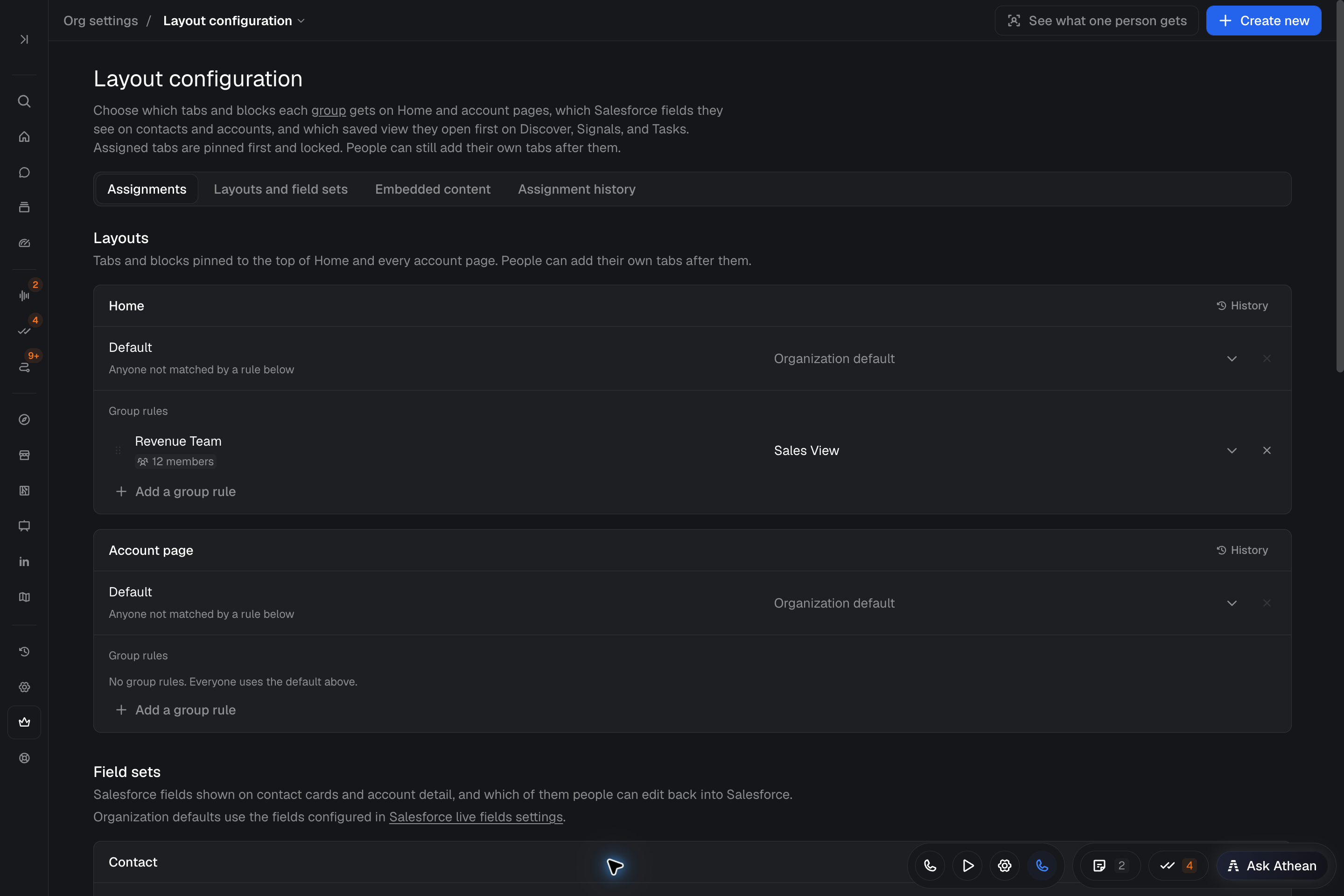
Organization administrators and people with the Manage profiles and policies permission (under Configuration profiles) manage shared layouts in Org settings → Layout configuration. A layout, field set, or view defines what people see; an assignment decides which group receives it. There are four kinds of configuration:
| Configuration area | What it controls |
|---|---|
| Home layout | The organization-managed tabs at the start of Workspace → Home. |
| Account page layout | The organization-managed tabs on account pages. |
| Contact field set and Account field set | Which live Salesforce fields appear on contact, lead, and account records, their order, and which fields people can edit back into Salesforce. Field sets require a Salesforce connection. |
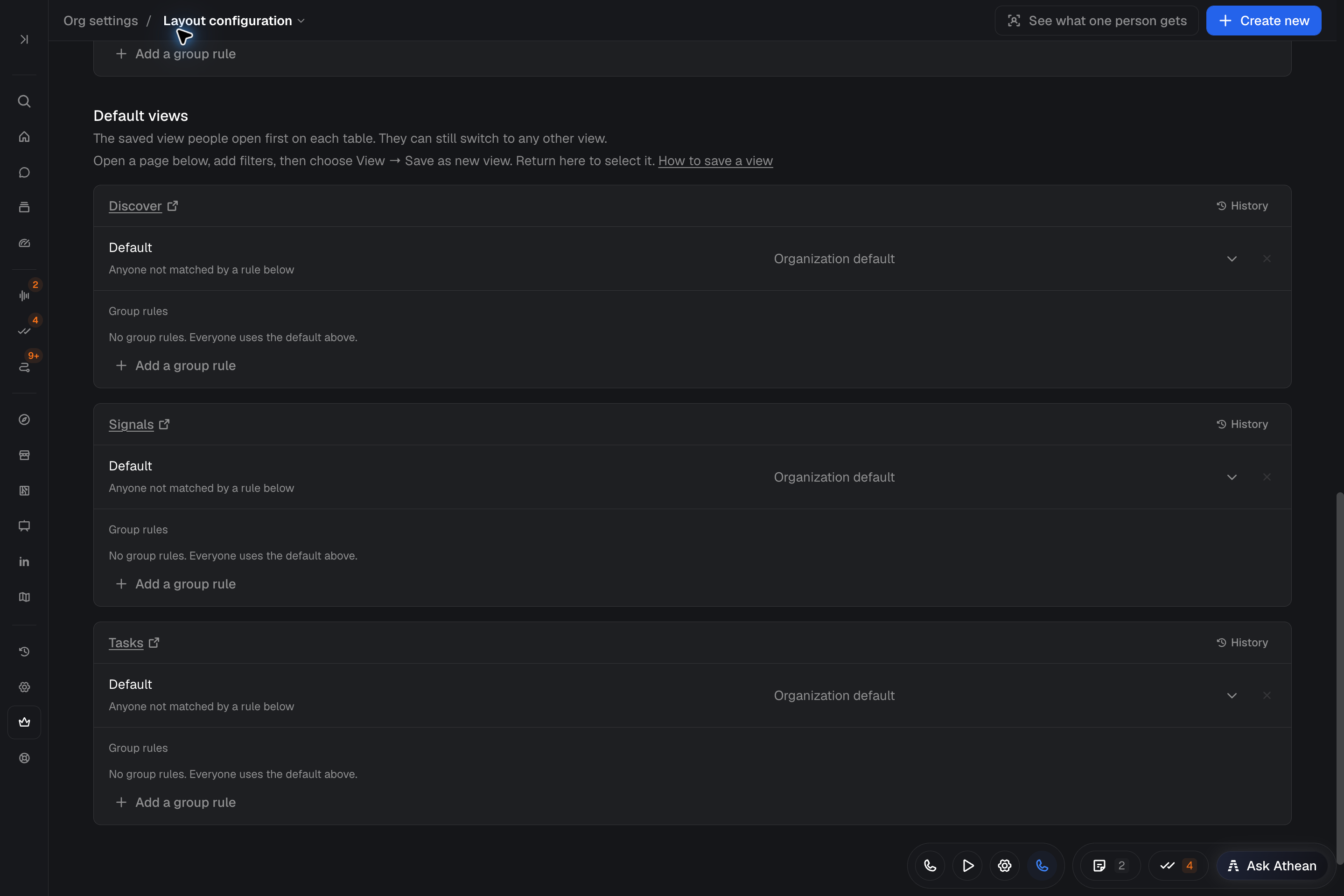
| Default views | The saved view people open first on Discover, Signals, and Tasks. Discover has one default view for both its Accounts and Contacts tabs. People can still switch to another view. |
Each area has its own assignments, and each person receives one choice per area. For example, East SDRs can receive a prospecting Home layout and a contact field set, while managers receive a reporting Home layout. Layout assignments don't grant permission roles.
The same people can ask Athean in Workspace → Chat about team Home and account page layouts: who receives each layout and why, what a layout contains, or what one person gets. Athean can also change a team layout or which groups receive it. Before its first team change in a conversation, Athean tells you who the change reaches and asks whether it is for everyone or only for you, as a personal tab. Confirmed changes save immediately, without Review changes. They are recorded in the same history as changes made on this page, and you can ask Athean to roll a change back.
To arrange your own tabs, see Customize your Home.
Create a Home or Account page layout
- In Org settings → Layout configuration, select Create new, choose Home layout or Account page layout, and select Next.
- Select Create from scratch or Create from existing layout. A copy includes the source layout's tabs and blocks; its assignments are never copied.
- Add, rename, reorder, or remove tabs, and select Add block to place blocks on each tab.
- Enter a layout name and description, then select Create layout.
- Choose who receives the layout with its Assigned to control (open the layout under Layouts and field sets) or on the Assignments tab. A new layout reaches nobody until it is assigned.
To include a dashboard built with Athean, select Add block and choose Custom dashboard. The editor shows a placeholder instead of the dashboard's content. Placing a dashboard doesn't share it, so share the dashboard with the layout's audience before you assign the layout (see Custom dashboards). People without access see Dashboard unavailable.
Saving changes to a layout that is already assigned updates it immediately for everyone who receives it. To work on a separate version first, make a copy with Create from existing layout and assign it when it is ready.
Create and edit Salesforce field sets
Field sets control which live Salesforce fields appear on account, contact, and lead records, and which of those fields people can edit back into Salesforce. They require an active Salesforce connection.
- In Org settings → Layout configuration, select Create new, choose Contact field set or Account field set, and select Next.
- Enter a name and description for the field set.
- Select Add fields to search for and add Salesforce fields. Contact field sets have separate Contact fields and Lead fields sections. If a new Salesforce field is missing, select Refresh from Salesforce.
- Drag fields to set their order, set display labels, and turn on Users can edit for fields people should be able to edit. Read-only, calculated, reference, and ID fields can't be made editable.
- Optionally open a field's Display options to set its format, tooltip, suffix, or icon, then select Done. Done applies the options to your draft; they are saved with the field set.
- Select Create field set. A new field set reaches nobody until you assign it on the Assignments tab.
To change an existing field set, open it under Layouts and field sets, edit the fields, and select Save field set. Review the affected people and confirm Save. Saving changes the field set immediately for everyone who receives it.
Org settings → Salesforce live fields is another place to create, edit, and assign field sets. It also holds the Organization default fields, which people get when no field set applies to them. Only org admins can change the Organization default fields.
Field sets control the fields shown and editable on records. CRM sync mappings separately control what Athean writes to Salesforce during sync.
Assign layouts, field sets, and views to groups by priority
Open the Assignments tab in Org settings → Layout configuration. Each area has its own card under Layouts, Field sets, or Default views, with its own rules based on groups.
- In the card's Default row, choose what people receive when no group rule matches them. Keep Organization default to use the existing setup.
- Select Add a group rule, pick the Group and the layout, field set, or saved view to assign, and select Add rule. New rules go at the bottom.
- Order the rules from highest to lowest priority with the drag handles or move controls. To remove a rule, use its remove control; Undo restores it until you apply your changes.
- Select Review changes and apply the changes (see Preview user assignments and apply changes).
The first matching rule wins. For each area, Athean checks the rules from top to bottom and applies the first rule whose group includes the person. Layouts or field sets are never merged within an area. A group without a rule doesn't override anything; another group's rule can still apply before the Default. For example, put a Managers rule above an East SDRs rule if someone in both groups should get the managers' Home layout.
Assign default saved views for Discover, Signals, and Tasks
- Open the table from its card under Default views, or open Tools → Discover, Prospecting → Signals, or Prospecting → Tasks. Set the filters, pinned controls, and columns, then select View → Save as new view... (see Saved views).
- For Discover, one default view covers both the Accounts and Contacts tabs, so create the view on either tab. A view can set separate columns for each tab: when saving, or later in View settings..., turn on Also set column layout for Accounts, Also set column layout for Contacts, or both. When you save a new view, the switch for the tab you're on starts on. A tab whose switch is off keeps each person's own columns.
- Return to Assignments and select the saved view as the table's Default, or assign it with Add a group rule. Views are created and edited on their tables, not in Layout configuration.
- Select Review changes, check the affected people and the sharing changes, and select Apply.
Applying a default view shares the view with everyone the rule or default covers and adds it to their Saved views. The sharing stays in place even if you remove the rule later. If the assignment would widen a view's sharing and you don't have saved-view sharing permission, Athean refuses the change; ask the view's owner or an org admin to share the view, then try again.
The default view opens when someone visits the table without a link that sets a view or filters. People can still switch views. If the default view isn't available, the table opens in its standard view. To check one person's starting view, use See what one person gets.
A view that is assigned as a default can't be deleted, and its sharing can't be reduced. Replace or remove its default-view rule first.
Preview user assignments and apply changes
- After changing rules on the Assignments tab, select Review changes. If you changed several areas, review and apply each area separately; your other changes stay unsaved.
- Check the affected people and what they will receive, then select Apply, or Keep editing to go back.
- Select See what one person gets and pick a user to check which layout, field set, and default views they receive and which rule decided each one.
Read membership warnings before applying. Athean may be using the last group membership it resolved, so counts and matches can lag a recent group change. Field-set changes are blocked while Athean can't confirm who receives them, because field sets control which Salesforce fields people see.
If another administrator saved a newer version of the layout or field set you are editing, Athean shows This layout has a newer version (or This field set has a newer version). Select Reload latest to discard your edits and open the newer version, Create a copy (Save edits as a copy when you are editing a layout with Edit tabs and blocks) to keep your draft as an unassigned copy, or Keep editing.
How organization-managed tabs and personal tabs interact
- Home: organization-managed tabs appear first in the tab bar and replace the standard Home tab. Personal tabs stay after the managed tabs.
- Account pages: one layout applies to every account page. Organization-managed tabs appear first and replace default tabs the person hasn't changed. Customized default tabs and other personal tabs stay after the managed tabs.
Managed tabs are locked. To customize one, duplicate it as a personal tab (see Customize your Home), or ask an administrator to change the layout in Layout configuration. Two people with the same managed layout can still have different personal tabs; use See what one person gets to check their assignment.
Customize your Home
Everyone can create and arrange personal tabs on Workspace → Home and on account pages. Editing needs a browser window at least 900 pixels wide.
- Open Home and select New tab. The empty personal tab opens in edit mode. To start from the standard Home tab or a managed tab instead, select it, select Edit layout, and confirm Duplicate; Athean opens a personal copy for editing.
- Select Rename tab to name the tab.
- Select Add block and choose a block, such as Quick start, Tasks, Today's meetings, Operator approvals, Agents, or Custom dashboard.
- Drag a block's header handle (or focus the handle and use the arrow keys) to move it, drag its corner to resize it, or select its remove control to take it off the tab.
- Drag personal tabs in the tab bar to reorder them. Managed tabs stay at the beginning.
- Select Done editing to leave edit mode. Select Edit layout whenever you want to make more changes.
Personal tab changes save automatically as you make them; Done editing only leaves edit mode. If Athean reports that a change couldn't be saved, make the change again.
The Add block picker groups blocks under Your work, Your team, and Operations. Blocks already on the tab, and blocks that need access you don't have, stay listed but unavailable, with the reason. For example, Live calls needs permission to listen to live calls, and only org admins can see the data in CRM sync and Seats and connections. Your organization can also turn off duplicating a managed tab.
The Agents block shows the latest runs of agents that run for you, including agents you take part in through a group. Select View all agents for the full list. To show a dashboard, choose Custom dashboard and search for it by name. Adding it doesn't change who can open it (see Custom dashboards).
You can also ask Athean in Chat or Ask Athean to create or rearrange your personal Home and account page tabs. Athean changes only personal tabs. To change the standard Home tab or a managed tab, it creates a personal copy and leaves the original unchanged. On Home, blocks it adds or copies start with their default settings, so adjust a block's people or time period on the block itself.
Org admins can also ask Athean to change another person's personal Home or account page tabs, for example to add a dashboard. Athean saves the change immediately, keeps the person's other blocks and their settings, and names whose tab it changed. The person can keep customizing the tab. Athean can't delete another person's tabs, and it doesn't change which tab their page opens to unless you ask. If the person can't open a dashboard you ask Athean to add, Athean first gives that person access to it, without changing anyone else's access, and tells you (see Custom dashboards). The Manage profiles and policies permission alone doesn't allow this.
Restore prior assignments from Assignment history
Select Assignment history in Org settings → Layout configuration and pick an area. Each version shows its author, time, group rules, and what everyone else gets; Current marks the active version.
To return to an earlier arrangement, select Make active version on that version, review the affected people, and select Restore. This creates a new version and immediately changes the group and Everyone else assignments.
Assignment history covers who receives which layout, field set, or default view. Restoring an assignment doesn't restore a saved view's earlier filters, pins, or column layout. A layout or field set keeps its own version history for its contents.
A group that is used in an assignment can't be deleted; remove or replace its assignments first. If a configuration can't load or resolve group membership, contact support.