
Choose an import method
| Method | Size | How it works |
|---|---|---|
| Contact CSV upload (into a contact list or sequence) | The Upload & map columns step shows the most contacts one batch can hold; rows beyond that aren't processed. An operator's remaining capacity can lower it. | Rows keyed by Email or LinkedIn URL match existing contacts or, when the row has a name, title, and email or company website, create new ones. Rows keyed by a CRM ID (Salesforce ID or Hubspot ID) only match contacts already in Athean. Optional ZoomInfo enrichment and CRM import. |
| Sales Navigator URL import (Tools → LinkedIn imports) | Import max of 50, 200, 500, or 1,000 contacts per import | Collects a Sales Navigator people search or saved lead list in the background into a batch for review. |
| Chrome extension capture (Use Athean in LinkedIn & Sales Navigator) | Selected profiles on the current page, or one profile | Sends selected profiles from a Sales Navigator search or list, or a single LinkedIn or Sales Navigator profile, to LinkedIn imports. |
| Chat, agents, and automations | Set by your request or workflow | Research external sources, such as company leadership pages or SLED board directories, and create the accounts and contacts they find. Chat asks for your approval before it imports contacts from LinkedIn or ZoomInfo or creates contacts from research, but it can add a single person you name without asking. |
Import contacts from a CSV file
Upload a contact CSV into a contact list from Workspace → Lists (Add to list → Upload CSV) or into a sequence (Add contacts → Upload CSV):
- Select Upload CSV, then Next.
- At Select primary key, choose how rows are matched: Email, LinkedIn URL, or your CRM's ID (Salesforce ID or Hubspot ID, shown when that CRM is connected). When an Email or LinkedIn URL row has no match, Athean creates a new contact if the row has a name, a Title, and an Email or Company Website. It finds the contact's account from the website, or else the email's domain, and creates a missing account only when your organization allows account creation. Other unmatched rows fail. CRM ID rows only match contacts already in Athean; rows with no match fail.
- At Upload & map columns, choose your file and map the primary key column and any other fields. For names, map Full name, or both First name and Last name. Only the number of rows shown on this step is processed in one batch, and the uploader rejects files that are too large.
- Review Post-upload actions when shown: Auto-import to CRM starts on and sends the contacts to your connected CRM; Auto-enrich adds ZoomInfo data (needs a ZoomInfo connection) and starts on unless you turned it off last time. Turn off any you don't want.
- Select Next. Athean imports the rows at this point: it creates or matches contacts and runs the enrichment and CRM import you chose. Review each row's Success or Error status at Confirm upload.
- All successful contacts start selected. Clear any you don't want, then select Add N contacts to list (or to template or to operator). For a sequence, confirm the enrollment settings that open.
For a list, the final button only adds the imported contacts; the contacts, enrichment, and CRM records were created at the previous step. For a sequence, Auto-enrich in the confirmation also enriches contacts as they're added. Confirm upload doesn't show CRM results, so check a contact's CRM link in its Sources row. Repeated rows with the same primary key are skipped, and CRM IDs are compared with their exact capitalization. Skipped duplicates and the batch maximum can make the result smaller than your file.
When you upload into a sequence, follow Approve and manage sequences to review enrollment warnings and approval.
Configure ZoomInfo matching and enrichment
The Sales Navigator import dialog includes Use ZoomInfo for matching and enrichment. It applies when your organization has a ZoomInfo connection, which Athean sets up with your team; contact support to set one up. When it's on, Athean uses ZoomInfo to match profiles to accounts and contacts, and adds available phone numbers and email addresses to the contacts it imports.
ZoomInfo matching runs during the import. It can match existing Athean contacts or create new ones before you review the batch; those rows appear under Imported.
To enrich contacts after import, open the batch, select rows under Imported, and choose Enrich (or Retry enrichment). Only imported contacts with a resolved account can be enriched, and ZoomInfo enrichment must be enabled for your organization.
Match accounts and import reviewed batches
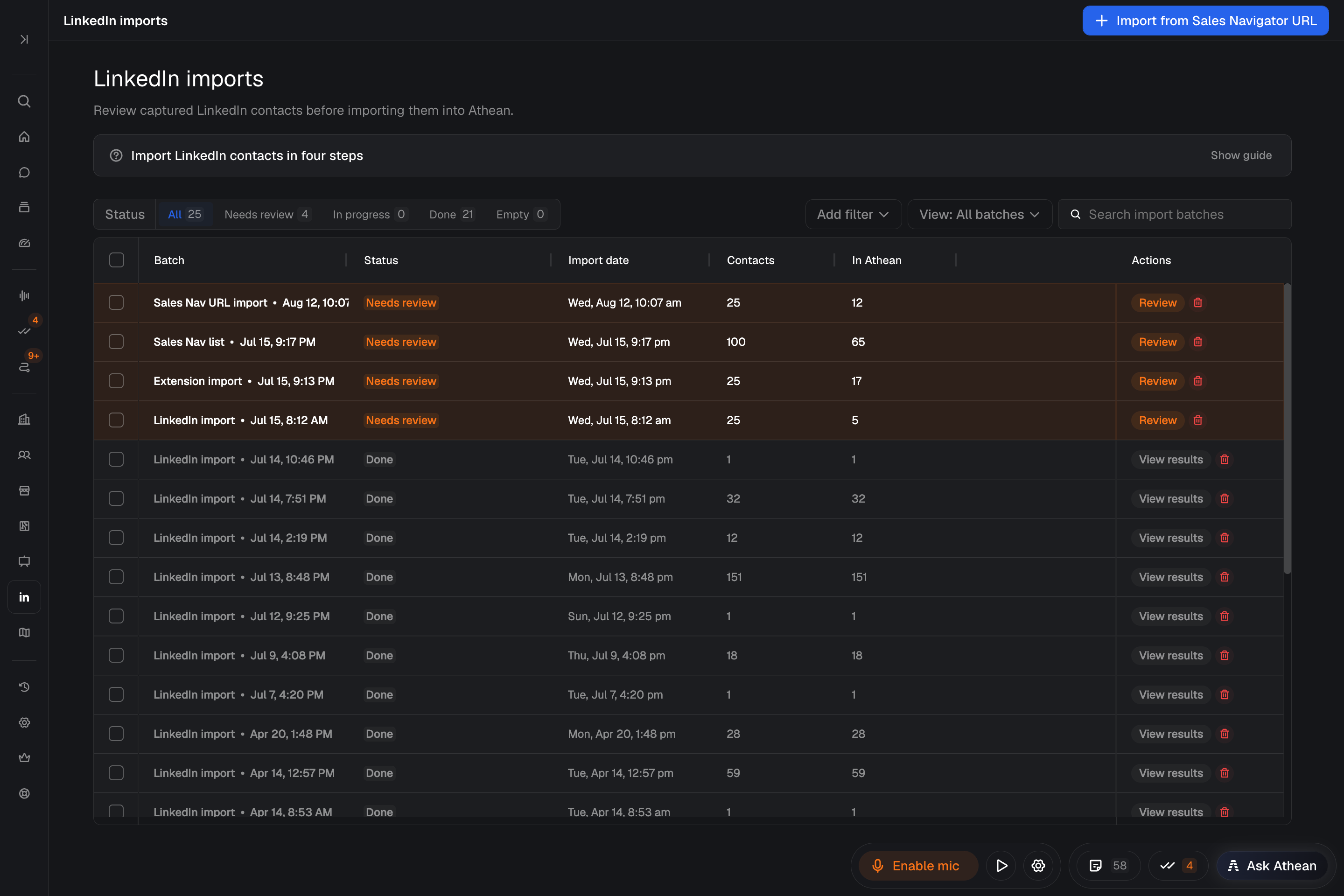
- Open Tools → LinkedIn imports, filter by batch status (All, Needs review, In progress, Done, or Empty), and select Review or View results on a batch.
- For rows that still need an account, choose Select account and pick the Athean account. A contact must have an account before it can be created in Athean.
- Under Ready to import, select rows and choose Import contacts to create the contacts in Athean.
- Check the created or matched contacts under Imported.
How Salesforce import works for Sales Navigator batches
When Salesforce is connected, the Sales Navigator import dialog includes Automatically import contacts to Salesforce:
- When it runs: Starting a URL import doesn't write anything to Salesforce. When you select Import contacts on reviewed rows, Athean creates the contacts in Athean, runs ZoomInfo enrichment if it's on, and then tries to add each contact to Salesforce. A Salesforce failure doesn't stop the import; the contact is still marked Imported.
- Contacts already under Imported: Profiles that matched existing Athean contacts, or that ZoomInfo matching created during the import, appear under Imported and aren't sent to Salesforce by the batch. Export them one at a time as described below.
Imported means the contact is in Athean. It doesn't confirm that enrichment succeeded or that the contact reached Salesforce; check the contact's Salesforce link before relying on it.
Manually export an Athean contact to Salesforce
- Open the contact in Athean.
- In the contact's details, find the Salesforce icon in the Sources row:
- If its tooltip reads Export to Salesforce, select it and confirm Export.
- If it reads View in Salesforce, the contact is already linked; select it to open the Salesforce record.
- Wait for the Contact exported to Salesforce confirmation.
Capture profiles from the Chrome extension
When browsing LinkedIn or Sales Navigator with the Athean Copilot Chrome extension:
- On a Sales Navigator people search or lead list: Select contacts in the extension sidebar, select Export All, then Finish Export in Athean.
- On a single LinkedIn or Sales Navigator profile: If the profile isn't in Athean yet, select Import to Athean in the extension sidebar, then Finish Import in Athean. An existing contact shows Contact exists in Athean instead.
Both send the captured profiles to Tools → LinkedIn imports, where you complete account matching and import.