
How event triggers work
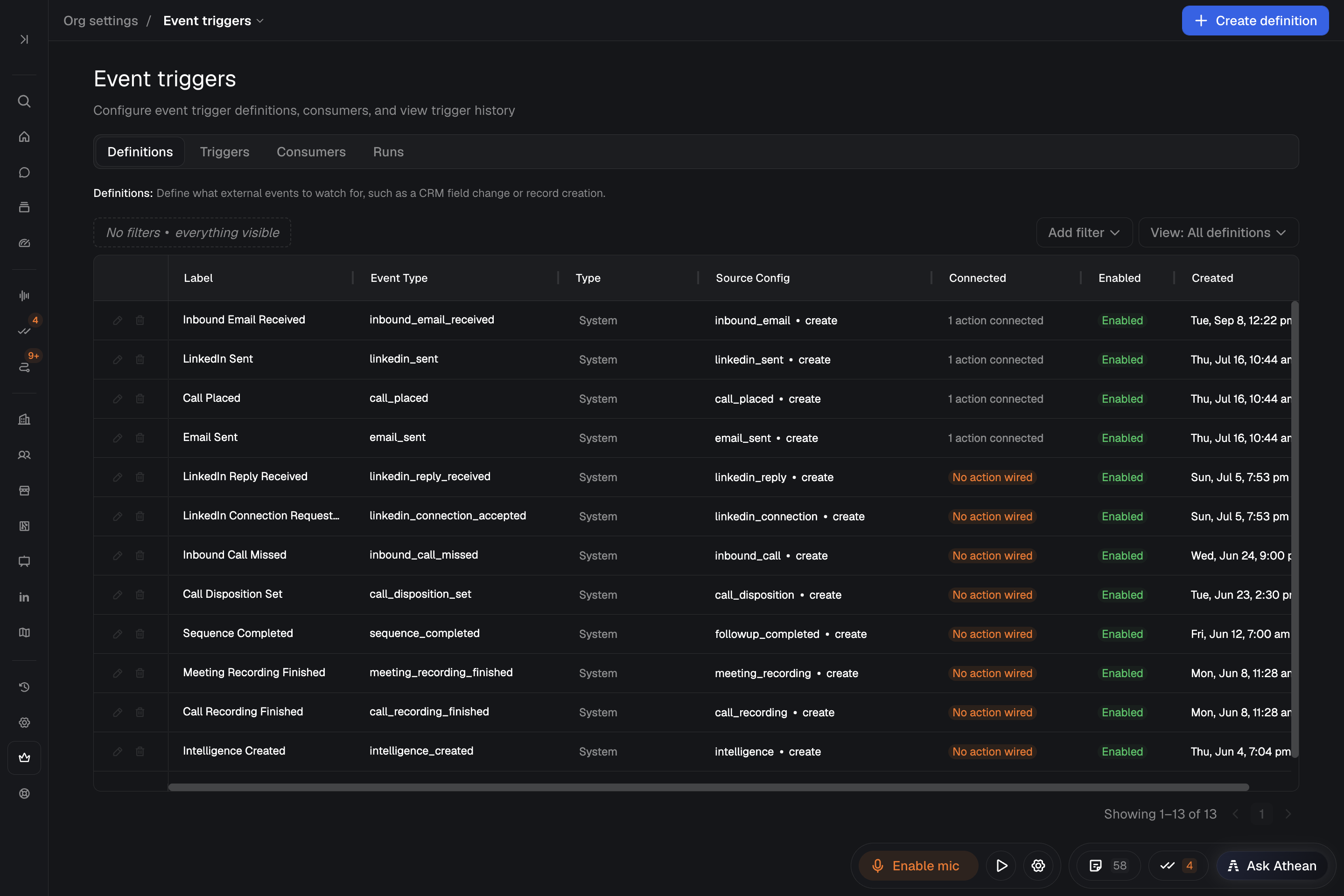
An event-triggered automation runs when something happens, such as a Salesforce record being created or a field changing. Automations can also run on a schedule. Build and manage automations in Tools → Agents → Automations. Organization administrators manage event detection in Org settings → Event triggers, which has four tabs:
| Tab | What it shows |
|---|---|
| Definitions | The events Athean watches for: built-in system events, such as Email Sent or Call Placed, and Salesforce changes defined by object, operation (Create, Update, or Create or Update), and field conditions. |
| Triggers | Each event a definition detected. |
| Consumers | The actions connected to each event type, such as an automation. |
| Runs | What each connected action did for a detected event, with its status, error, and result. One event can lead to several runs when several actions are connected to its event type. |
A definition only detects events. An action follows only when a consumer is connected to the definition's event type. An automation that uses an event trigger is connected automatically.
Create and activate an automation
Creating an automation requires organization administrator access or a role with the Create permission under Automation (see Permissions and roles). Editing and running your own automations also needs Edit own. If you don't see Automations under Agents, or New automation is unavailable, ask your administrator for access.
- Open Tools → Agents → Automations and select New automation.
- Describe what should start the work (such as a Salesforce change or a schedule) and the actions to take (such as researching an account, importing contacts, creating a signal or task, posting a Slack message, or calling another service's API). Name the records, recipients, and channels involved. For an API that needs a key, save the key in API secrets and tell Athean which secret to use.
- Work through the instructions with Athean. Creating the automation saves it right away as version 1, with no approval card. It starts Paused and doesn't run yet.
- Review its Specs, Settings, and saved version. To choose the version that runs, ask Athean to activate it and approve the activation card in Chat, or select Make active version on the Versions tab (requires edit access).
- Review the workflow before running it; every run is real. When the active version and setup are ready, select Resume on the automation's page to turn it on.
To change what an automation does, describe the change in its conversation. Saving a new version needs no approval and doesn't activate it; the current active version keeps running until you activate another. Activating a version through Chat requires approval. Activating a version doesn't resume a paused automation; select Resume separately.
The Automations list shows the automations you own, or everyone's when you have View all (including others) or Edit any (including others). Without permission to edit an automation, you can inspect its Runs, Specs, Settings, and Versions, but you can't change, run, pause, or delete it.
An automation runs with its owner's access, including the API secrets its owner can use. If the owner can no longer edit it, for example after a role change, it stops running. Org settings → Event triggers is available only to organization administrators.
Search and filter automations
In Tools → Agents → Automations, use Search name or creator… or Add filter to filter automations by:
- Created by: the automation owner.
- Status: Active, Paused, or Needs setup.
- Trigger: the event that starts the automation, or No trigger for automations that run on a schedule.
- Last run status and Last run within: the most recent run's outcome and when it ran. Choose a preset or Custom range; automations that have never run don't match a date window.
Create and preview a Salesforce event definition (Admins)
- Open Org settings → Event triggers on the Definitions tab and select Create definition.
- Enter a Label. Athean fills in the Event type from it. Actions use the event type to match the event, so keep it stable.
- Select the Salesforce object and Operation: Update, Create, or Create or Update.
- Set the field condition. Update can specify an Old value and New value. Update and Create or Update need Salesforce field-history tracking on the field; for a field marked not tracked, turn on tracking in Salesforce or choose another field. Create can have several conditions; use Add field to add one.
- Pick a Lookback window (Last 7 days, Last 30 days, or Last 90 days) and select Test to preview how many recent Salesforce records would have matched. The preview doesn't save the definition or run any actions.
- Select Save. A saved definition is enabled right away, so review the actions already connected to its event type before saving.
System definitions can't be edited or deleted, and legacy Salesforce definitions are read-only.
Connect an action to an event (Admins)
An automation that uses an event trigger is connected to its event type automatically and appears on the Consumers tab. Use Create consumer to connect another action to an event type.
- In Org settings → Event triggers, open the Consumers tab and select Create consumer.
- Enter a Label and select the Event Type.
- Select the Action Type. For an automation, choose Automated Workflow and select it under Workflow.
- Select Save.
A newly saved consumer is enabled. Saving a consumer for an automation turns that automation on, even if it was paused. Review its audience, outputs, and record-changing actions before saving. Saving is refused unless the automation's trigger already uses the selected event type; set the trigger in the automation's settings first. If the action type you need is unavailable, contact support.
In the Definitions table, the Connected column counts the consumers for each event type, including disabled ones. No action wired means no consumer exists for the event type. A connected consumer can still be disabled, for example when its automation is paused.
The Enabled columns are read-only. For a consumer connected to an automation, select Open workflow and use Pause or Resume on the automation; this controls the automation and its event connection together. An automation with the Needs setup status must be completed before it can resume. For other status changes, contact support.
Review the workflow before running it
Every automation run is real. There is no test mode. A run can change records, send emails and Slack messages, use enrichment, call other services' APIs (see API secrets), or write files according to its instructions and its owner's access. API requests can create, change, or delete data in the other service. Messages aren't marked as tests. Review the audience, recipients, and intended changes before any run.
- Use the automation's conversation to review the saved workflow on representative records. If you only want to inspect, ask Athean not to change records or send messages.
- For a scheduled automation, select Run now to start a real run of the active version, even while the automation is paused. This requires edit access and shows no separate approval card.
- For an event-triggered automation that has already run, ask Athean to run a saved version on events from its earlier runs. Athean shows an approval card before this real run; check the version, the records, and the actions before approving. A new automation that hasn't run yet has no past events to use.
- Open the resulting run and check its output and the affected records before resuming the automation or expanding its audience.
Running an automation on past events doesn't skip records that were already handled, so a record processed again can repeat its actions. Choose only the events you want to act on.
If another run is queued or running, Run now shows This automation is already running. Select View current run to inspect it. Start another run repeats the work alongside it; it doesn't continue the existing run.
The event definition's Test button only previews which Salesforce records match. It doesn't run the automation or check its actions.
Check detected triggers and their runs
In Org settings → Event triggers:
- Open the Triggers tab to check that the source change was detected. Check its Source record and Payload to confirm it is the event you expected.
- Open the Runs tab to see what each connected action did for that event: Status, Error, Action Taken, Result, and, when available, the workflow version.
A detected trigger and a successful action are separate outcomes. Several actions can react differently to the same trigger, and a workflow can decide that no action is needed. Read the result before treating a quiet outcome as a failure.
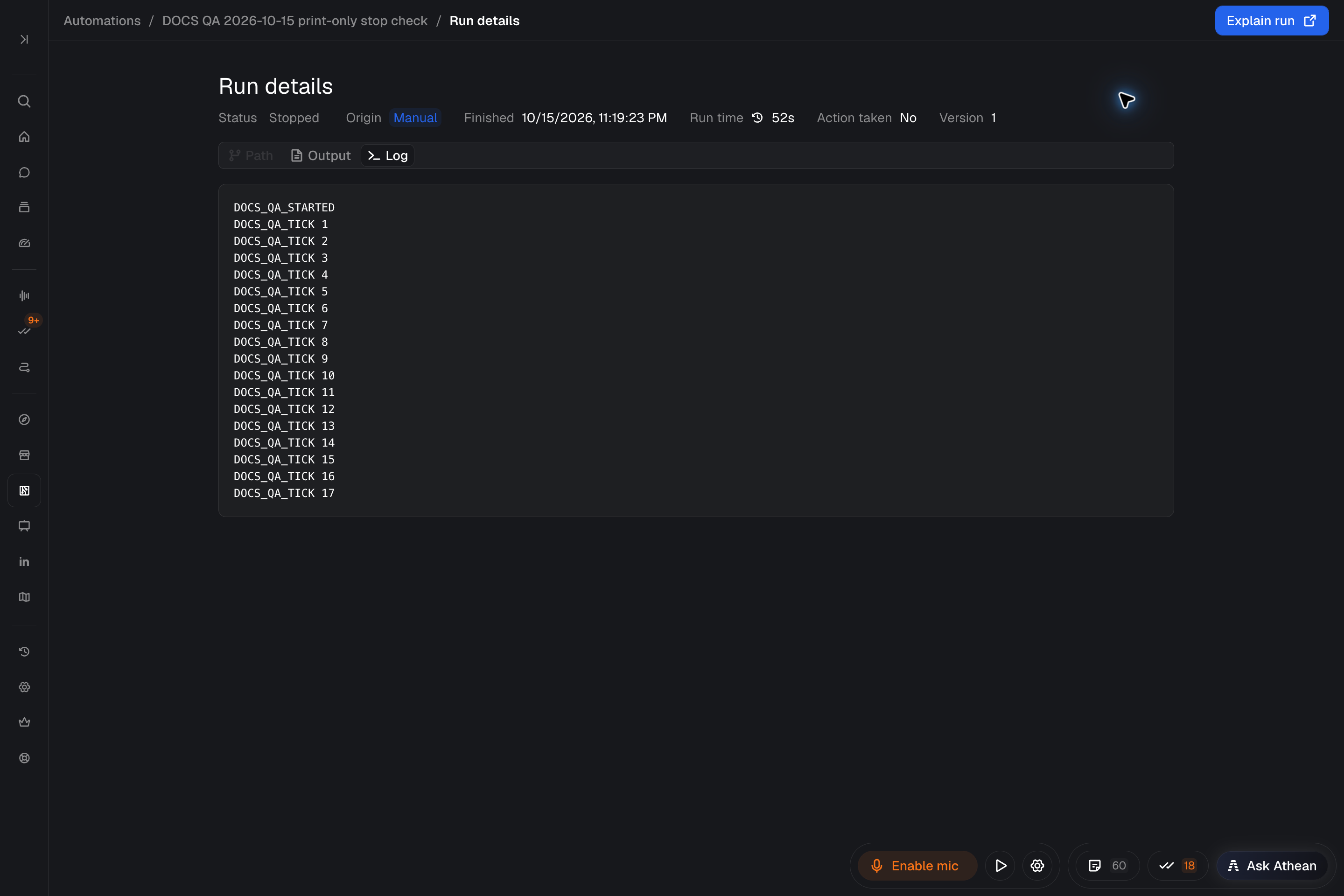
To review an automation's own runs, open it in Tools → Agents → Automations and select Runs. Open a run to see Path, Output, and Log. The Log shows progress while a scheduled or manually started run executes. The origin label, such as Scheduled, Manual, Trigger, or Chat, shows how the run began. Some runs don't record a path; an empty path doesn't mean no work happened. Select Explain run to ask Athean about the run from the automation's page.
To stop an in-progress run, select Stop run; this requires edit access to the automation. Stopping keeps the run's recorded output and actions, but it doesn't undo changes already made, and a stopped run isn't retried automatically. Check what the run already did before starting another, so you don't repeat it.
Troubleshoot missing triggers and failed runs
| Issue | What to check |
|---|---|
| The change happened in Salesforce, but no row appears in Triggers | Check that the definition is enabled and that its object, operation, and field values match. Use the definition's Test to check recent matches, and confirm Salesforce field-history tracking for Update and Create or Update conditions. |
| A trigger was recorded, but no run started | Check the Definitions tab for No action wired and confirm that a consumer uses the exact Event Type. A connected consumer can still be disabled: confirm the linked automation is Active, not Paused, and that its owner can still edit it. |
| The automation shows Needs setup | Read the message on the automation's page, such as a missing trigger or no active version, and fix it. The automation can't resume until then. |
| A run failed or was stopped | Read the run's error, output, and log, and confirm the linked automation and its active version. Fix the cause, then check which actions already completed before running it again. |
| AI credits blocked the work | When an enforced AI credit limit is reached, Chat can't start new requests, such as changing an automation or running it on past events. Read the message and check AI usage and credit limits. A refused request doesn't run later on its own. AI use during an automation's scheduled, triggered, or Run now runs counts against your organization's shared credits. |
Previewing a definition with Test doesn't recover a failed run. To reprocess a specific event, ask Athean to review it and follow the approval for running on past events; this is a real run. If the result is still unclear, contact support with the definition, source record, consumer, run time, and expected result.
For events from another platform or an internal system, contact support about connecting that source. API setup separately explains publishing signals from your own tools.