
What Athean can do in Slack
After an administrator connects your Slack workspace in Org settings → Slack, your team can use Athean in Slack in two ways:
- Updates: Chat and Agents can send you a direct message, such as a summary when a run finishes. Event-triggered automations can also post to a channel or message teammates. See Send agent and automation updates to Slack.
- Chat: send Athean a direct message or mention @Athean in a channel to ask questions, research accounts, draft outreach, and approve actions. It's the same Athean as in Workspace → Chat, with your Athean permissions and the same approvals.
Connecting Slack doesn't send messages or read conversations on its own. Athean reads a message only when someone sends it a direct message or mentions @Athean, and it posts only when a conversation, agent, or automation calls for it.
Connect a Slack workspace (Admins)
An Athean organization administrator connects Slack once for the whole organization. Team members don't connect their own accounts.
- If your Slack workspace restricts app installs, have a Slack administrator approve the Athean app first.
- In Athean, open Org settings → Slack and select Connect Slack.
- On Slack's authorization screen, check that the correct workspace is selected, review the permissions Athean requests (see Slack permissions and access limits), and select Allow.
- Back in Athean, check for Slack workspace connected. The page shows Connected to with your workspace name, the Connected on date, and the Workspace ID.
A Slack workspace can be connected to only one Athean organization at a time. If you can't open Org settings, ask your organization administrator.
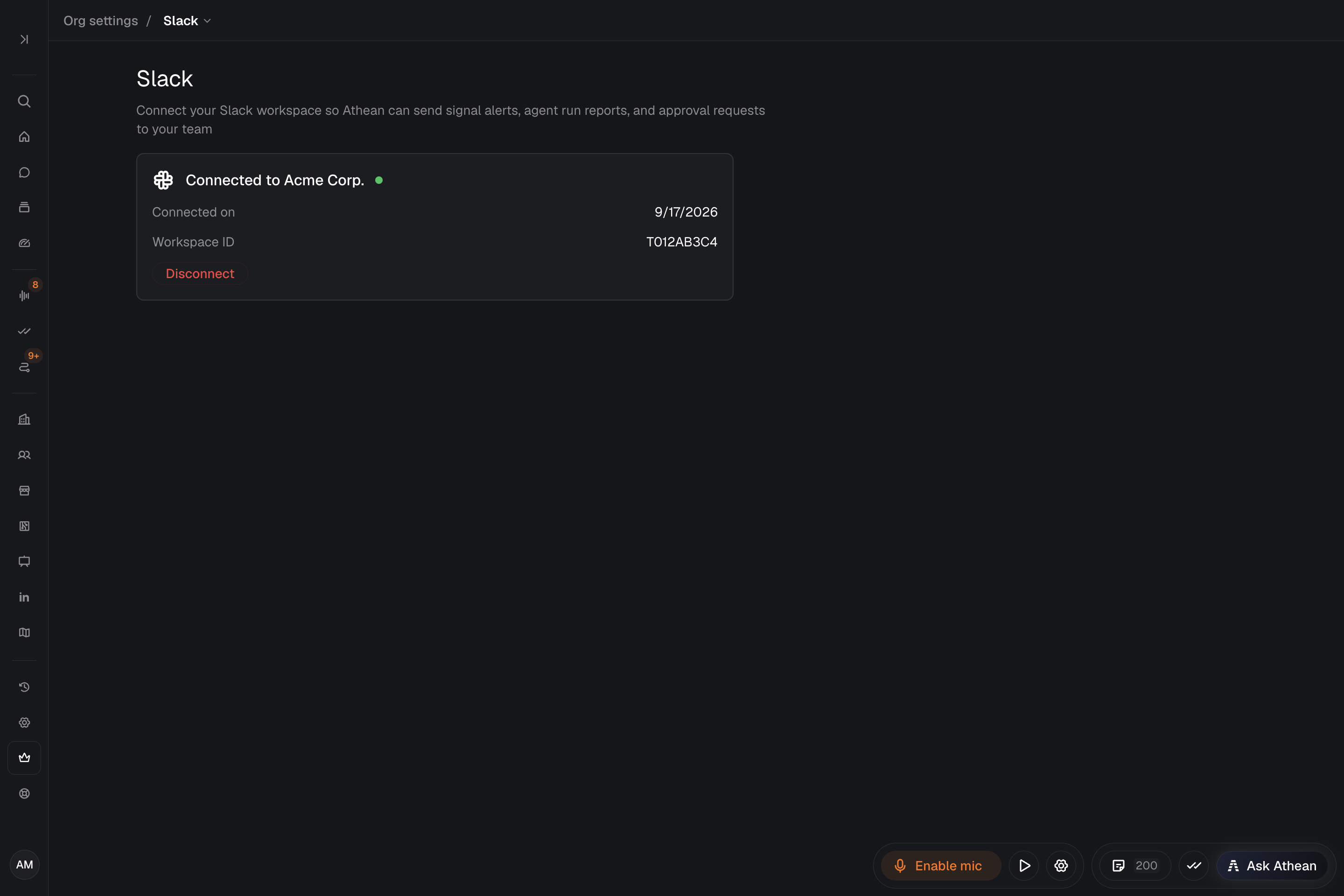
Reconnect Slack to turn on chat (Admins)
If your organization connected Slack before Slack chat was available, the connection is missing the permissions chat needs. Slack doesn't add them to an existing connection, so an administrator must reconnect. Until then, anyone who messages Athean in Slack gets a reply asking an admin to reconnect. Updates from agents and automations keep arriving in the meantime.
- Open Org settings → Slack.
- Select Disconnect, then confirm Disconnect.
- Select Connect Slack and approve the permissions in Slack.
While Slack is disconnected, Athean sends no Slack messages, and agents and automations that send to Slack fail. Do both steps in one sitting.
Send agent and automation updates to Slack
Each agent or automation decides what to send and when. Who can receive a message depends on what sends it:
- Chat and agents: ask Athean or an agent to send you a summary in Slack, such as when a run finishes. The message goes only to the person using the chat or the person the agent run is for. Chat and agents can't message anyone else or post to a channel.
- Automations: an automation can post to a channel it names, or send direct messages to teammates who use your organization's email domains and have an account in the connected Slack workspace. Public channels work right away. For a private channel, first invite Athean by typing
/invite @Atheanin the channel. To set up a recurring team digest or alerts from another platform, contact support@athean.com.
Athean finds people in Slack by email address, so each person's Slack profile email must match the email they use in Athean.
To ask about an update, reply in the thread under it. In a channel, mention @Athean in your reply.
Every agent and automation run is real, including a run you start yourself, so its Slack messages are sent. Check the destination before you run an automation; see Event-triggered automations.
Chat with Athean in Slack
When Slack chat is available for your organization, start a conversation in either place:
- Direct message: open Athean under Apps in your Slack sidebar. Each thread is one conversation. Start a new chat for a fresh conversation, or open its history to return to an earlier one.
- Channel: mention @Athean in a public or private channel Athean has been added to. It replies in a thread under your message. In an existing thread, it reads the earlier messages first, and when you mention it again, it catches up on what was said since. It reads only part of a very long thread, so summarize what matters in your message.
Behavior and limits:
- Conversations in Athean: your Slack conversations appear under Recent conversations in Workspace → Chat. When a reply includes something Slack can't display, such as a contact table, an agent plan, or drafts to review, Athean posts a link to open the conversation in Athean.
- Approvals: when an action needs approval, Approve and Reject buttons appear in the thread. Only the person who started the conversation can decide. Sending a new message instead dismisses the request without taking the action.
- Your account: your Slack profile email must match an active Athean user in the connected organization. Athean works as you, with your Athean permissions.
- Channel conversations: each conversation belongs to the person who started it. To start your own, mention @Athean in a new message.
- Channel access: the first time someone mentions Athean in a public channel it isn't in, Slack offers to add it. For a private channel, use
/invite @Athean. Slack Connect channels shared with other organizations aren't supported. - Files: Athean can't open files or images attached in Slack. Paste the text instead, or attach the file to a conversation in Workspace → Chat (up to 5 files, 10 MB per file); see Chat and Ask Athean.
- Message limits: Athean limits how many Slack messages it answers for each person and for your workspace within a period of time. If you reach a limit, try again shortly or continue in Workspace → Chat.
Slack permissions and access limits
Athean requests these Slack permissions, called scopes, when an administrator connects the workspace:
| Slack scope | Purpose |
|---|---|
chat: | Post messages authored by Athean. |
chat: | Post updates to public channels without being invited first. |
im: | Send direct messages to users. |
im: | Read messages in direct message conversations with the Athean app. |
users:, users: | Match Slack members to Athean users by email address. |
channels:, groups: | Look up channels, such as the channel an automation posts to, and detect channels shared with other organizations through Slack Connect. |
app_mentions: | Respond when someone mentions @Athean. |
channels:, groups: | Read the thread where @Athean is mentioned, in public channels and in private channels it has been invited to. |
assistant: | Run the chat experience in Athean's direct messages, including new chats, history, status indicators, and suggested prompts. |
commands | Reserved for slash commands. None are available yet. |
Athean doesn't watch your channels. In a channel it has been added to, it reads only the thread where it's mentioned, when it's mentioned. It can't:
- Join, create, rename, or archive channels. It doesn't request
channels:joinorchannels:manage. - Read or post in a private channel unless someone invites it.
- Answer mentions in channels shared with other organizations through Slack Connect. Automations can still post to a shared channel Athean has been added to.
- Open files or images attached in Slack.
Messages Athean reads for context become part of that conversation in Athean, where the person who started it can see them in Chat.
Troubleshooting
| Issue | Resolution |
|---|---|
| Athean replies that chat isn't switched on for your workspace | Have an organization administrator disconnect and reconnect Slack in Org settings → Slack. |
| Athean replies that chat from Slack isn't available for your organization | Contact support@athean.com. |
| Athean can't match you to an Athean account | Make sure your Slack profile shows an email address and that it matches your active Athean account. |
| Athean says you or your team have sent it a lot in the last hour | Wait a few minutes and try again, or continue in Workspace → Chat. |
| Slack shows “Only @name can decide this one” | Only the person who started the conversation can select Approve or Reject. Mention @Athean in a new message to start your own conversation. |
Connecting shows Slack connection failed (workspace_connected_to_other_org) | The Slack workspace is already connected to another Athean organization. An administrator of that organization must disconnect it first, or contact support@athean.com. |
| Slack connection was cancelled | The authorization was canceled on Slack's screen. Select Connect Slack again and choose Allow. |
| A channel update didn't arrive | Check the channel name, invite Athean to private channels with /invite @Athean, and confirm that Org settings → Slack still shows Connected to. |
| A direct message didn't arrive | Check that the recipient's Slack profile email matches the email Athean uses. An automation can message only teammates who use your organization's email domains. |
Disconnect stops all Slack messages from Athean for your organization, and agents and automations that send to Slack fail until Slack is reconnected. Removing the Athean app from your Slack workspace also disconnects it. For persistent problems, contact support@athean.com with the workspace name and the message or run that failed.