
Set organization defaults and personal overrides
Administrators set the workspace's sequence sending defaults in Org settings → Sequence sending. Each user sees the values that apply to them in Settings → Scheduling.
- Allow user override on: users can change their scheduling fields in Settings → Scheduling. Saving that page stores the user's own values for all of its editable fields, and those values replace the organization defaults for that user. Later changes to the organization defaults don't replace a user's saved values.
- Allow user override off: the organization values apply to everyone, and the personal fields can't be edited.
If someone can't edit their scheduling settings, check this setting before investigating their Permissions and roles.
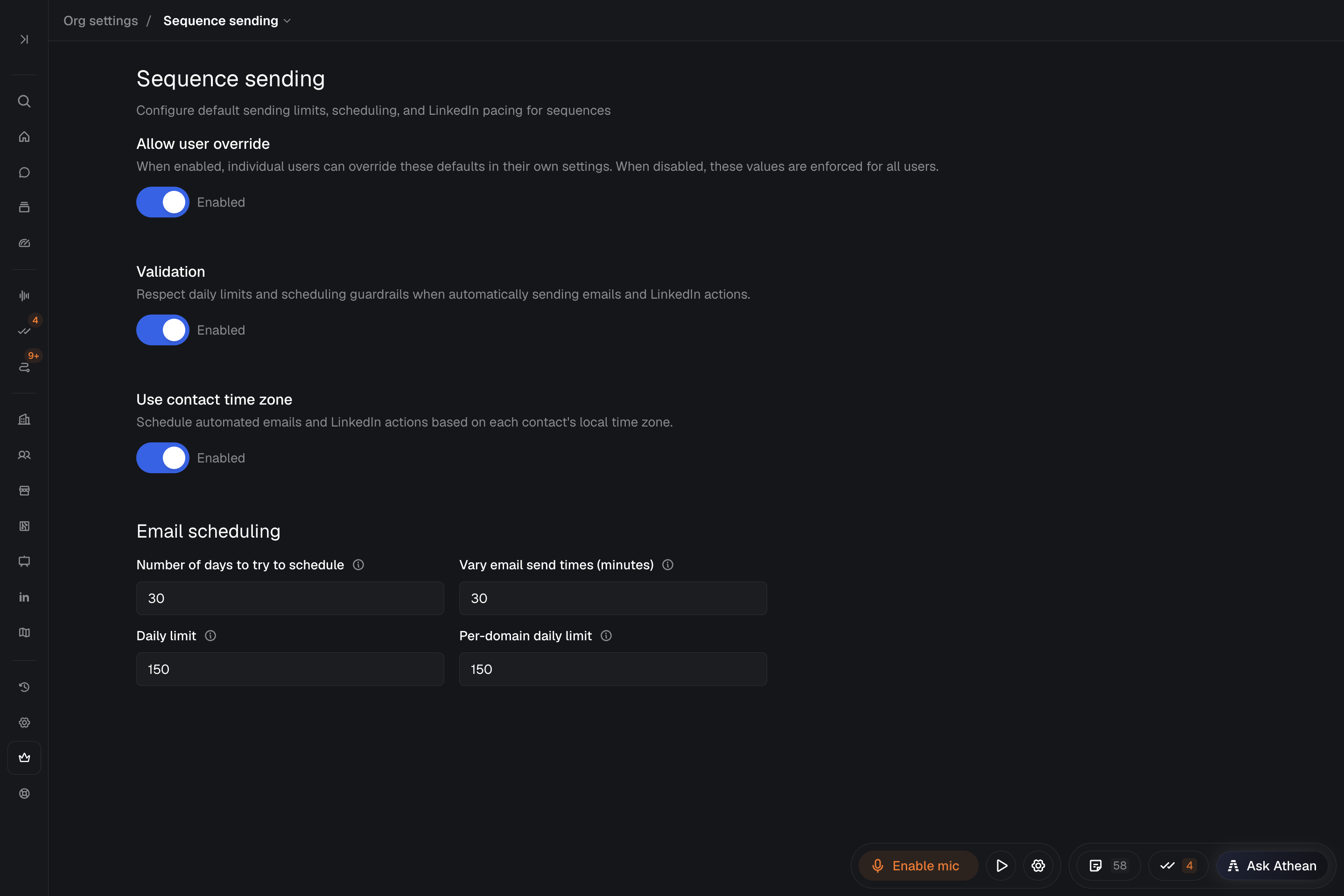
Sequence sending settings reference
| Setting | What it does |
|---|---|
| Validation | When on, Athean won't enroll a contact in a sequence whose own steps would send more automatic emails on one day than the Daily limit. Daily limits apply either way. Only administrators can change it; Settings → Scheduling always shows it as enabled and locked. |
| Use contact time zone | Schedules automated emails and LinkedIn actions in each contact's local time zone. If a contact's time zone is unknown, Athean uses the time zone recorded at enrollment, usually the enrolling person's. |
| Number of days to try to schedule | Saved with the other settings, but Athean doesn't currently use it, so it doesn't limit how far an email can move. An automatic email that doesn't fit the Daily limit or Per-domain daily limit moves to the next business day with room, at the same time of day. |
| Vary email send times (minutes) | Randomly varies email send times to reduce spam flagging, so emails don't all go out at the same minute. |
| Daily limit | The most automated emails sent per user per day. |
| Per-domain daily limit | The most automated emails sent to any one recipient domain (such as acme.com) per day. 0 turns this limit off. |
Each field accepts values within a range Athean sets; a value outside it changes to the nearest allowed value. In Settings → Scheduling, a negative number of days or minutes shows an error.
The email limits apply to automated email scheduling. They don't describe your email provider's total sending allowance. One-off scheduled emails count toward the same daily limit; if the limit has already been reached when one is due, it moves to the next business day.
LinkedIn actions in sequences have their own automatic daily limits per user, which aren't set on these pages. When a day is full, extra LinkedIn steps move to a later day.
Save settings and inspect queued sends
- Update the fields in Org settings → Sequence sending (workspace defaults) or Settings → Scheduling (your own values, when Allow user override is on).
- Select Save changes.
- Open Prospecting → Sequences → Active sequences and expand Scheduled load to see how many steps are scheduled each day and how close each day is to its limit.
New limit and send-time values apply to steps scheduled after you save. Use contact time zone applies only to contacts enrolled after you save. Each night, Athean also re-plans queued emails and LinkedIn steps with the current limits: it moves delayed steps earlier when there's room and moves work off days that are over the limit. To change a specific step now, see Approve and manage sequences or Email: sending and tracking.
Troubleshoot delayed sequence steps
If an automated sequence step is scheduled later than its step timing, check the following in order:
- Sequence state: Check whether the contact's operator draft is still waiting in Prospecting → Sequences → Approvals, the sequence is paused, or an earlier manual task step is still open.
- Per-domain daily limit: Contacts at the same company domain share that domain's daily limit, so their emails can spread across several days even when the sender is under the overall daily limit.
- Daily limit and Scheduled load: Expand Scheduled load in Active sequences to see whether queued work has already filled your day. It shows only your own schedule; if someone else is the sender, ask them to check theirs.
- LinkedIn steps: A LinkedIn step moves to a later day when the sender's automatic daily limit for that action is reached. A failed automatic LinkedIn message, InMail, or connection request is retried on the next business day; after repeated failures, Athean marks the step complete and the sequence moves on.
- Contact time zone: With Use contact time zone on, steps go out at the planned time in the contact's local time zone.
- Sender connection: If an automatic email can't be sent, for example because the sender's mailbox is disconnected, the step becomes a task named Send an email (Automatic Email Failed). Check the sender's Google or Microsoft connection in Settings → Integrations.
If a step still doesn't behave as expected, contact support with the contact, sequence, and expected time.