
Create a project
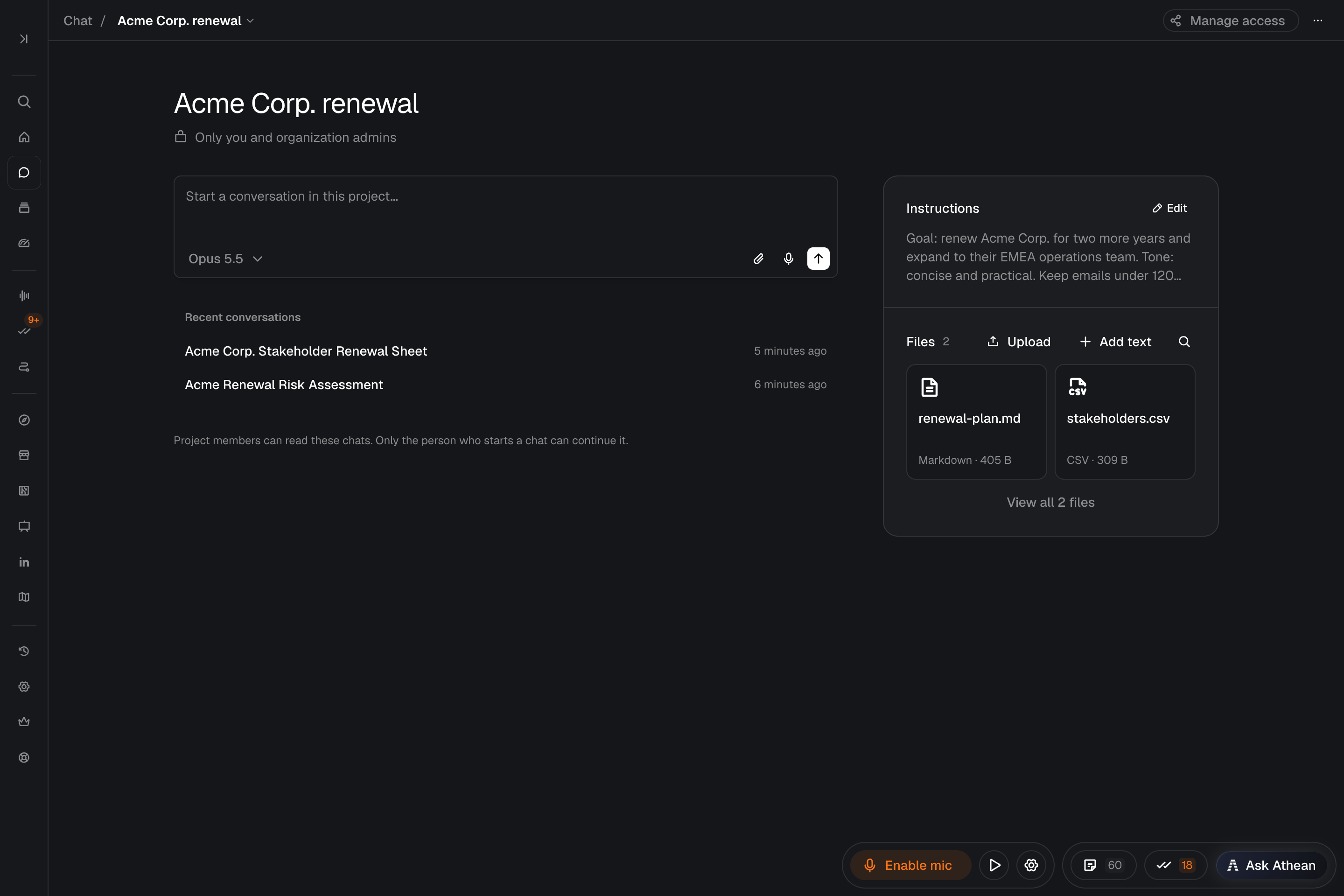
A project keeps related chats, the instructions Athean follows in them, and shared files in one place. Chats you start outside a project are personal. Anyone in your organization can create a project; it doesn't need a permission.
- Open Workspace → Chat and, under Projects, select New project. You can also choose New project at the bottom of the project picker in a message box (see Start a chat in a project).
- Enter a Project name of up to 120 characters.
- Select Create project.
A project created from Projects opens on its own page. A project created from the project picker is selected for the chat you're writing; in an existing chat, Athean asks you to confirm moving the chat into it.
You're the project's owner. A new project is private: its page shows Only you and organization admins until you add people or groups (see Choose who can access a project).
The Projects section on the Chat page has a tile for each project you can open. A tile shows Shared project when people or groups have access, or Personal project for your own project that isn't shared. Organization admins also see other people's private projects, labeled with the owner's name, such as Jordan Lee's project. When there are many projects, use Search projects… or View all N projects. Select a tile to open the project's page, which shows the project's chats, Instructions, and Files.
Choose who can access a project
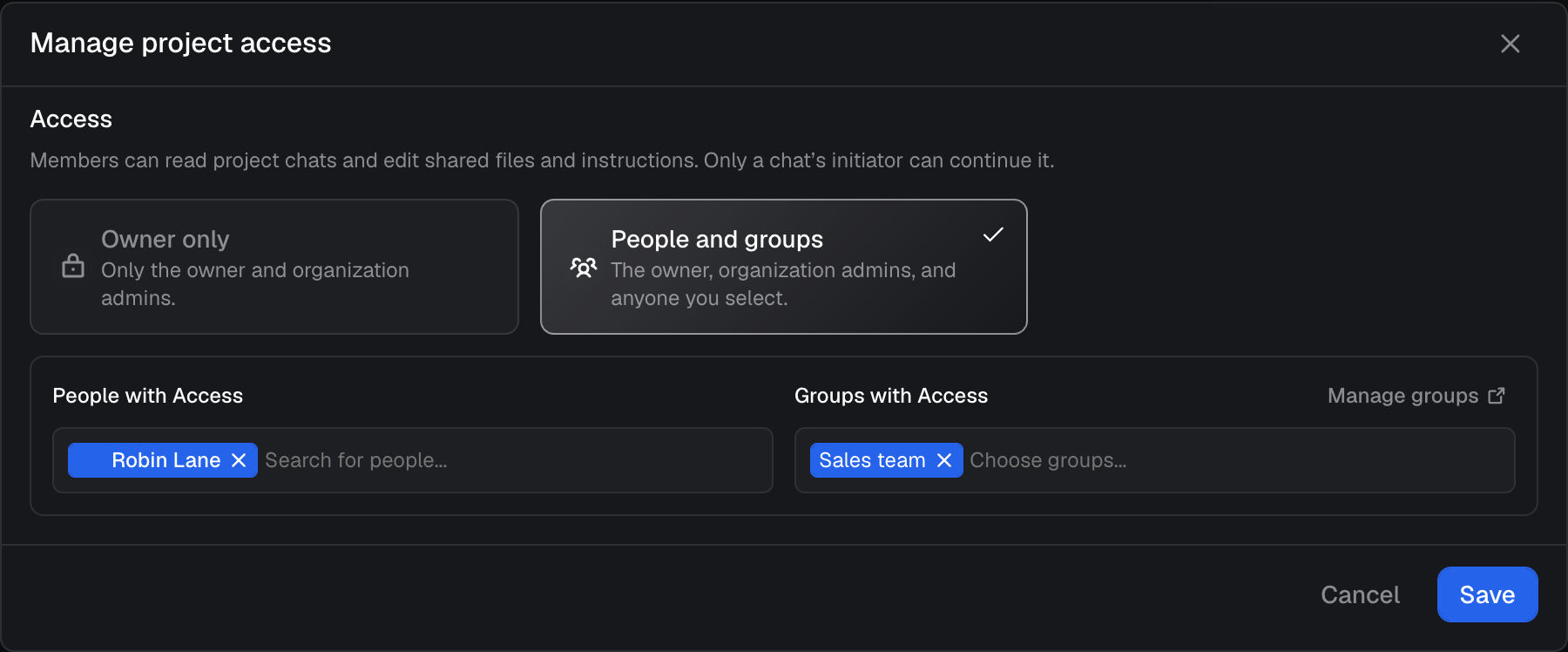
The project's owner and organization admins choose who can access it:
- Open the project's page and select Manage access in the bar at the top of the page.
- In Manage project access, under Access, choose Owner only (only the owner and organization admins) or People and groups (the owner, organization admins, and anyone you select).
- For People and groups, add at least one person or group.
- Select Save.
Under the project's name, its page shows Shared project when people or groups have access. A private project shows Only you and organization admins to its owner; organization admins see the owner's name instead, such as Jordan Lee and organization admins.
| Who | What they can do |
|---|---|
| Members (the people you add and the members of the groups you add) | Open the project, read all of its chats, start chats in it, edit its instructions, and upload, edit, move, and delete its files. |
| Owner (the person who created the project) | Everything members can do, plus Manage access, Rename project, and Delete project. |
| Organization admins | The same as the owner, in every project in the organization, including private projects. |
| The person who started a chat | The only person who can continue that chat, decide its approval requests, or move it (see Read and continue project chats). |
Removing a person or group ends their access right away, including access to the chats they started in the project. Access through a group follows the group's current members. Organization admins can open every project, so the chat lists they see can include chats from every project in the organization.
Start a chat in a project
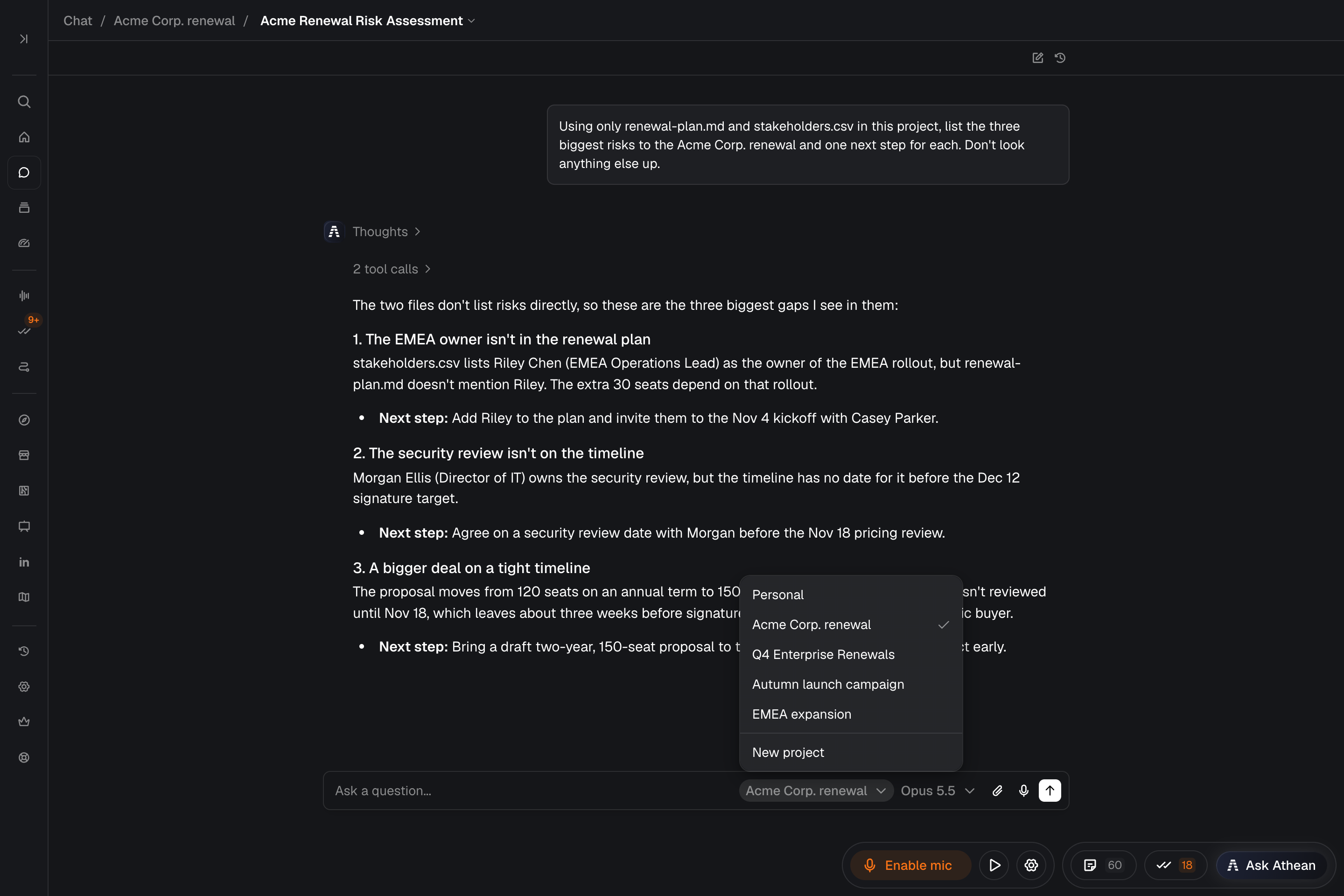
Start a project chat in either of these ways:
- On the project's page: type in the message box (Start a conversation in this project...) and send. The chat belongs to the project.
- In another message box: on Workspace → Chat, in the Ask Athean block on Home, or in the Ask Athean panel, choose the project in the project picker before you send. The picker shows Personal until you choose a project, and a chat sent with Personal stays personal.
The picker lists Personal and every project you can open. When there are many projects, type in Search projects… at the top of the list to filter it. Select New project to create a project and select it (see Create a project).
In a project chat, the bar at the top of the page shows Chat, the project's name, and the chat's title. Select the project's name to open its page. New chat opens the project's page, so the next chat also starts in the project.
Everyone with access to the project can read the chat, including the files and images you attach (see How Athean uses project instructions and files).
Read and continue project chats
Everyone with access to a project can read all of its chats, including chats other members started. Only the person who started a chat can continue it.
- Find project chats: the project's page lists its chats. Recent conversations on Workspace → Chat and the conversations under Chat in the sidebar also include chats from projects you can access. On the project's page and in Recent conversations, a chat someone else started shows that person's name.
- Open someone else's chat: the chat is read-only and shows Read-only conversation. Only the conversation owner can continue this chat. Its approval requests show View only; only the person who started the chat can approve or reject them.
- Build on a teammate's chat: start your own chat in the project and ask Athean to read the earlier one, for example "Read Jordan's chat about the Acme Corp. renewal and draft a follow-up email." In a project chat, Athean can look through the project's chats, including chats other members started.
Organization admins can open every project, so their Recent conversations can include chats from every project in the organization.
Move a chat into or out of a project
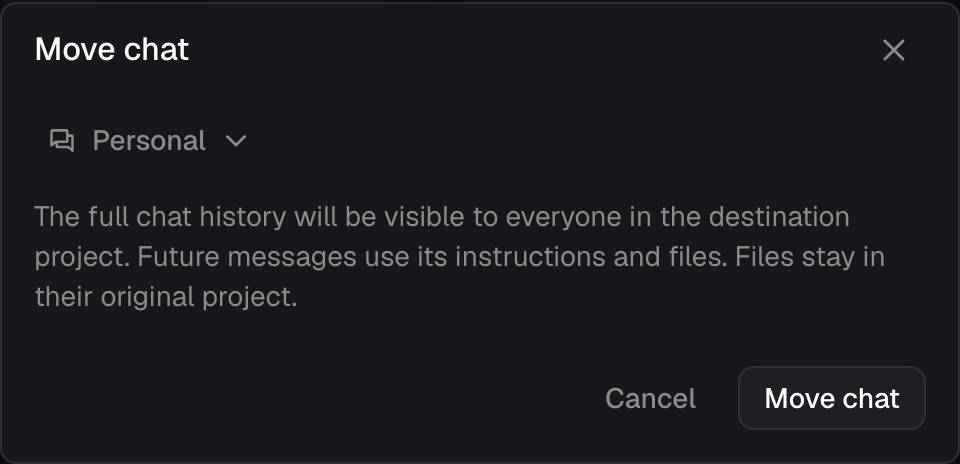
The person who started a chat can move it into a project, to another project, or back to Personal:
- Open the chat from Workspace → Chat. The project picker in its message box shows the chat's current project, or Personal.
- Choose the destination project, or Personal.
- In Move chat, check the destination and select Move chat. Select Cancel to leave the chat where it is.
Moving a chat changes who can read all of it. In a project, everyone with access to the project can read the chat's full history, including messages sent before the move. A chat moved to Personal is no longer visible to the project's members. Future messages use the destination's instructions and files. Files stay where they were saved, in your personal files or the previous project, including files attached earlier in the chat. Athean can't use them in the chat after the move.
You can move a chat only when:
- you started it (for anyone else, the picker is unavailable and shows Only the person who started this chat can move it);
- Athean has finished responding, and the chat has no queued messages, approval requests waiting for a decision, or scripts still running;
- it isn't the conversation of an agent run, which stays personal;
- you can access both the chat's current project and the destination.
Otherwise Athean shows Couldn't move this chat. Wait until it is idle with no pending approvals, and check your access to both projects. Athean can't move a chat for you; use the project picker.
Add project instructions
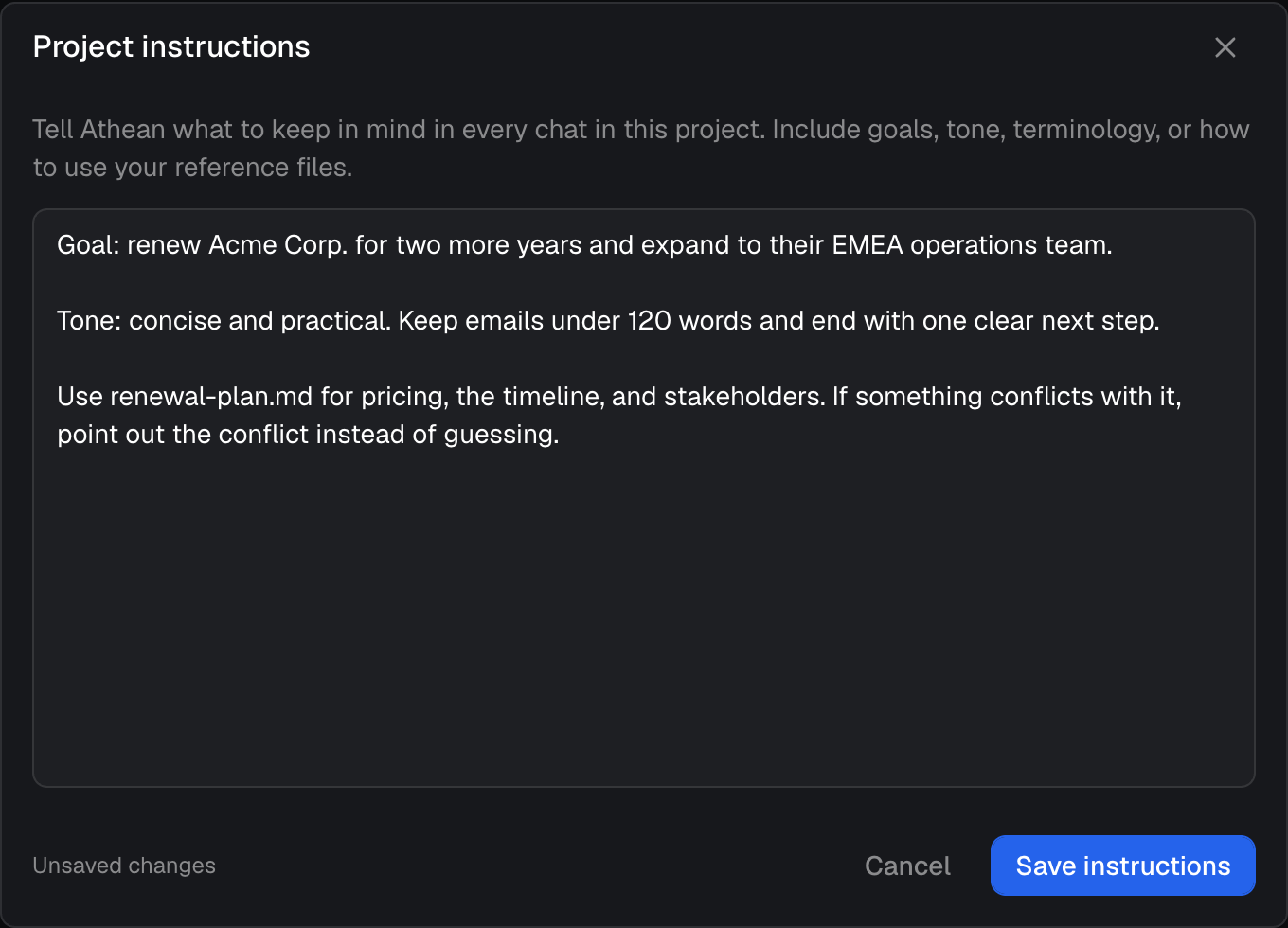
Project instructions tell Athean what to keep in mind in every chat in the project, such as goals, tone, terminology, or how to use the project's files.
- On the project's page, find Instructions and select Add, or Edit if the project already has instructions.
- In Project instructions, write or change the instructions.
- Select Save instructions.
Instructions can be up to 32 KB; longer instructions show Instructions exceed the 32 KB limit. Shorten them before saving. They apply to every chat in the project, including chats other members start, and any member can change them. Athean saves them as AGENTS.md in the project's files, so editing that file in Project files changes the same instructions.
Add, edit, and delete project files
A project's files are shared with everyone who can access the project, and any member can add, change, move, or delete them. The Files section on the project's page shows how many files the project has and the first few of them. Select View all N files or the search button (Search project files) to open Project files, where you can search (Search files…), browse folders, and preview files.
Add files
- Upload: select Upload (or Add files in a project with no files), or drag files onto Files. Any file type can be uploaded, up to 100 MB per file. In Project files, uploads go into the folder you're viewing. An upload fails if a file with the same name already exists; to update that file, open it and use Replace file.
- Create a text file: select Add text, enter a File name and the Content, then select Add file. To put the file in a folder, include the folder in the name, such as
research/notes.md. The name must be unique.
Preview and edit files
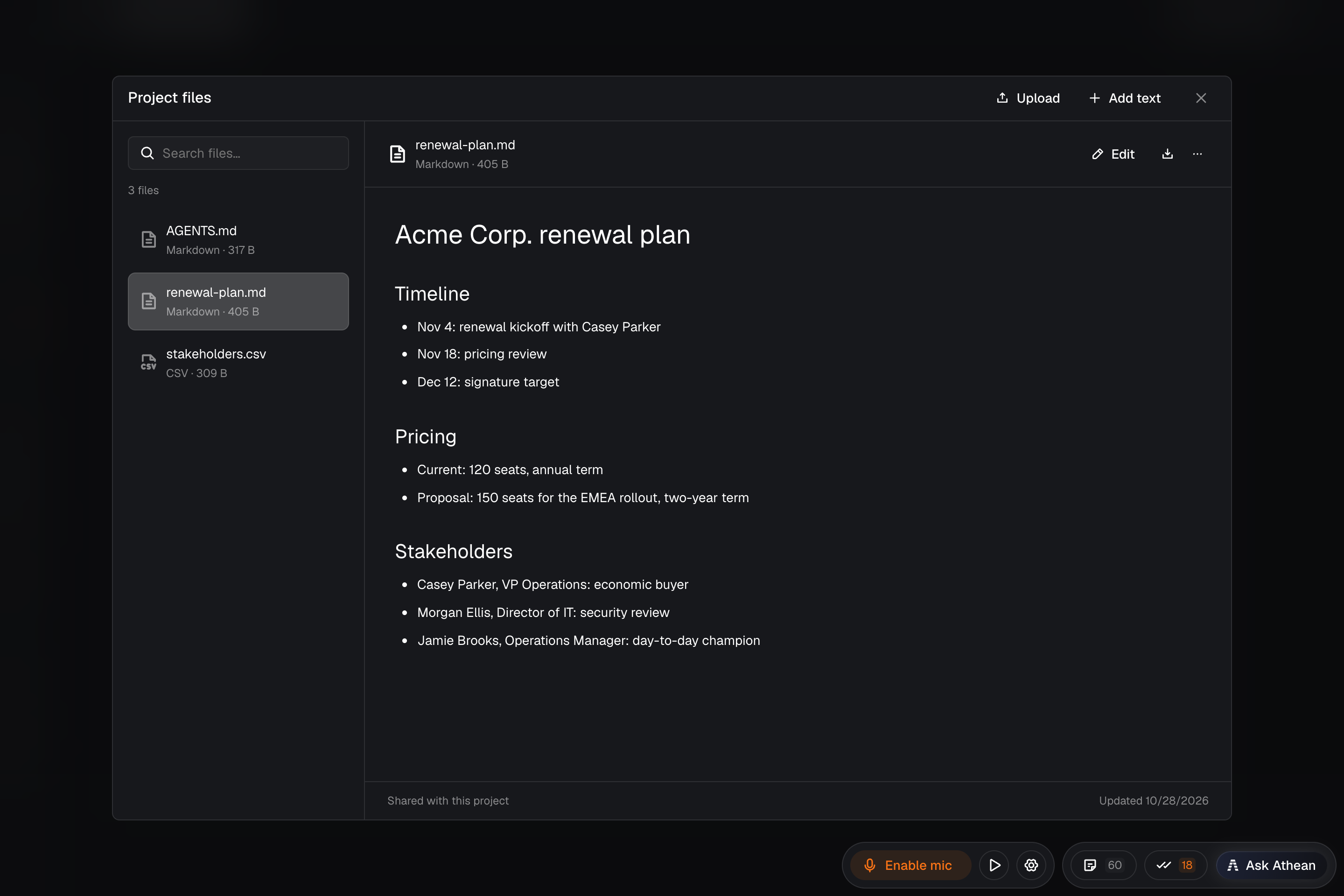
Select a file in Project files to preview it. Markdown files show formatted, CSV files show as a table, and other text files show as plain text. Images show as images, and PDFs open in a viewer with Previous page, Next page, Zoom in, Zoom out, and Fit; for a password-protected PDF, enter the password and select Unlock PDF. Other files show Preview unavailable. Select Download file to save any file to your computer.
To change a text file of up to 1 MB:
- Select Edit. Markdown files have Source, Preview, and Split views; other text files, including CSV files, are edited as plain text. The toolbar has Undo, Redo, and Find and replace.
- Select Save. Edits in Project files aren't saved automatically.
- Select Done editing. If you have unsaved changes, Athean asks before discarding them.
Text files larger than 1 MB and other file types can't be edited in Athean; download them, or upload a new version with Replace file. To edit a Markdown or text file next to a conversation, see Chat and Ask Athean.
Replace, move, rename, or delete a file
Open the file and select File actions (⋯):
- Replace file: choose a new version of the file on your computer. If you have unsaved edits, they're discarded when the replacement succeeds.
- Move or rename: enter a new File path, such as
archive/brief.md, and select Move file. Save or discard your edits first. - Delete file: confirm with Delete file. The file is deleted for everyone in the project. There's no way to restore a deleted file in Athean.
If someone else changed the file while you were editing, Athean shows The file changed elsewhere. and keeps your draft. Select Download draft to keep a copy of your edits, then Load latest file to continue from the newest version.
How Athean uses project instructions and files
In a project chat, Athean works from the project instead of your personal workspace:
- Instructions: Athean follows the project's instructions in every chat in the project and knows which project the chat belongs to.
- Project files first: when your request or the instructions mention a document, playbook, notes, or other material, Athean looks for it in the project's files before it searches your organization's Knowledge corpus or says it isn't available.
- Files Athean can read: Athean reads and edits the project's text files, such as Markdown, plain text, CSV, and JSON files. It can't read the contents of PDFs, Word or PowerPoint files, or images stored in the project's files. To have Athean read one of those, attach it to a message in the chat.
- Files Athean saves: files Athean creates or changes in a project chat are saved in the project's files, where every member can open and change them.
- Attachments: each file and image you attach to a message in a project chat is also saved in the project's files, in the attachments folder, where every member can open it.
- Personal files: your personal saved files aren't available in a project chat, and the project's files aren't available in your personal chats. Agents and automations, including ones you set up from a project chat, use your personal files and can't read project files. So does an AI assistant you connect to Athean (see Use Athean from another AI assistant).
- Earlier conversations: when you ask about earlier work in a project chat, Athean looks through that project's chats, including chats other members started. It can't see your personal chats, Slack chats, or agent runs from there.
Presentations, custom dashboards, sheets, and other records Athean creates in a project chat keep their own access settings. Being in a project chat doesn't share them with the project's members, so members who read the chat can open those records only if they already have access. A sheet, for example, stays private to the person who created it (see Sheets).
Rename or delete a project
The project's owner and organization admins can rename or delete a project. On the project's page, select Project options (⋯) in the bar at the top of the page:
- Rename project: enter the new Project name, up to 120 characters, and select Save name.
- Delete project: confirm with Delete project, or select Keep project to cancel.
Deleting a project makes all of its chats and files unavailable to everyone, including the owner, organization admins, and the people who started its chats. There's no way to restore a deleted project in Athean. Before you delete a project, download the files you need, and ask the people who started chats worth keeping to move them to Personal or another project (see Move a chat into or out of a project).
Troubleshoot projects
| Problem | What to do |
|---|---|
| You can't type in a project chat | The chat shows Read-only conversation because someone else started it. Start your own chat in the project and ask Athean to read the earlier one. |
| Manage access or Project options is missing | Only the project's owner and organization admins can change access, rename, or delete a project. Ask one of them to make the change. |
| A project or project chat is unavailable | The project was deleted or your access was removed. The project's page shows This project isn't available or your access has changed. and a chat link shows This conversation isn't available to you. Ask the project's owner or an organization admin to add you back. |
| A chat won't move | Wait for Athean to finish responding, decide any approval requests, and let running scripts finish. Check that you started the chat, that it isn't an agent run's conversation, and that you can open both projects. |
| Athean can't find a file | Check where the file is: personal files aren't available in project chats, project files aren't available in personal chats, and files stay in their original project when a chat moves. Athean can't read the contents of PDFs, Word or PowerPoint files, or images in project files; attach the file to your message instead. |
| An upload fails | Files can be up to 100 MB. If a file with the same name already exists, open it and choose Replace file. Select Retry failed uploads to upload the failed files again. |
| A file or instructions won't save | If Athean shows The file changed elsewhere., select Download draft, then Load latest file, and apply your changes again. Text files can be edited up to 1 MB, and instructions can be up to 32 KB. |
| A project name won't save | Project names can be up to 120 characters. If Couldn't save this change appears after the project changed or your access changed, reopen the dialog to load the latest version and try again. |
| Something else isn't working | Contact support with the project's name, the chat link, and what you tried. |