Open Signals and read a signal
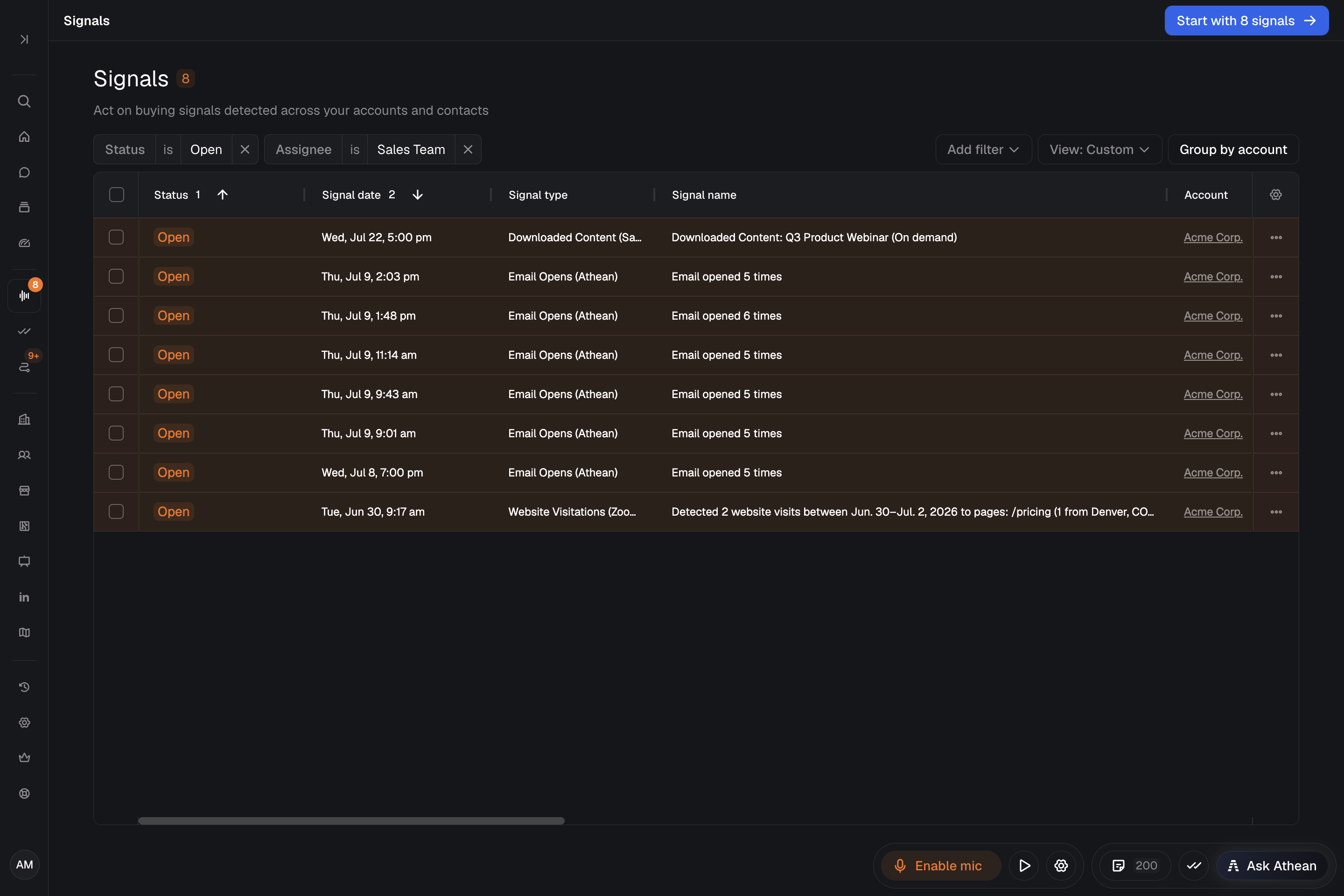
Prospecting → Signals lists time-stamped events about the accounts and contacts in your workspace, such as company news, CRM record changes, and website visits. A signal is information to review. Work that needs to be done belongs in Tasks.
When you open Signals, Athean loads the default view assigned to your group, if there is one. Otherwise, the feed shows open signals assigned to you. A link that includes a saved view or filters opens with those instead. Check the selected view and filters before you act. For how the starting view is chosen, see Saved views.
Select a row to open the signal in a dialog. Go to account opens the account in a new tab. The signal shows:
- Type: the category your organization assigned, configured in Org settings → Signal types (shown when one is assigned).
- Provider: where the signal came from, such as Athean, Salesforce, HubSpot, Demandbase, or ZoomInfo. For a Salesforce signal, the provider link opens the source record in Salesforce when it's available.
- Description and sources: the event summary, its date, and any cited source links.
Signal sources and types
The Signal type filter lists the types configured for your organization. Which types you see depends on your organization's connections and rules. Common types and sources:
| Type or source | What it contains |
|---|---|
| Compelling Events (Athean) | Company news found through your organization's News research topics, with source links. |
| Reengagement (Athean) | An account worth revisiting, with the reason to act. |
| Salesforce or HubSpot | Signals from your connected CRM, such as a change to a record your organization tracks. The description explains the event. |
| Website visits | Account website activity from a connected provider such as Demandbase or ZoomInfo Websights. These appear only when your organization has connected that provider. |
| Agent, automation, and custom signals | Signals created by Agents, Event-triggered automations, or your own systems through the Integration API (see API setup). |
| Other types | Types your organization adds for other events, such as job changes or signals from internal systems. |
A signal type only categorizes incoming signals. Creating a type doesn't connect a new data source. To bring in signals from another platform or an internal tool, use the Integration API (see API setup), have an agent or automation call that platform's API with an API secret and create signals from what it finds (see API secrets), or contact support@athean.com.
Filter and group signals
Use the filter bar and Add filter in Signals to narrow the feed. The Signal section has these filters:
- Status: Open, Actioned, or Ignored. If your organization has set up custom dispositions, their labels are listed under Custom dispositions. Disabled ones are marked (disabled) and stay available so you can find older signals.
- Signal type: one or more of your organization's signal types.
- Assignee: the person or group the signals are assigned to.
- Signal date: Today, Last week, Last 2 weeks, Last month, Last 90 days, Last 6 months, Last year, or All time.
The Account and Contact sections filter by details of the associated account or contact, including any Salesforce filters your administrator set up. Turn on Group by account to show several signals about one company together.
Select the pin icon on a filter to keep it on the filter bar, even when it's set to Any. To save filters, pins, and an optional column layout, see Saved views. If a signal seems to be missing, check the Assignee, Status, Signal type, and Signal date filters first. With no Signal date set, the feed shows only the last 90 days.
Action, ignore, or reassign signals
- Select a row to read a signal. To work through several signals one at a time in signal flow, select their rows and click Start with N selected. With nothing selected, the button reads Start with N signals and uses the open signals in your current view. Signal flow skips signals that are already Actioned or Ignored.
- Do the follow-up work:
- Create task: create a general or call task with a due date. The notes start empty, so add the signal context yourself (see Tasks). A call task needs a contact.
- Assign sequence: add the signal's contact to a sequence. This is available only for signals with a contact. If you choose an operator, it researches each contact and creates drafts that wait in Approvals. Nothing is sent until a draft is approved.
- Record the outcome:
- With the built-in choices, select Mark Actioned after you act, or Ignore and pick a reason: Bad lead, Reached out to other contact, Already engaging, or Disqualified. These reasons are fixed.
- When your organization uses custom signal dispositions, Mark Actioned, Ignore, and Keep open each list your organization's labels with that status. Choose the label that describes the outcome. Keep open appears only when Open labels exist.
Where to find these actions:
- Signals table: each row's menu has Change status, Reassign signal, and Create task. When you select rows, the bar above the table offers Create task, Reassign signals, Change status, and Assign sequence for all of them at once. Reassigning can name a person or return the signal to Use account owner.
- Signal flow: the account page opens, with the signal in the Signal detail tab of the side panel. The outcome buttons are at the bottom of the side panel. The navigation sidebar shows your queue: use Search signals, All, and This account to find another signal, or Back to signals to return to the table. After you complete a signal, if the account has other open signals in your queue, Athean asks whether to apply the same outcome to them. Select Apply or No.
An Open outcome keeps a signal pending. Actioned and Ignored complete it. To reopen a completed signal in signal flow, select Unaction or Unignore, or Reopen when custom dispositions are on. In the table, use Change status → Unmark as Actioned or Unmark as Ignored; with custom dispositions, choose Open with no disposition or another label with the Open status.
A status or label only records how you handled the signal. It doesn't send outreach or create a task, so keep follow-up work in Prospecting → Tasks where it can be assigned and completed.
Configure signal types (Admins)
Organization administrators manage signal settings in the Signals group of Org settings: Signal types, Signal dispositions, and News research topics. Signal types are shared by everyone in your organization.
- Open Org settings → Signal types and select an existing type or New signal type.
- Set the name, color, and icon. Type names also appear in the signal filters in Tools → Discover.
- Select Add rule to match incoming signals by fields such as Source, Record type, Signal description, and Signal date.
- Check What this matches and select Re-run to refresh the preview.
- Drag the types into priority order. Each signal gets the first type it matches, from the top of the list down.
- Choose whether to Notify the assigned rep and Include in AI context.
- Select Save changes, confirm Save, and check for Signal types saved.
Signals that match no type stay uncategorized. Reps still see them, and Athean's AI still uses them. Reset to defaults removes all custom signal types and recreates the defaults for your organization's connected integrations. This can't be undone.
To change the company news Athean looks for, use Org settings → News research topics. To give reps outcome labels for signals, see Set up custom signal dispositions.
Set up custom signal dispositions (Admins)
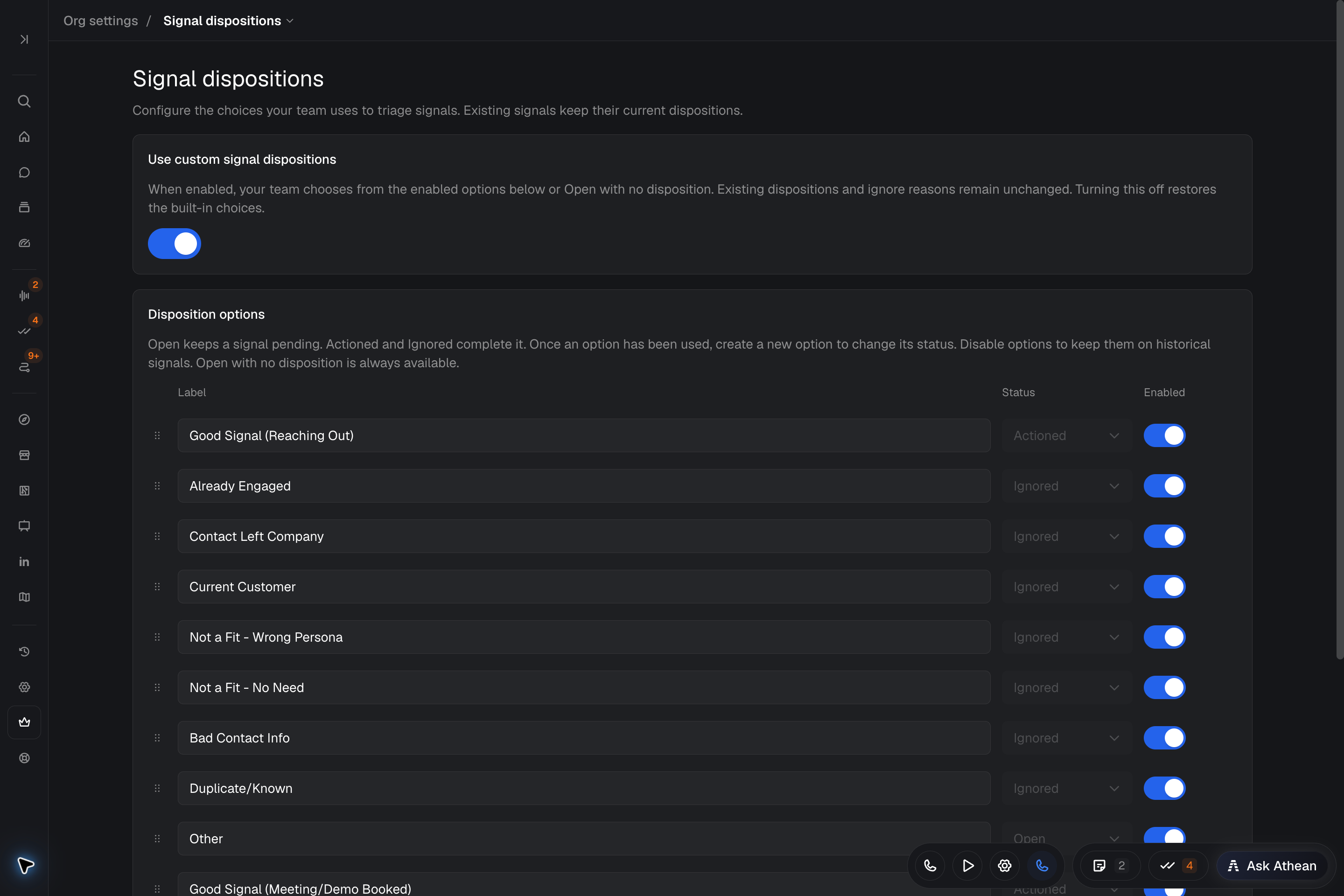
By default, reps record outcomes with the built-in choices: Mark Actioned, or Ignore with one of four fixed reasons (Bad lead, Reached out to other contact, Already engaging, or Disqualified). The built-in reasons can't be edited.
Custom signal dispositions are optional. When an organization administrator turns them on, reps choose from your organization's outcome labels instead of the built-in choices. Each label has a status: Open keeps the signal pending, and Actioned or Ignored completes it. Use a disposition for the outcome, such as “Follow-up planned,” and a signal type for the kind of event.
- Open Org settings → Signal dispositions and turn on Use custom signal dispositions.
- Under Disposition options, select Add disposition. Enter a unique Label of 1 to 100 characters and choose its Status: Open, Actioned, or Ignored.
- Keep the options reps should use Enabled, and drag them into the order you want.
- Under When a signal is reopened, choose an enabled Open disposition or no disposition. Reopening an Actioned or Ignored signal moves it back to Open with this disposition. New signals always start Open with no disposition.
- Select Save changes and check for Signal dispositions saved. Return to a signal to review the choices reps now see.
Open with no disposition is always available. Include at least one enabled Actioned option and one enabled Ignored option: in signal flow, Mark Actioned or Ignore is unavailable when no enabled option has that status.
Once a disposition has been used, its status can't be changed; create a new option for a different status. A saved option can't be deleted. Disable it instead: it's removed from new choices but stays on older signals and in the Status filter. Turning custom dispositions off restores the built-in choices and keeps the dispositions and ignore reasons already recorded on signals.