
Select a call mode and manage phone numbers
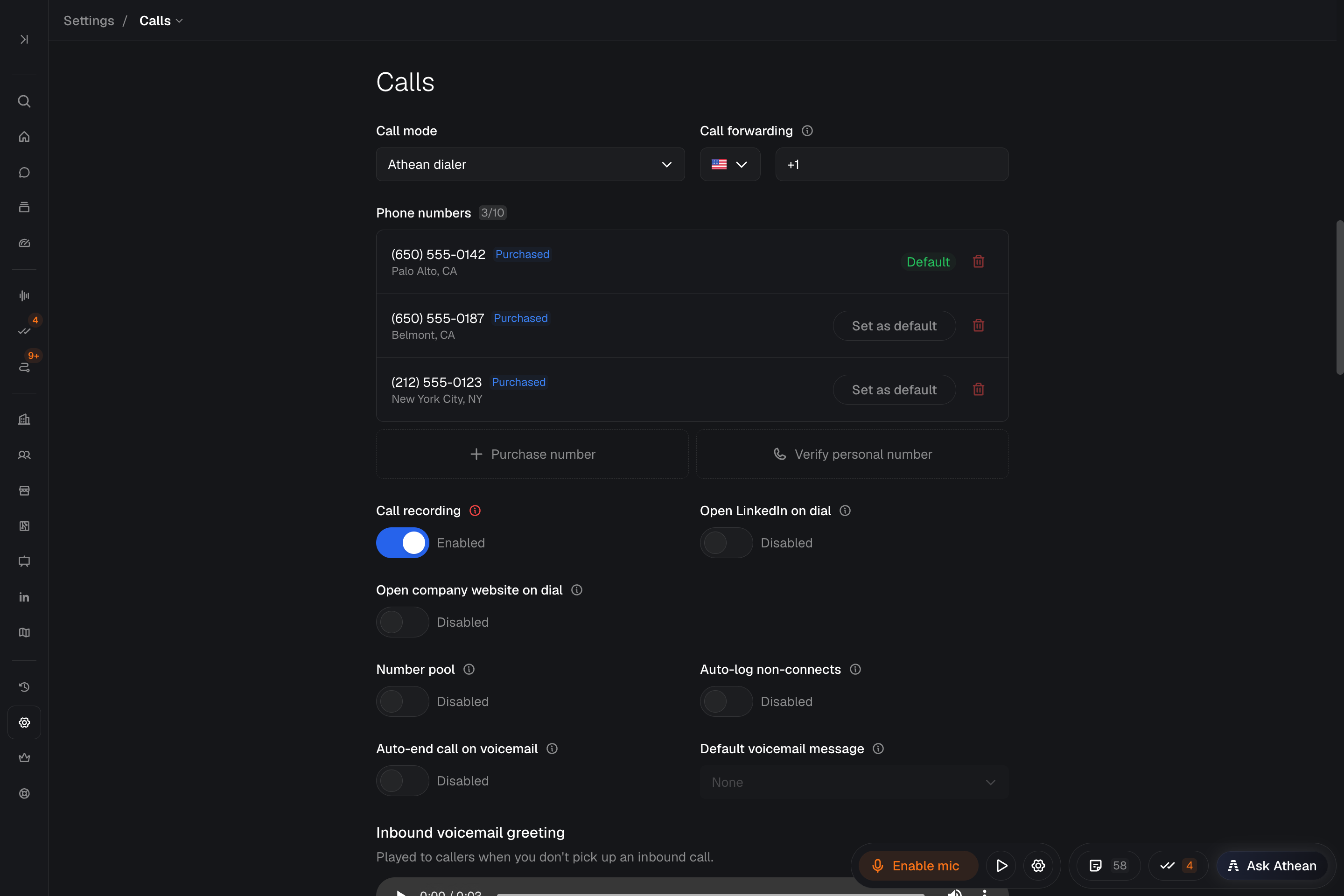
Open Settings → Calls, choose your Call mode, and select Save changes:
| Call mode | How calls work |
|---|---|
| Athean dialer | Places and receives calls in your browser. You need a phone number on your account and microphone access. Supports purchased numbers, verified personal numbers, local presence, call recording, and voicemail drops. |
| Zoom Phone | Places calls through your connected Zoom Phone. During a call, select Open Zoom Phone to use Zoom Phone's call controls. You log the outcome in Athean. |
| Click to copy | Clicking a contact's phone number copies it for use in your own calling tool and opens call logging in Athean. |
With Athean dialer, you can have up to 10 phone numbers, counting purchased numbers and verified personal numbers. The count next to Phone numbers shows how many you have.
- Purchase number: Choose an area code, then select Register next to the number you want.
- Verify personal number: Use a number you already own as your caller ID. See Verify a personal phone number as caller ID.
- Set as default: Makes that number the one you normally call from. It then shows a Default badge.
Purchasing a number and Set as default take effect right away. Deleting a phone number can't be undone. If Athean says you've reached the maximum number of purchased numbers, contact support@athean.com.
If you try to call before you have a number, Athean shows You have no assigned numbers. Select Get number to add one. To connect a different calling platform your team uses, contact support@athean.com.
Verify a personal phone number as caller ID
Verify a mobile or desk number you already own to show it as your caller ID when you call through Athean dialer. Have the phone with you to answer the verification call.
- Open Settings → Calls and set Call mode to Athean dialer.
- Under Phone numbers, select Verify personal number.
- Enter your Phone number and an optional Friendly name.
- Select Call me to verify. Answer the call and, when prompted, enter the code shown in Athean on your phone's keypad.
- Select I entered the code. The number appears in your list with a Personal badge.
- Select Set as default if you want your calls to use this number.
If the code expires, cancel and start verification again.
If Number pool is on, Athean can call from a pool number instead of your default number, and the number can change from call to call. Turn off Number pool to always call from your default number.
Verifying a number only sets it up as your caller ID. Calls to your personal number still go to your existing phone service. To forward calls made to your Athean numbers, set up Call forwarding.
Enable local presence (Number pool)
Number pool picks your caller ID from your organization's shared pool of numbers, based on the number you're calling. Athean looks for a pool number with the same area code first, then one in the same metro area, then the same state, and then any available pool number.
- Set your Call mode to Athean dialer.
- Open Dialer settings (the gear beside the dialer in the bar at the bottom of the screen) or Settings → Calls, and turn on Number pool.
- During a call, check the From number in the sidebar's call tab (On call). A Local presence badge means a pool number is being used.
The badge doesn't guarantee an area-code match. When no local number is available, Athean uses another pool number. Turn off Number pool to call from your own default number.
If you don't see Number pool, your organization doesn't have a number pool yet. Contact support@athean.com to set one up.
Test audio devices and place a call
- Select Open dialer (the phone button in the bar at the bottom of the screen). To check your audio, open Dialer settings, select Test next to Microphone & speaker, and choose the microphone and speaker to use.
- Start a call by clicking a contact's phone number, selecting Start call in Task flow, or entering a number in the dialer's Dial tab.
- Check the From and To numbers. During an Athean dialer call, use the microphone button to mute or unmute (you can mute before the call connects), the keypad to enter digits for phone menus, Drop voicemail to leave a saved message, and Hang up to end the call.
For Zoom Phone calls, select Open Zoom Phone to use Zoom Phone's controls. The dialer's Recents tab lists your recent calls.
If you see Microphone access required, select Enable microphone. If access is blocked, follow How to enable, then select Retry. If the dialer shows Phone service offline, select Reconnect now.
Power dial through a call queue
Power dialing combines Task flow with two dialer settings. Auto-dial starts the next call when task flow moves to a call task. Auto-log non-connects logs busy, no-answer, failed, canceled, and disconnected attempts for you, without opening the call log.
- Open Prospecting → Tasks, then filter and sort for the call tasks you want to work. To call a new set of contacts, create call tasks for them first (see Tasks).
- Select specific tasks, or leave the selection empty to use the current page. Task flow includes incomplete tasks assigned to you.
- Open Dialer settings and turn on Auto-dial. Turn on Auto-log non-connects if you want unanswered attempts logged automatically.
- Select Start with N tasks and complete the audio check if it appears.
- After each conversation, log the outcome and next step: complete the task, try another number, or try again later. Task flow then moves on, and Auto-dial calls the next call task.
Use the play/pause button beside the dialer (Toggle auto-dialing off or Toggle auto-dialing on) to pause or resume Auto-dial at any time, for example to review each contact before you call. With Auto-log non-connects off, you log every attempt yourself.
An incoming call pauses Auto-dial and shows Inbound call detected. Auto-dial paused. When you're ready to continue, select Re-enable in that notice or the play button beside the dialer.
Record, upload, and drop voicemails
A voicemail drop leaves a saved recording when you reach a prospect's voicemail, so you don't have to repeat the same message on every call.
- Open Settings → Voicemails.
- Select Record new to record in your browser (Record, Stop, and Re-record if needed), or select Upload to use an MP3 or WAV file.
- Enter a Name and select Save. Only you can see your voicemails.
- During a connected Athean dialer call, select Drop voicemail and choose a saved message. The button becomes available once the call connects.
- Athean disconnects you from the call right away. Afterward, check the call activity for the result: VM dropped, Drop skipped, or Drop failed.
The Voicemail dropped. notice only confirms that you requested the drop. Athean plays your message only after it confirms that the call reached voicemail; otherwise the call ends and no message is left. The status in the call activity shows what happened, and you can hover over it for details. You can play a delivered message from its call activity.
Deleting a voicemail from your library can't be undone. The message is removed from future choices, but past drops can still be played from their call activity.
To leave a message automatically when voicemail is detected, set up Auto-end call on voicemail.
Log call dispositions and next steps
When a call ends, choose a disposition (the outcome of the call), add optional Notes, choose the next step, and select Log call. The built-in dispositions are Connected, Left voicemail, No answer, and Issue. Your organization may use its own dispositions instead; administrators manage them in Org settings → Custom dispositions.
The next steps you see depend on the task you called from and whether the contact has an active sequence:
| Next step | What it does |
|---|---|
| Mark step complete or Mark task complete | Completes the task you called from, or the contact's current call step. |
| Try again later | Appears when the contact has an active sequence. Reschedules the call task or call step (1d, 2d, 1w, or Custom). |
| Try another number | Calls the contact's next available number. |
| End sequence | Pauses the contact's active sequence, the same as selecting Pause on it. You can resume it later. |
| Schedule follow-up | Appears when the contact has no active sequence. Choose 1d, 2d, 1w, or Custom to create a task for you to reach out to the contact then. Choose Use sequence to add the contact to a sequence you pick; this enrolls the contact, and the sequence's outreach starts. |
| Do nothing | Logs the call without changing any task or sequence. |
The log acts only on the work the call belongs to. After a call from a task, Mark step complete or Mark task complete completes that task, and, when the contact has an active sequence, Try again later reschedules it. When that task isn't part of the contact's sequence, the option reads Mark task complete and completes only that task. Completing a sequence's task advances the sequence, and its next automatic step may send right away.
After a call without a task, Mark step complete and Try again later act on the contact's current sequence step only when that step is a call. For any other step, such as an email, they're unavailable (hover over them to see why), so choose another option, such as Do nothing.
Custom dispositions can also mark the number correct, incorrect, or disconnected, or pause the contact's sequence. The selected outcome shows what it will do.
If you close the call log without saving, select the to log button beside the dialer (for example, 1 to log), then choose the call to finish logging it.
Reference: Calls and dialer settings
Dialer settings (the gear beside the dialer in the bar at the bottom of the screen) opens the dialer's Settings tab. Changes there save as you make them. In Settings → Calls, select Save changes after editing; phone numbers, Call forwarding, the inbound greeting, and Blocked numbers save on their own.
| Setting | Where | What it does |
|---|---|---|
| Call mode and Phone numbers | Settings → Calls | Choose Athean dialer, Zoom Phone, or Click to copy. With Athean dialer, purchase or verify up to 10 phone numbers and set your default. |
| Microphone & speaker | Dialer settings → Test | Test your audio and choose call devices. The audio check's Show before beginning task flow option controls whether it appears before a calling batch. |
| Auto-dial | Dialer settings, or Settings → Task flow (Auto-dial calls) | Dial automatically when task flow moves to a call task, and continue to the next number in the dialer queue. |
| Auto-log non-connects | Dialer settings or Settings → Calls | Log busy, no-answer, failed, canceled, and disconnected Athean dialer attempts without opening the call log. |
| Open LinkedIn on dial | Dialer settings or Settings → Calls | Open the contact's LinkedIn profile when dialing. |
| Open company website on dial | Dialer settings or Settings → Calls | Open the account's website when dialing. Requires the Athean Chrome extension; see Chrome extension. |
| Number pool | Dialer settings or Settings → Calls | Call from your organization's shared pool of local numbers. Shown only when your organization has a number pool. |
| Auto-end call on voicemail and Default voicemail message | Dialer settings or Settings → Calls | Hang up automatically when voicemail is detected, and optionally leave a saved message. |
| Call recording | Settings → Calls; organization rules in Org settings → Call recording | Your recording setting for Athean dialer calls. Your organization's recording rules also apply. |
| Call forwarding and Inbound voicemail greeting | Settings → Calls | Forward incoming calls to another phone, and set what callers hear when you don't answer (up to 30 seconds). |
| Blocked numbers | Settings → Calls | Stop calls from specific numbers from reaching you. See Block incoming caller numbers. |
| Voicemails | Settings → Voicemails | Record or upload MP3 or WAV messages for voicemail drops. |
Audio testing, Number pool, Auto-log non-connects, and automatic voicemail handling require the Athean dialer call mode.
Configure automatic voicemail detection and call recording
Handle voicemail automatically
- Open Dialer settings or Settings → Calls with Athean dialer selected.
- Turn on Auto-end call on voicemail.
- In Default voicemail message, choose a saved recording, or None to hang up without leaving a message. In Settings → Calls, select Save changes.
When Athean detects voicemail, it ends your side of the call and requests the selected message drop. For a call with a contact, it logs your organization's default voicemail outcome (set in Org settings → Custom dispositions). For a call from a task, Athean then calls the contact's next untried number if Auto-dial is on. Once every number has been tried, it completes the task, even with Auto-dial off. Completing the task advances its sequence, if it has one, and moves task flow on to the next task. If you already started editing the call log, or the call has no contact, finish logging it yourself.
Detecting voicemail and requesting a drop don't confirm that a message was left; check the result in the call activity. If you can't choose a message, turn on Auto-end call on voicemail and save a voicemail first.
Turn on call recording
Turn on Call recording in Settings → Calls. Athean first shows the Call Recording Compliance notice: some US states and countries require everyone on a call to consent to recording. Review it and your organization's requirements, select I Understand, and then select Save changes.
During a recorded Athean dialer call, select Disable recording to keep that call's recording from being saved. The button works once the call connects, and recording can't be turned back on for that call.
Set organization recording rules
Organization administrators manage recording rules for Athean dialer in Org settings → Call recording. After making changes, select Save changes and wait for Call recording settings saved.
- Suppressed countries: Calls to numbers or contacts in these countries, and calls from these country codes, aren't recorded. The call still goes through.
- Two-party consent states: On a recorded call with a contact or number in a US state that requires everyone's consent, Athean shows Two-party consent may be required during the call. Recording may already be in progress. Select I have consent to keep recording, or Do not record to keep the call's recording from being saved.
- Record answered inbound calls: Records answered inbound calls in the Athean browser dialer when the user's Call recording setting is on. Forwarded calls and inbound voicemail aren't affected.
- Default call recording mode: Sets Record or Do not record as the starting setting for new users. It doesn't change existing users' settings.
Configure call forwarding and inbound voicemail greetings
When a call comes in, select Answer call or Decline call. For Zoom Phone calls, select Open Zoom Phone to handle the call there.
- Call forwarding: In Settings → Calls with Athean dialer selected, enter the phone number that should receive calls to your Athean numbers. Leave it blank to take those calls in the Athean app. A valid number saves when you leave the field.
- Inbound voicemail greeting: What callers hear when you don't answer. Select Record greeting or Upload file (MP3 or WAV), preview it, and select Save greeting. Greetings can be up to 30 seconds: recording stops automatically at that length, and a longer file can't be saved. Select Replace with recording to record a new greeting, or Reset to default to go back to the standard greeting.
The greeting plays only for unanswered calls that ring in Athean. Forwarded calls use the voicemail of the phone you forward to. Your saved voicemail drops are separate messages.
Block incoming caller numbers
Block a number to stop its calls from reaching you. Your blocked numbers apply only to your own incoming calls through Athean dialer, including when someone calls back one of your organization's pool numbers and the call routes to you.
- Open Settings → Calls with Call mode set to Athean dialer, and find Blocked numbers.
- Enter the phone number with its country code and without an extension (for example, +1 415 555 0123), and select Block number. The change saves immediately.
- To allow calls from the number again, select Unblock next to it.
Calls from a blocked number don't ring your Athean dialer or forwarding number, can't leave voicemail, and don't create call activity or notifications. The caller hears a busy signal.
Fix common calling problems
| Problem | What to do |
|---|---|
| Your verified personal number isn't used on calls | Select Set as default on the number in Settings → Calls and turn off Number pool. |
| A dialer setting is disabled | Hover over it to see why. Most dialer settings need Call mode set to Athean dialer in Settings → Calls. |
| No audio on calls | Open Dialer settings, select Test next to Microphone & speaker, check Chrome's microphone permission, and choose your devices. |
| Athean says you have no assigned numbers | Select Get number, or add a number under Phone numbers in Settings → Calls. |
| The dialer shows Phone service offline | Select Reconnect now in the dialer. |
| Auto-dial doesn't start the next call | Check that Auto-dial is on (the play/pause button beside the dialer), that an incoming call didn't pause it, that the previous call is logged, and that the next task has a phone number. |
| A voicemail drop shows Drop skipped or Drop failed | Hover over the status in the call activity for details, check that your message is still in Settings → Voicemails, and review the call before trying again. |
| A caller hears a busy signal | Check Blocked numbers in Settings → Calls and select Unblock if their number is listed. |
For help, contact support@athean.com with the call's time, your call mode, and any error Athean showed.