
Create a sheet with Athean
A sheet is an editable spreadsheet that Athean creates in a conversation. You and Athean can both edit it, and it stays saved after the conversation ends. There is no New sheet button; to get a sheet, ask Athean for one.
- Open Workspace → Chat or the Ask Athean panel.
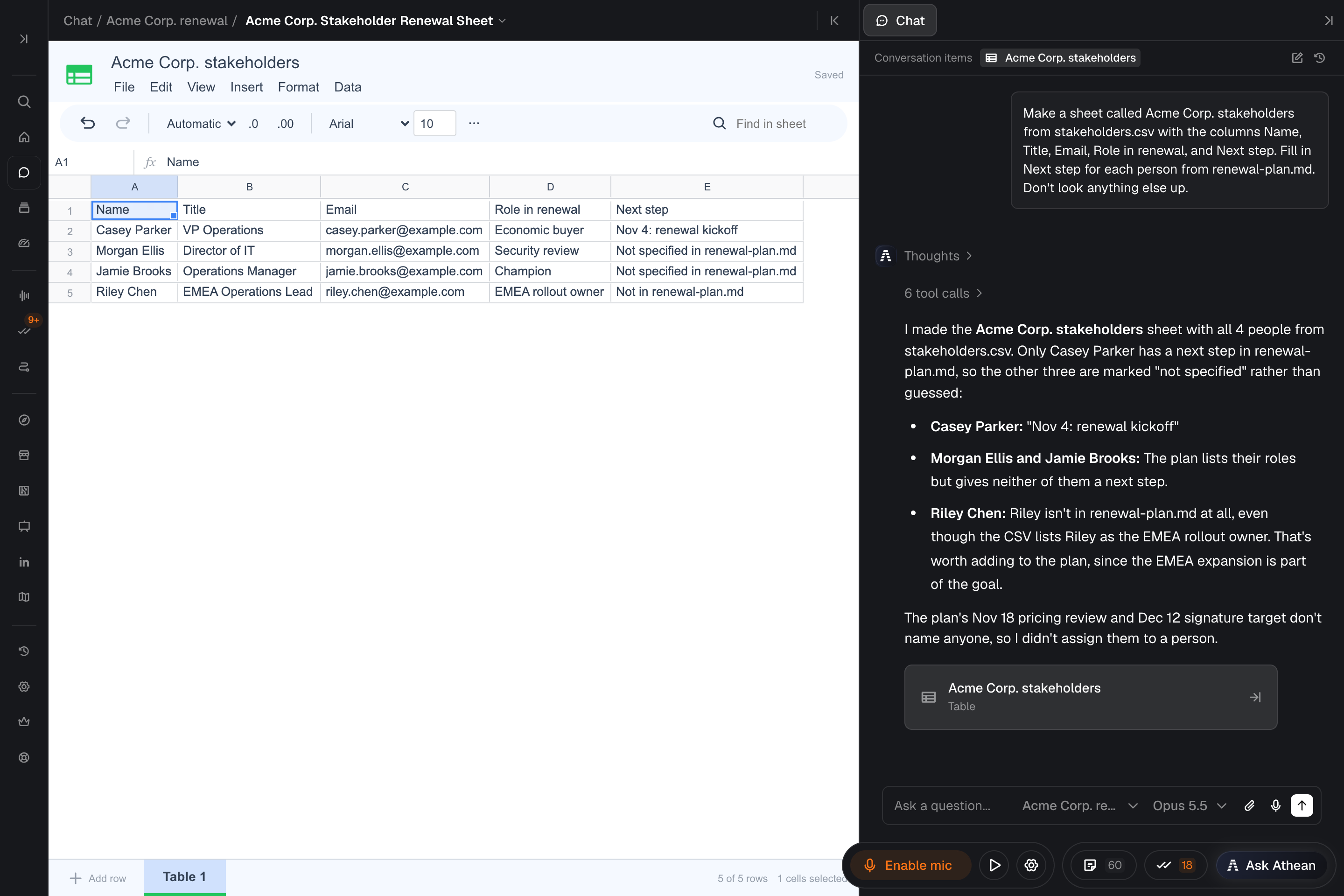
- Ask for a sheet and describe its columns, its rows, and where the data comes from. Athean can start from scratch, from a CSV file you add with Attach files (see Chat and Ask Athean), or from records it reads in Athean, such as the contacts in a list. For example: "Make a sheet of the contacts in my Acme operations outreach list with their names, titles, and emails."
- Athean creates the sheet. A card with the sheet's title and the label Table appears under Athean's reply, and the sheet is listed under Conversation items. On the Chat page, the sheet opens beside the conversation. In the Ask Athean panel, select the card or Open the full chat to view it to continue in Chat with the sheet beside the conversation.
- Edit the sheet yourself, or keep asking Athean for changes in the same conversation (see Work on a sheet with Athean).
- One tab: each sheet has a single tab of cells. Row 1 is an ordinary row, not a fixed header row. To keep headings in view while you scroll, choose View → Freeze → 1 row.
- Private to you: only the person who created a sheet can open it. Administrators can't see other people's sheets. Other members who read one of your project chats can't open the sheets in it (see Projects).
- Native to Athean: a sheet isn't a Google Sheets or Excel file and doesn't sync with either. To move data in or out, import or download a CSV file (see Import and download CSV files).
Reopen, rename, or delete a sheet
To open a sheet again:
- From its conversation: open the conversation from Recent conversations in Chat, then select the sheet's card under Athean's reply or its entry under Conversation items.
- From any conversation: ask Athean to open the sheet by its title, such as "Open my Q4 territory plan sheet." Athean finds the sheet by its title and opens it in the current conversation.
To rename a sheet, select its title at the top of the sheet and type a new one. A sheet needs a title to save.
Delete a sheet
Ask Athean to delete it, such as "Delete the Q4 territory plan sheet." Athean deletes the sheet you name without an approval card. Deleting a sheet can't be undone: it stops opening from every conversation, and Athean can't restore it.
If the sheet is open when it's deleted, its status changes to Unavailable. What's on screen stays visible, and you can select Export my draft to download it as a CSV file.
Edit cells, rows, and columns
Select a cell and type to replace its contents, or press F2 or double-click the cell to edit what's already there. Press Enter to save the cell and move down, Tab to save it and move right, or Escape to cancel. The bar above the grid shows the selected cell's address and, beside fx, its value or formula; you can edit the cell there too.
- Numbers and text: a plain number such as
1200or0.15is stored as a number. Everything else you type is stored as text, including$1,200,1,200,15%,TRUE, and dates such as2026-10-28. To calculate with amounts, percentages, or dates, type the plain number and apply a number format (see Format cells, resize rows and columns, and freeze rows), or convert the text with the VALUE or DATEVALUE function. - Keep a value as text: start it with an apostrophe, such as
'00123or'=A1. Without the apostrophe,00123becomes the number 123 and=A1becomes a formula. - Line breaks: press ⌘Enter (Ctrl+Enter on Windows) while editing in a cell, or Shift+Enter in the bar above the grid.
- Go to a cell: type an address such as
A1,A1:C5,B:B, or2:4in the address box at the left of the bar, then press Enter. - Clear cells: press Delete or Backspace, or choose Edit → Clear selected cells.
- Undo and redo: press ⌘Z or ⇧⌘Z (Ctrl+Z or Ctrl+Shift+Z on Windows), or choose Edit → Undo or Edit → Redo.
Select cells
Drag across cells, or hold Shift and click or press an arrow key to extend a selection. ⌘ plus an arrow key (Ctrl plus an arrow key on Windows) jumps to the edge of the data. Select a row number or column letter to select the whole row or column.
To select cells, ranges, rows, or columns that aren't next to each other, hold ⌘ (Ctrl on Windows) as you click or drag. ⌘-click (Ctrl-click on Windows) a selected cell to remove it from the selection. Formatting and Clear selected cells change only the selected cells and leave the gaps alone. While a selection has separate parts, you can't sort a range, create a filter, insert rows or columns, or use the fill handle.
The bar below the grid shows how many rows are showing out of the total, and how many cells are selected.
Copy, paste, and fill
- Copy and paste: press ⌘C and ⌘V (Ctrl+C and Ctrl+V on Windows). Copying between Athean sheets keeps formatting and formulas. Text pasted from another app fills the cells the same way as typing it. ⌘⇧V (Ctrl+Shift+V on Windows) pastes values only, without formatting or formulas.
- Fill down: choose Edit → Fill down or press ⌘D (Ctrl+D on Windows) to copy the top row of the selection, with its formatting, into the selected cells below it.
- Fill handle: drag the small square at the corner of a selection. Two or more cells that form a pattern, such as
1and2orWeek 1andWeek 2, continue the series. A date typed as YYYY-MM-DD or M/D/YYYY, or a weekday or month name, continues from a single cell. Anything else is copied, and formulas adjust their references as they're copied. Filtered rows and hidden columns are skipped.
Add, delete, hide, and move rows and columns
- Add: select Add row below the grid, or use the Insert menu to insert rows above or below the selection, insert columns to its left or right, or add a Row at end or Column at end.
- Delete, hide, or unhide: right-click a cell, row number, or column letter (on a Mac, you can also Control-click) and choose Delete selected rows, Hide selected rows, Unhide selected rows, Delete selected columns, Hide selected columns, or Unhide selected columns. To show hidden rows or columns, select the small arrow beside the neighboring row number or column letter, or choose View → Show all rows or View → Show all columns.
- Move: drag a column letter to move the column. To move rows, select them and choose Data → Move rows up or Data → Move rows down; these are unavailable while a filter is on.
When you insert, delete, or move rows and columns, or cut and paste cells, formulas update their references so they keep using the same data.
Format cells, resize rows and columns, and freeze rows
Select cells, then use the toolbar above the grid or the Format menu. In a narrow panel, toolbar controls that don't fit move under More tools.
Number formats
- Choose Automatic, Number, Currency, Percent, or Date (YYYY-MM-DD) from the Format menu or the toolbar's number format list. A format changes how a number looks, not its value. For example, with Percent,
0.15shows as 15.00%, and with Date (YYYY-MM-DD), a date's day number shows as a date. - Number, Currency, and Percent show two decimal places. Use Increase decimal places or Decrease decimal places to change them.
- Currency uses US dollars until you choose another currency. Choose Format → Number format options…, enter a three-letter Currency code such as EUR, GBP, or JPY and Decimal places from 0 to 10, and then select Apply number format. If the selection is formatted as Number or Percent, this changes its decimal places; otherwise the selection becomes Currency.
- Under Automatic, numbers show as entered, and formulas that return dates show as YYYY-MM-DD.
Text, color, alignment, and borders
- Font: Font family offers Arial (the default), Verdana, Georgia, Times New Roman, Courier New, Tahoma, Trebuchet MS, Palatino, and Impact. Font size accepts whole numbers from 6 to 72 points; the default is 10.
- Style: Bold (⌘B, or Ctrl+B on Windows), Italic (⌘I, or Ctrl+I on Windows), Underline, and Strikethrough.
- Color: Text color and Fill color each offer preset colors, a Custom color, and Reset to default.
- Alignment: Horizontal alignment offers Automatic alignment, Align left, Align center, and Align right. Vertical alignment offers Align top, Align middle, and Align bottom, the default.
- Text wrapping: Overflow, the default, lets long text run into empty cells beside it. Wrap fits the text on several lines inside the cell, and Clip cuts it off at the cell's edge. The Format menu offers the same choices as Overflow text, Wrap text, and Clip text.
- Borders: open Borders, choose a Border color and a Border style (Thin border, Medium border, Thick border, Dashed border, Dotted border, or Double border), and then choose where it goes: All borders, Inner borders, Horizontal borders, Vertical borders, Outer borders, Left border, Top border, Right border, or Bottom border. Clear borders removes them. Each edge keeps its own color and style, so adding a bottom border leaves an existing top border as it is.
Row height, column width, and frozen rows and columns
- Row height: drag the bottom edge of a row number, or right-click a row and choose Resize rows…. Then enter a height from 20 to 500 pixels under Specify row height (pixels), or select Fit to data, and select OK. Double-clicking the edge of a row number also fits the row to its contents.
- Column width: drag the edge of a column letter, or right-click a column letter and choose Resize columns…. Then enter a width from 60 to 800 pixels, or select Fit to data, and select OK.
- Freeze: View → Freeze keeps rows or columns in view while you scroll. Choose No rows, 1 row, 2 rows, or Up to row with the selected row's number, and No columns, 1 column, 2 columns, or Up to column with the selected column's letter.
Sort, filter, and find and replace
Sort
- Sort the sheet by one column: select a cell in the column, then choose Data → Sort sheet and its A to Z or Z to A option, or right-click the column letter and choose Sort sheet A to Z or Sort sheet Z to A. Whole rows move together. Frozen rows, a filter's heading row, and rows hidden by a filter stay where they are.
- Sort a range or by several columns: select several cells, then select Sort in the toolbar or choose Data → Sort range…. Only the cells in that range move. With a single cell selected, the toolbar's Sort sorts the whole sheet instead. Turn on Data has a header row to keep the first row in place. Choose a column under Sort by and a direction, A → Z or Z → A. Select Add another sort column to add a Then by column, and then select Sort range or Sort rows.
Empty cells sort to the bottom in both directions.
Filter
- Select the cells to filter, including their heading row, or one cell inside your data. Then choose Data → Create filter for selection… or select Filter in the toolbar. The first row of the filtered range becomes its heading row, with a filter button on each heading.
- Select a heading's filter button. Under Filter by condition, choose a rule and enter its value: Text contains, Text does not contain, Text starts with, Text ends with, Text is exactly, Greater than, Greater than or equal to, Less than, Less than or equal to, Is equal to, Is not equal to, Is between, Is empty, Is not empty, Date is before, Date is after, Date is, or Date is between. Under Filter by values, check the values to show. In a long list, use Search, Select all (which shows how many values match), or Clear. The same menu offers Sort A to Z and Sort Z to A for the filtered range.
- Select OK. Rows that don't match are hidden, and the toolbar button shows how many columns are filtered, such as Filter (2).
Date conditions match date values and text written as YYYY-MM-DD.
Filters don't update as you edit. A row that stops matching stays visible until you open a heading's filter and select OK again. To change a filter, choose Data → Edit filter…. To remove filters, choose Data → Remove filters or select the highlighted Filter button in the toolbar.
Find and replace
- Find: type in Find in sheet on the toolbar, or press ⌘F (Ctrl+F on Windows). Matching cells are highlighted, and the box shows the match count. Press Enter for the next match or Shift+Enter for the previous one. This search ignores letter case and looks only at rows and columns that are showing.
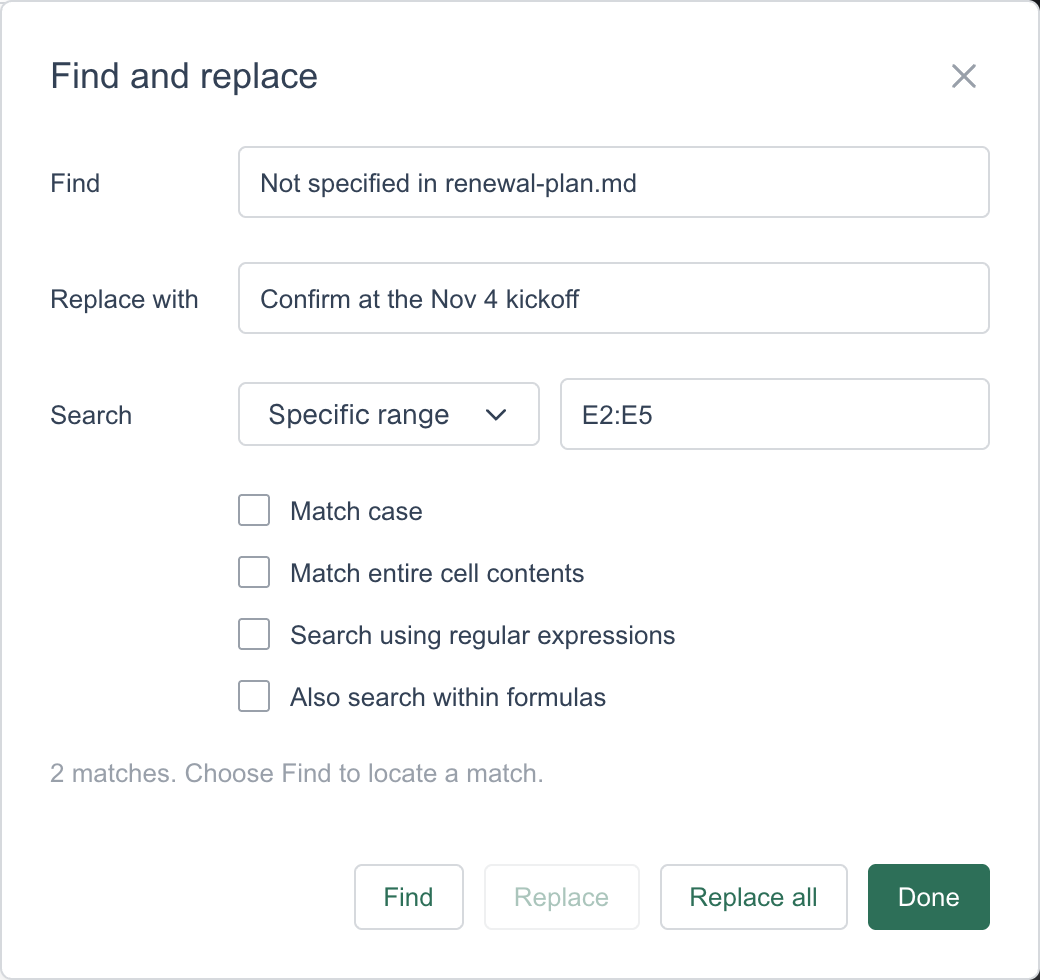
- Replace: choose Edit → Find and replace… or press ⌘⇧H (Ctrl+H on Windows).
- Enter the text to look for in Find and, to replace it, the new text in Replace with.
- Under Search, choose This sheet, or choose Specific range and enter a range such as
A1:B10,A:A, or2:5. If several cells are selected when you open the dialog, it starts with that range. - Turn on any of Match case, Match entire cell contents, Search using regular expressions, and Also search within formulas.
- Select Find to go to the next match, Replace to replace that match, or Replace all. Select Done when you're finished.
Find and replace also searches hidden and filtered cells, and labels those matches as hidden or filtered. It looks at the value stored in each cell, not its formatted display, such as 0.15 rather than 15.00%. It skips formula cells unless you turn on Also search within formulas, which searches and replaces the formula text. Regular expressions use JavaScript syntax; in Replace with, $1, $2, and so on insert the matched groups. Edit → Undo reverses a replacement.
Write formulas
Type = in a cell, or in the bar above the grid, to start a formula, such as =B2*C2 or =SUM(C2:C20). Press Enter to finish or Escape to cancel. Formulas recalculate when the cells they use change, and the sheet saves both the formula and its result.
- Function help: as you type a function name, a list of matching functions appears with a description of each. Press Tab to accept the highlighted function, or use the Up and Down arrow keys to choose another. Inside a function, the help shows its arguments and highlights the one you're typing. To hide the help, press F10 or select Hide formula help; your formula stays as typed.
- References: while you edit a formula, click a cell or drag across a range to insert its reference. Select or drag across row numbers or column letters to insert whole rows or columns, such as
2:3orB:C. You can also point at cells with the arrow keys, holding Shift to extend the range. Press F2 to switch the arrow keys between choosing cells and moving through the formula text. Each reference is colored to match the cells it points to. - Fixed references: with the cursor in a reference, press F4 to cycle it through
$A$1,A$1,$A1, andA1. A$keeps that part of the reference from changing when you copy or fill the formula. - Dates: build a date with DATE, such as
=DATE(2026,10,28), or convert date text that includes a year with DATEVALUE. Under the Automatic format, formulas that return dates show as YYYY-MM-DD. Apply Number to see the underlying day number. - Errors: a formula that can't produce a result shows an error, such as
#DIV/0!,#N/A,#NUM!,#REF!, or#VALUE!, in its cell. Other formulas that use that cell see the error too.#NAME?means the formula uses a function or name that sheets don't support. A formula that refers back to its own cell shows#REF!.
Formulas can refer only to cells in the same sheet. Named ranges, functions that change on their own (such as TODAY, NOW, and RAND), and functions that bring in outside data aren't supported. See Supported functions for the full list.
Supported functions
Sheets support these 84 functions. Typing = and the start of a name in a cell shows the matching functions with descriptions. A function that isn't listed here shows #NAME?.
| Family | Functions |
|---|---|
| Math and rounding | SUM, AVERAGE, MIN, MAX, ABS, ROUND, ROUNDUP, ROUNDDOWN, INT, MOD, POWER, SQRT |
| Counts and conditional totals | COUNT, COUNTA, COUNTBLANK, COUNTIF, COUNTIFS, SUMIF, SUMIFS, AVERAGEIF, AVERAGEIFS |
| Statistics and ranking | MEDIAN, LARGE, SMALL, RANK |
| Logic and choices | IF, IFS, SWITCH, CHOOSE, IFERROR, IFNA, AND, OR, NOT |
| Lookup and reference | VLOOKUP, HLOOKUP, INDEX, MATCH, XLOOKUP, ROW, COLUMN, ROWS, COLUMNS |
| Text | LEN, LOWER, UPPER, TRIM, LEFT, RIGHT, MID, CONCATENATE, TEXTJOIN, SUBSTITUTE, REPLACE, FIND, SEARCH |
| Converting text | VALUE, DATEVALUE |
| Dates and business days | DATE, YEAR, MONTH, DAY, DAYS, EDATE, EOMONTH, WEEKDAY, WEEKNUM, ISOWEEKNUM, WORKDAY, WORKDAY.INTL, NETWORKDAYS, NETWORKDAYS.INTL |
| Checking values | ISBLANK, ISNUMBER, ISTEXT, ISERROR, ISNA |
| Results that fill cells | FILTER, SORT, UNIQUE, SEQUENCE, TRANSPOSE, CHOOSECOLS, CHOOSEROWS |
- Lookups: VLOOKUP, HLOOKUP, and MATCH find the closest match in sorted data unless you set their last argument to FALSE or 0 for an exact match. XLOOKUP finds an exact match by default.
- Converting text: VALUE turns text such as
$1,200or15%into a number, and DATEVALUE turns date text into a day number. Both read US-style and English text, and dates must include a year. - Weekends: WORKDAY.INTL and NETWORKDAYS.INTL accept a weekend code (1 to 7 or 11 to 17) or a seven-character pattern of 1s and 0s that starts on Monday, with 1 marking a day off.
The functions in the last row, and some uses of XLOOKUP, INDEX, IF, and CHOOSE, return results that fill neighboring cells. See Formulas that fill neighboring cells.
Formulas that fill neighboring cells
Some formulas return a block of results that fills the cells to the right of and below the formula's cell:
- FILTER, SORT, UNIQUE, SEQUENCE, TRANSPOSE, CHOOSECOLS, and CHOOSEROWS.
- XLOOKUP, when its result range spans several columns or rows. It returns the whole matching row or column.
- INDEX, when its row or column number is 0 or left out. It returns a whole row, a whole column, or the full range.
- IF or CHOOSE, when the result they pick is one of these formulas.
For example, =SORT(A2:C50,3,FALSE) in E2 shows a copy of A2:C50, sorted by its third column from largest to smallest, starting at E2.
- Live results: the results update when the source cells change, and grow or shrink to fit. Only the formula's cell holds the formula; edit or delete that cell to change or remove all of the results.
- Blocked results: if any cell the results need already contains data, the formula shows
#REF!, and the data stays as it is. Clear the cells in the way to show the results. Typing in one of the result cells blocks the formula the same way until you clear what you typed. - Room to grow: when results run past the edge of the sheet, the sheet adds the rows and columns they need, within the sheet limits (see Sheet limits and troubleshooting). Edit → Undo removes rows and columns added this way. If the results later shrink or the formula is deleted, the added rows and columns stay.
- Copying: copy the formula's cell to copy the live results. Copying result cells, or pasting with ⌘⇧V (Ctrl+Shift+V on Windows), gives fixed values.
- Formatting: results take the formatting of the cells they fill, not the formatting of their source cells.
ARRAYFORMULA and array literals such as {1,2,3} aren't supported. Only the formulas listed above fill neighboring cells.
Import and download CSV files
Import a CSV file into a sheet
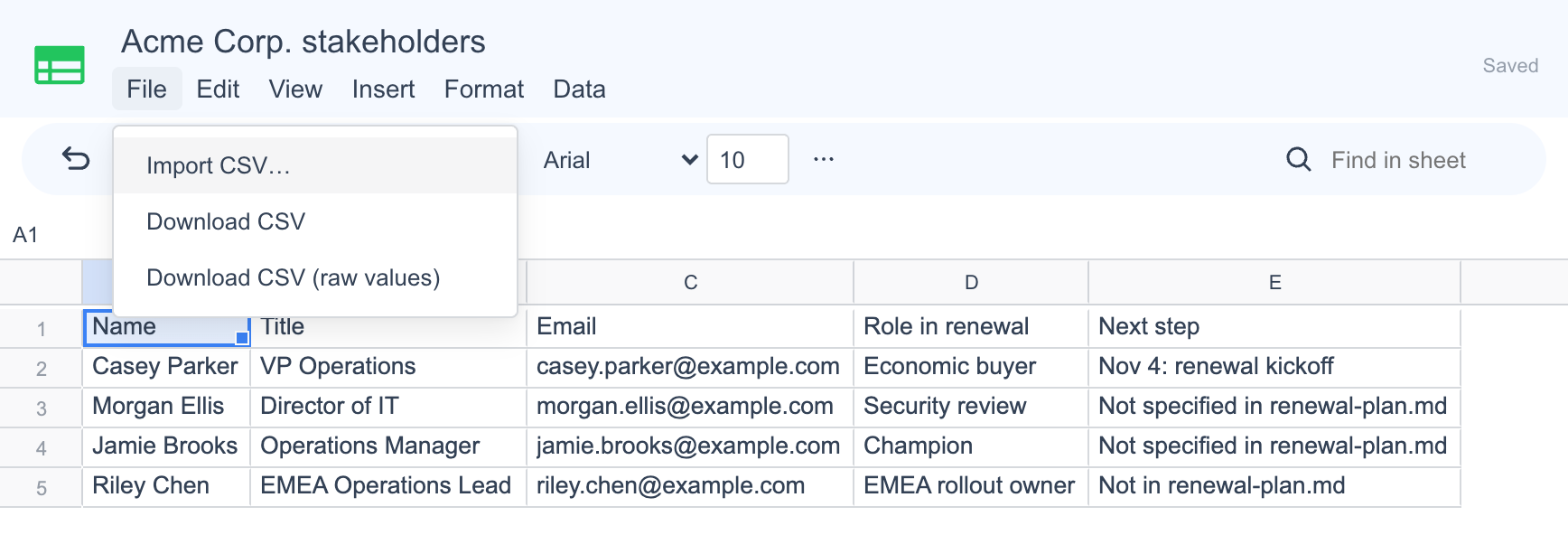
- Open the sheet and choose File → Import CSV….
- Use the file picker that appears to choose a
.csvor.tsvfile. - To calculate with the imported values, turn on Convert text to numbers, dates and booleans. It's off by default, and while it's off, every value imports as text, numbers included.
- Select Import.
Importing replaces everything in the sheet, including its formatting and filters, and keeps the sheet's title. Edit → Undo restores what was there before. Every row in the file becomes an ordinary row, including the first. The file must fit within the sheet limits.
With conversion on, the import recognizes numbers (including numbers with comma separators), percentages, currency amounts, TRUE and FALSE, and dates written as YYYY-MM-DD or M/D/YYYY with a four-digit year, and it keeps their formats. Text that starts with = or an apostrophe stays text; formulas in the file aren't calculated.
To start a new sheet from a CSV file, attach the file in a conversation and ask Athean to turn it into a sheet.
Download a sheet as a CSV file
- File → Download CSV saves the values as the sheet shows them, with their number formats, such as $1,200.00, 15.00%, or 2026-10-28. Empty rows and columns at the end of the sheet are left out.
- File → Download CSV (raw values) saves the underlying values without number formats: dates as day numbers, percentages as decimals, and numbers at full precision. It includes the sheet's whole grid, empty rows and columns too.
Both files are named after the sheet. They include hidden and filtered rows, and they contain formula results, not formulas, formatting, or filters. Importing a downloaded CSV file again can't bring those back.
Athean can also prepare a CSV file of a saved sheet and give you a download link. That file contains the underlying values, like Download CSV (raw values). Ask for only the visible rows if you want to leave out rows that are hidden or filtered.
Work on a sheet with Athean
Ask Athean for changes in a conversation where the sheet is open, or ask Athean to open it first. For example: "Add a column that totals Q3 and Q4 for each row" or "Remove the rows where Status is Closed."
- What Athean can change: Athean can change cell values and formulas, add rows, and rename the sheet. For larger changes, such as reorganizing columns, sorting, filtering, or reformatting many rows, it can run a one-off script on a full copy of the sheet and save the result. Creating, changing, and deleting sheets don't show an approval card.
- Formulas stay live: Athean can write formulas. When it changes the cells a formula uses, the formula stays in place and recalculates. Ask Athean to replace formulas with fixed values if that's what you want.
- Hidden and filtered rows: Athean reads every row, including hidden and filtered ones, so a filter doesn't limit what it changes. Say which rows you want changed.
- Your edits first: when you send a message, your open sheet is saved first, including a cell you're still editing, so Athean works from your latest version. If the sheet can't be saved, your message stays in the box and the sheet shows the problem (see Save edits and recover from conflicts).
- Updates on screen: the open sheet refreshes after Athean saves a change. Your Undo history then starts over, so Edit → Undo can't step back past Athean's change.
Avoid editing a sheet while Athean is changing it. A change can't be saved over edits it hasn't seen: if your save comes second, the sheet shows Save conflict.
Undo Athean's last change
Choose Edit → Undo last agent save to put the sheet back the way it was before Athean's most recent save. Edit → Redo then brings Athean's change back. It goes back one save only, and it's available only when the sheet has no unsaved edits and you haven't edited the sheet since Athean's save.
Save edits and recover from conflicts
Your edits save automatically a moment after you make them. The status beside the sheet's menus shows where things stand:
| Status | Meaning |
|---|---|
| Unsaved changes | You've edited the sheet, and the save hasn't started yet. |
| Saving… | Your edits are being saved. |
| Saved | Everything on screen is saved. |
| Name required | The title is empty. Type a title so the sheet can save. |
| Not saved | A save failed. The message above the sheet says why. After a connection problem, select Retry save. |
| Save conflict | The sheet changed somewhere else, such as by Athean or in another browser tab, while you had edits that weren't saved. Your edits stay on screen. |
| Unavailable | The sheet was deleted, or you can no longer save it. What's on screen stays visible so you can export it. |
When a save fails, a message above the sheet explains why and offers these buttons:
- Export my draft: downloads what's on screen as a CSV file named after the sheet, with
-unsavedadded. The file contains values only. - Retry save: tries the save again. It's unavailable after a save conflict or when the sheet was deleted.
- Discard draft and load latest: replaces what's on screen with the latest saved version. Unsaved edits are lost unless you exported them.
To recover from a save conflict, select Export my draft if you want to keep a copy of your edits, select Discard draft and load latest, and then make your changes again. If Undo last agent save fails, select Load latest to show the latest saved version, or Dismiss to close the message.
Leave or send with unsaved edits
- Leaving: if you leave a conversation while a sheet in it has unsaved edits, a dialog asks whether to Save and leave, Discard and leave, or Stay here. Stay to export your draft or resolve a save conflict.
- Sending: while an open sheet can't be saved, a message you send in its conversation stays in the box, and the sheet comes to the front with its error. Fix the problem, such as an empty title, an edit that can't be applied, or a save conflict, and then send again. A deleted sheet doesn't hold up your messages.
Sheet limits and troubleshooting
| Limit | Value |
|---|---|
| Rows | 10,000 |
| Columns | 200 |
| Cells | 200,000, counted as rows times columns. For example, a sheet with 10,000 rows can have up to 20 columns. |
| Sheet size | 10 MB |
| Tabs | 1 per sheet |
An edit, paste, or import that would go past these limits is refused with an error, and the sheet stays as it was. A formula whose results would need more room than the limits allow shows an error in its cell and adds no rows or columns. Formulas also have calculation limits: a very long formula, a very large number of formula cells, or formulas that work through very large ranges can be refused with an error.
| Problem | What to do |
|---|---|
| A total or formula ignores values you typed or imported | The values are text. Type plain numbers without symbols and apply a number format, import the CSV file again with Convert text to numbers, dates and booleans on, or convert the text with VALUE or DATEVALUE. |
| A formula shows #NAME? | The formula uses a function or name that sheets don't support. Check it against Supported functions. |
| A formula shows #REF! | Data is in the way of its results, the formula refers back to its own cell, or it refers to cells that were deleted. Clear the cells in the way or fix the reference. |
| An error appears above the sheet and your edit wasn't applied | The change would go past a sheet or calculation limit. Shorten the formula or the ranges it uses, use fewer formula cells (for example, ask Athean to replace finished calculations with fixed values), or press Escape to cancel the edit. Select Dismiss to close the message. If the message asks you to refresh the sheet, reload the page. |
| Rows that don't match a filter still show | Filters don't update as you edit. Open a heading's filter and select OK. |
| Sort, filter, insert, or the fill handle is unavailable | The selection has separate parts. Click a single cell or range first. Move rows up and Move rows down also need the filters removed. |
| Cutting cells shows an error about hidden or filtered rows | In a sheet with formulas, show the hidden or filtered rows and columns before you cut. |
| Your message stays in the box and the sheet shows an error | The open sheet couldn't be saved. Give it a title, correct the edit in progress or press Escape, or resolve the save conflict (see Save edits and recover from conflicts). Then send again. |
| A sheet won't open | This table was deleted or is not available in this workspace means the sheet was deleted or belongs to someone else; only its creator can open it. For Could not load this table, select Try again. |
| A teammate needs the data | Sheets can't be shared. Download a CSV file and send it to your teammate, who can attach it in a conversation and ask Athean to make a sheet from it. |
| Something else isn't working | Contact support with the conversation link, the sheet's title, and what happened. |