Start a task flow batch
Task flow opens your tasks one at a time, with the contact's account, activity, and outreach controls beside each task.
- Open Prospecting → Tasks, then filter and sort the table. The batch follows the table's order.
- Select specific tasks, or leave the selection empty to use the tasks on the current page. Check the count before you start.
- Select Start with N tasks. The count includes incomplete tasks assigned to you; completed tasks and tasks assigned to others are left out.
- If the batch includes call tasks and you use Athean dialer, complete the microphone and speaker check if it appears. Its Show before beginning task flow option controls whether it appears next time.
A task without an associated account can't be opened in task flow.
Execute call, email, LinkedIn, and general tasks
| Task type | What to do |
|---|---|
| Call | Select Start call, or let Auto-dial start it. After an attempt, the button changes to Call next number if the contact has another number, or Mark as complete once the numbers have been tried. Log the outcome and next step in the call log. Missing phone means the contact has no number to call. |
| Select Review email to open the composer, then review and send the message. When you send the email for a sequence's email task, Athean also completes the task and advances the sequence (Email sent and task completed). If Athean says Email sent, but task could not be completed, mark the task complete yourself. If the contact has no email address, select Missing email and add one with Update email. | |
| Select Open message to open the LinkedIn composer for the connection request, InMail, or message, and review it before sending. | |
| General | Do the task, then select Mark complete. |
Opening a composer or starting a call doesn't send or complete anything by itself. Send the message, or finish and log the call, then complete the task or choose its next step. For details, see Dialer and call settings and Email: sending and tracking.
Complete, snooze, skip, or auto-send tasks
Use the controls below the task to record what happened and move on:
- Mark as complete: Completes the task and moves to the next task in the batch.
- Snooze task: Sets the task's due date to 1 business day, 2 business days, 3 business days, or 1 week from now, then moves on. The task stays open for later.
- Skip task: Marks the task skipped and moves on. To come back to a task later, snooze it instead.
- Schedule for auto send: Appears for eligible manual email, LinkedIn connection request, and InMail steps in an active sequence. Select Schedule for ASAP or Schedule for tomorrow, and Athean sends the step automatically instead of you sending it by hand.
Completing or skipping the current task of an active sequence advances that sequence, and its next automatic step may send right away. For a call, the next step you choose in the call log (for example, complete the step, try another number, or try again later) also decides what happens to the task.
When no open tasks remain in the batch, Athean shows All tasks handled! and returns you to the Tasks table. This means every task in the batch was completed, snoozed, or skipped, not that every task was completed.
Configure automatic task flow actions
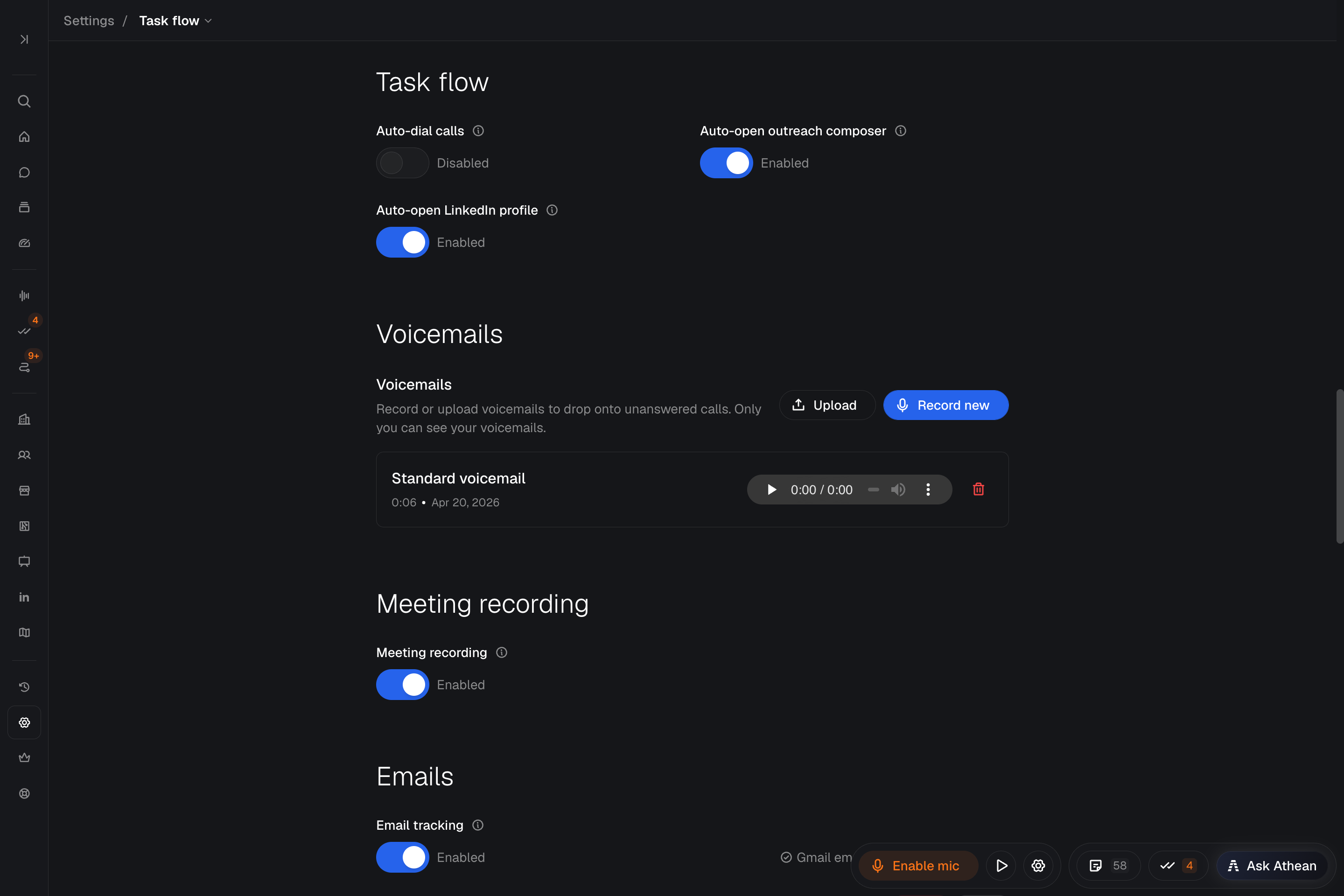
Open Settings → Task flow to choose what happens each time task flow moves to a new task, then select Save changes:
- Auto-dial calls: Starts dialing when the next task is a call, and dials the next number in the dialer queue.
- Auto-open outreach composer: Opens the email or LinkedIn composer when the next task is an email or LinkedIn task. AI-written messages are generated when the composer opens, just as when you open it yourself.
- Auto-open LinkedIn profile: Opens the contact's LinkedIn profile when a LinkedIn task loads. Requires the Athean Chrome extension; see Chrome extension.
Opening the composer automatically only prepares the message for your review; nothing is sent until you send it. To start each call yourself, turn off auto-dialing with the play/pause button beside the dialer. For a full calling session, see Dialer and call settings.