
Set the date range, people, and activity scope
Open Workspace → Activity → Dashboards and set the filters in the header:
- Date range: choose the reporting window. The Book coverage tab uses fixed rolling windows of 7, 14, 30, 45, and 90 days, so the date control is disabled on that tab.
- People: choose individual users on the Individual tab, or teams and Groups on the Team tab, then apply your selection.
- Activity scope: choose Athean only for activity created or tracked in Athean, or All activity to also include activity synced from your connected systems.
Keep the same scope when you compare results.
Reference: Standard dashboard tabs
| Tab | Metrics and breakdowns |
|---|---|
| Overview | Totals for sequences, emails, calls, LinkedIn, meetings booked, and opportunities created, with conversion ratios such as Emails to meetings, a Rep leaderboard, and an Industry breakdown. Select a total to open that channel on the Activity tab. |
| Activity | Channel views for Sequences, Emails, Calls, LinkedIn, Meetings, and Opportunities, with drill-downs to the underlying records. For sequences, see Analyze sequence performance. |
| Signals | Signal counts by Actioned and Ignored, With first touch and No touch, and Meeting booked, with breakdowns by day, signal type, and rep. |
| Tasks | Total, Completed, Open, Overdue, and Skipped tasks and Avg time to complete, with daily volume, recent tasks, and a per-rep breakdown. |
| Depth of pursuit | How deeply reps work the contacts they touched: Avg METs per contact (a weighted touch score), depth tiers from Shallow to Engaged, and % Multi-channel, by rep. |
| Book coverage | How many accounts in the reps' books were touched in the last 7, 14, 30, 45, and 90 days, as counts and percentages of Book size. The Per-rep breakdown shows each rep's untouched accounts as Not touched in 30d. |
| Call patterns | Call volume and connect rates by day of week and hour of day. Choose the time basis (Dashboard timezone or Contact local time) and the rate (Connected or Conversations). |
Signal and Task metric definitions
- Actioned and Ignored count signals set to those statuses, including custom dispositions with that status (see Signals and signal types). A status change alone isn't activity on the account or contact.
- With first touch counts signals with rep activity in the 30 days after the signal arrived: an email, call, LinkedIn touch, booked meeting, sequence enrollment, new opportunity, or task due in that window. Activity counts on the signal's contact when it has one, otherwise on its account. Opportunities always count on the account. No touch counts signals with none of that activity in those 30 days.
- Meeting booked counts signals where a meeting was booked on the signal's contact (or its account, when the signal has no contact) within 30 days after the signal arrived. It shows timing; it doesn't show that the signal caused the meeting.
- Due so far calculates task completion over tasks whose due date has already passed. All scheduled also includes tasks due later in the selected date range. A task marked Completed records that the work was done; review meetings and other outcomes separately.
Drill into underlying task, signal, email, and call records
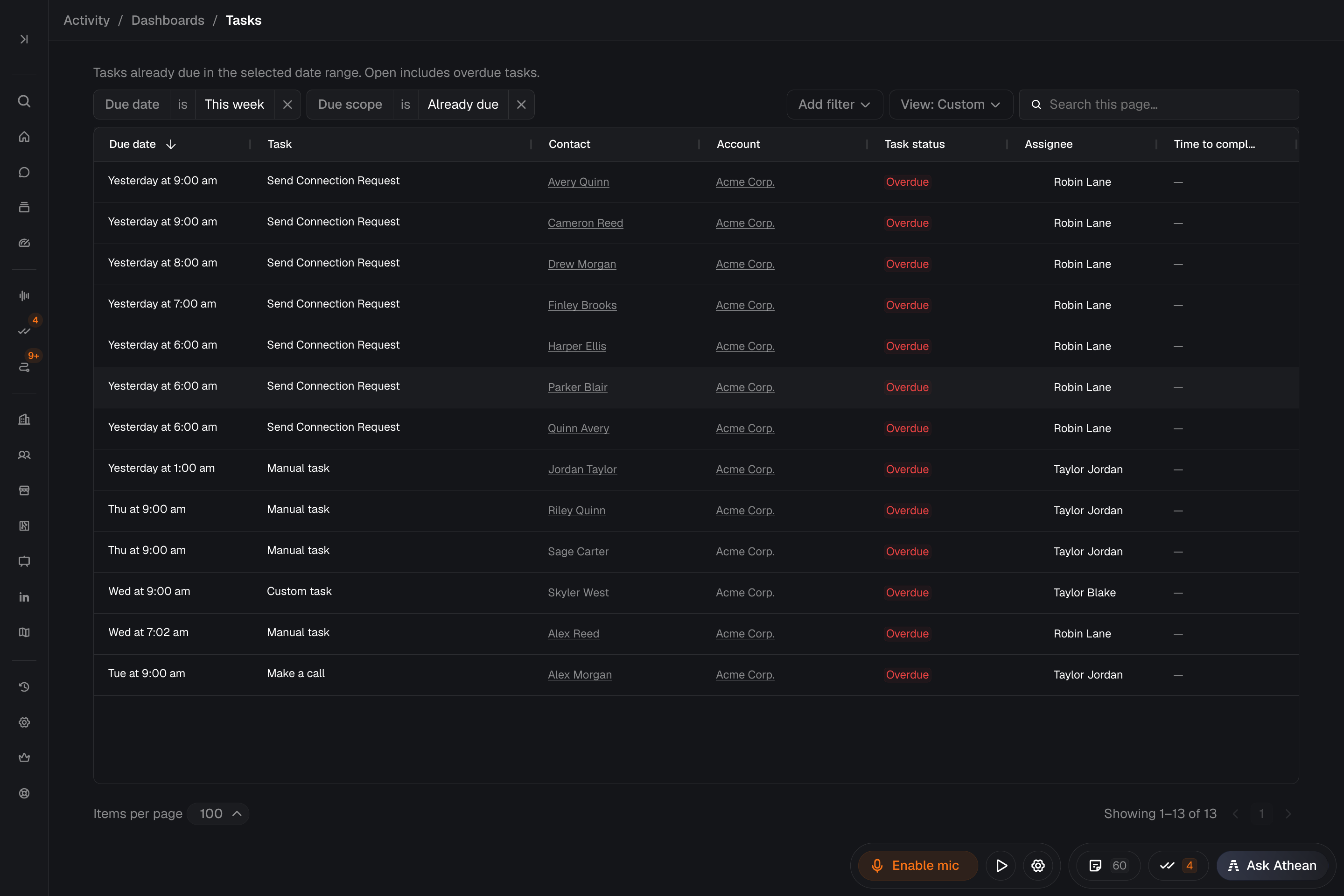
Select a stage tile or count in Tasks or Signals to open the matching records. In Activity → Sequences, select an email or call metric to open Sequence emails or Sequence calls. The record page keeps the people, dates, stage, and sequence selection from the dashboard or rep you were reviewing.
- Check the filters carried over at the top of the record page.
- Use Add filter to narrow the results:
- Tasks records: Due date, Assignee, Task status, Task type, and Due scope (Already due or All scheduled).
- Signals records: Signal date, Signal type, Disposition, Has first touch, Meeting booked, and Attribution, which applies your people scope to the Signal assignee, the Account owner, or Either.
- Open contacts or accounts to see their context. Select the Dashboards breadcrumb to return to the dashboard or rep you started from.
Search this page on the Tasks, Signals, and Sequence calls record pages searches only the rows currently loaded. No match there doesn't mean no matching records exist; use Add filter to narrow the full result. Search email subjects on Sequence emails searches all matching emails.
To repeat a review, save the filters and columns as a saved view; see Saved views. If records fail to load, select Retry; your filters stay applied.
Review Book coverage and assign follow-up tasks
Use the Book coverage tab to find reps whose accounts haven't been touched recently, choose follow-up candidates, and have the rep create the follow-up tasks:
- In Dashboards, set People to your team and select the Book coverage tab. Coverage uses fixed rolling windows, so the date range doesn't apply; keep the activity scope in view.
- In Per-rep breakdown, compare each rep's Not touched in 30d (percentage and account count) with Book size to choose a book to review.
- Select the rep to open Touched accounts. Choose a window such as Last 30 days and open accounts to see the recent work. This table lists accounts that were touched, not the accounts that were missed.
- To find untouched accounts, open Tools → Discover on the Accounts tab. Under Add filter → Account, choose the rep in Account owner and set Last activity to Not in the last 30 days, or to Never for accounts with no recorded activity. These filters depend on your organization's available data; see Find accounts.
- Review the candidates with the rep. Check each account's activity, ownership, and existing outreach, and agree which contacts need follow-up and the next action for each.
- Have the rep create the follow-up tasks from those contacts, with a title, notes, and due date (see Tasks). Tasks the rep creates are assigned to the rep. At the next review, return to the same team and window and check the activity on those accounts.
Discover's results can differ from the dashboard's totals because their scopes differ; use each account's history to confirm a gap. Creating a task doesn't touch an account: coverage counts only emails, calls, meetings, and LinkedIn activity.
In Touched accounts, you can also select rows and use Add task. Those tasks are assigned to you, not to the rep. Use the rep-created flow above for work the rep should own.
Compare results across periods and teams
When you compare periods or teams, keep People, the activity scope, and the Tasks Due so far or All scheduled setting the same. Read the metric definitions and the underlying records before you draw a conclusion from a small sample.
For metrics, filters, or layouts the standard tabs don't include, or to combine data from several sources in one view, build your own dashboard; see Custom dashboards.