
Understand where tasks come from
Prospecting → Tasks is the queue for manual outreach steps and follow-ups. Tasks come from:
- Sequence steps: When an active sequence reaches a call, manual email, manual LinkedIn, or task step, Athean creates the task right away and sets its due date from the step's wait time.
- Manual creation: Create task makes general or call tasks from contacts, contact lists, signals, or the Tasks page.
- Chat, agents, and automations: Chat creates and updates tasks when you ask (see Manage tasks through Chat). Agents create tasks as the person a run is for and assign them to that person, a teammate the instructions name, or no one. Automations can create tasks as part of their workflow.
You can't create email or LinkedIn tasks by hand; they come from sequence steps, Chat, agents, or automations. Creating or completing an email or LinkedIn task doesn't send anything.
Create general or call tasks from contacts or signals
Turn research, a signal, or a customer commitment into work with a due date. Create a general task for a next step such as preparing a proposal, or call tasks for the people you want to reach in your next calling session.
- Open Tools → Discover on the Contacts tab, a contact list, or Prospecting → Signals, and select the contacts or signals to follow up on.
- Select Create task, then choose Create general task or Create call task. Call tasks need a contact; account-only signals are left out of a call-task batch.
- Enter a clear title, check the due date and time, and add notes about the next action. For example, use “Call about Acme's expansion” and include the research or commitment to follow up on.
- Check the number on Create N tasks or Create N call tasks, then select it. Each selected contact or signal gets its own task, assigned to you by default.
- Read the result, then open Prospecting → Tasks, add Upcoming to Task status, set Due date to include the new due dates, and check the new tasks.
A batch can partly succeed. If the result reads Created N of M tasks (K failed), check the existing tasks before retrying the failed ones. If creation is unavailable, check that you selected eligible records, that call tasks have contacts, and any message about the title or due date.
For a calling session, filter and sort the call tasks, then work them in Task flow with power dialing; see Task flow and Dialer and call settings. Creating a task records the planned work; you complete it from the task.
Manage tasks through Chat
Ask Chat to create a follow-up task or change an existing task's title, notes, due date, or assignee. You can also ask it to complete, skip, or delete tasks. Identify the tasks clearly and say what to change. Chat uses your task permissions and makes authorized changes directly, without an approval card.
Creating an email or LinkedIn task doesn't send a message. Marking one complete records that the work is done; it doesn't send that task's message for you.
Completing or skipping the current task in an active sequence advances that contact's sequence, so the next automatic email or LinkedIn step may run immediately. Deleting the current sequence task pauses the sequence. Check the reported result and the task and sequence status before making another change.
Filter and work tasks in the Tasks table
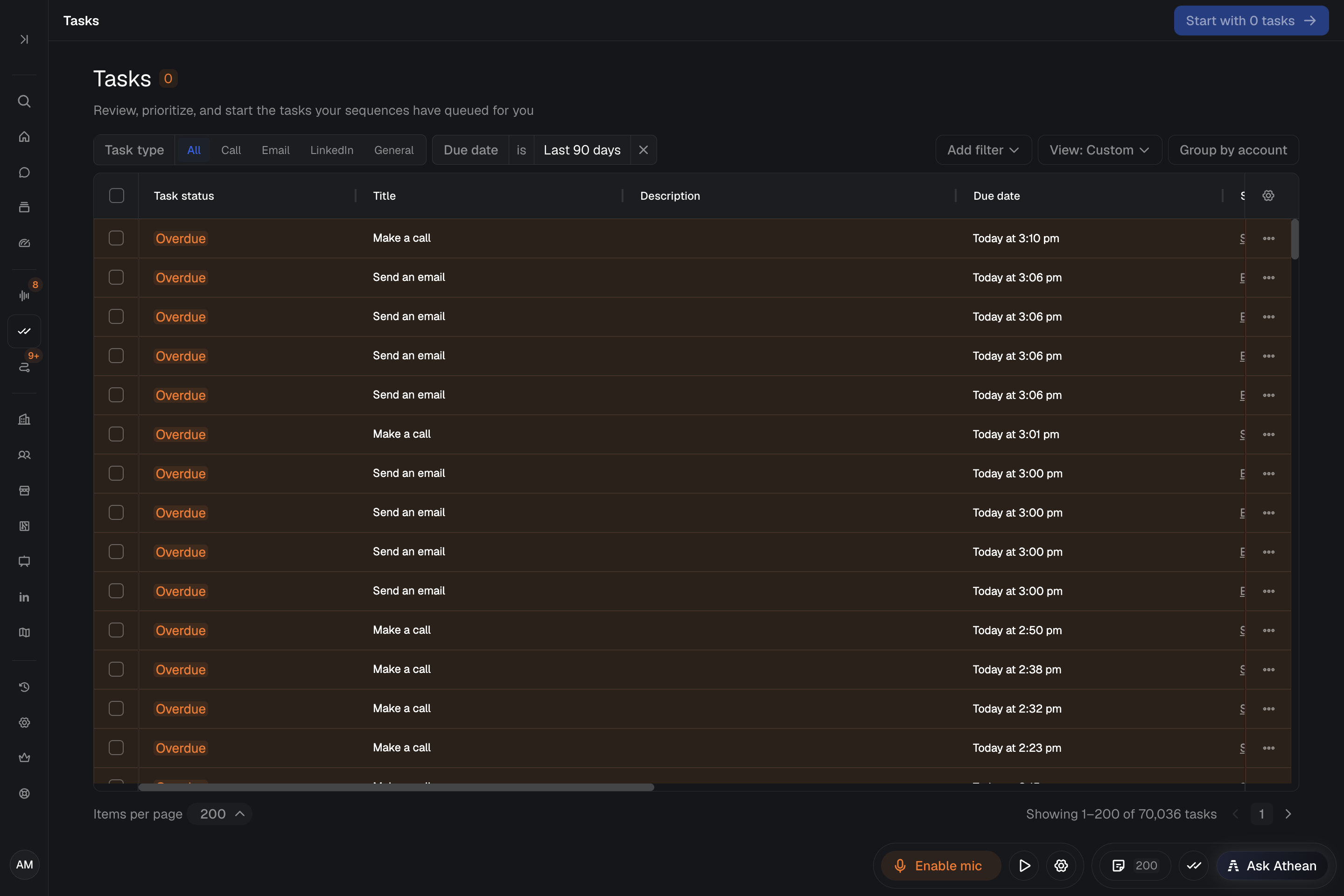
- Open Prospecting → Tasks. Athean loads your group's default saved view if one is assigned. Otherwise it shows your overdue tasks due in the last 90 days; add Upcoming to Task status and widen Due date to see later tasks.
- Narrow the queue with the task type toggle (Call, Email, LinkedIn, or General), Due date, Assignee, or other filters from Add filter.
- Open a task to see its contact and account context and do the call, email, or LinkedIn step. To close several tasks at once, select them and choose Mark as complete or Mark as skipped.
Run a batch in Task flow
To work through tasks back to back without returning to the table:
- Filter and sort Prospecting → Tasks in the order you want to work.
- Select specific tasks, or leave all unselected to use the eligible tasks on the current page.
- Select Start with N tasks. The count includes only incomplete tasks assigned to you; completed tasks and teammates' tasks are skipped.
See Task flow for moving through the queue, snoozing or skipping, and automatic dialing or composer settings, and Dialer and call settings for power dialing.
When a task is missing
- An expected task isn't in the table: Check the selected View, the task type, and the Assignee, Due date, and Task status filters. Skipped tasks don't appear in the ordinary task lists.
- A sequence task hasn't appeared: Athean creates a sequence task as soon as the sequence reaches that step, with a due date in the future, so the default Task status (Overdue) and Due date (Last 90 days) filters hide it until it's due. If it still isn't there, open the contact or Active sequences to see whether the sequence is on an earlier step, paused, or waiting for draft approval in Approvals.
- A task named Send an email (Automatic Email Failed): An automatic email step couldn't send, for example because your mailbox was disconnected. Send the email yourself or skip the step, and reconnect in Settings → Integrations if needed.
- Start with 0 tasks is disabled: Task flow includes only incomplete tasks assigned to you. Check whether the view is filtered to completed tasks or to a teammate's tasks.