
Decide what to run as an agent
Tools → Agents runs saved AI workflows on a schedule or when you select Run now. Common uses:
- External research and record import: Search external sources, for example to find board members or department heads for SLED accounts, and add the accounts and contacts found to Athean. New accounts are created only when your organization allows account creation. Contacts that agents create stay in Athean; they aren't sent to Salesforce unless the agent's instructions include exporting them.
- Account and list monitoring: Check a target list for new signals, leadership changes, or expansion activity, and send you a summary in Slack or by email.
- Prospecting and sequence staging: Find contacts that match a persona at target accounts and stage outreach drafts for review.
For a one-off question or action, use Chat. For a research report on one account, use the account's Research tab. For organization-wide workflows that run on a schedule or when something happens, such as a Salesforce record change, an email reply, or a task coming due, use Tools → Agents → Automations, which org admins and people with automation access can see. See Event-triggered automations.
Search and filter existing agents
Open Tools → Agents to browse the agents available to you:
- Search by name, description, or owner.
- Filter by Last run status (Paused for approval, Failed, Running, Queued, Completed, Stopped, Not run yet, or Status unavailable) or by Last run within.
- Save filter combinations you reuse as saved views. View → Copy link links to the saved view, not your unsaved changes, and doesn't grant access.
Example agent prompt
Every Monday, find up to 10 operations leaders at accounts in [list]. Exclude opted-out contacts and anyone in an active sequence. Explain why each person fits, and stage proposed outreach for my review. Do not enroll contacts or send messages.
When you write an agent prompt, name the target audience or source list, any external sources to search, exclusions, how many records each run should handle, the output (such as a Slack message or staged sequence drafts), and whether actions should wait for your approval.
Data sources and tools available to agents
When you describe the work, name the account list, contacts, or sequence the agent should use. An agent can work with:
- Your workspace's accounts, contacts, lists, signals, tasks, and sequences, within the access of the person the run is for.
- External web search and public pages, including adding the accounts and contacts it finds to your workspace.
- Your organization's knowledge corpus for product facts, positioning, and citations.
- External HTTPS APIs, through API secrets. Each run uses the secrets the person it runs for can use. API requests, including ones that change data, run without an approval card and are listed in the run's Actions. The service must be reachable over the public internet.
- Personalized outreach drafts, each for one existing contact, saved to Approvals, where they wait as Pending. Saving a draft doesn't enroll the contact, create tasks, or send anything. Once approved, the outreach starts with the person the run is for as the sender.
- A Slack direct message (when your organization has connected Slack) or an email to the person the run is for. An agent can't post to a Slack channel or message other teammates; automations can.
For outreach, connect the channels the sequence needs before expecting the agent to run it. To bring data from your own tools into Athean, see API setup or chat with us.
Create an agent and set up your own runs
- Open Tools → Agents and select New agent. If it isn't available, ask your administrator about agent permissions (see Permissions and roles).
- Describe the work in the agent's chat: the accounts, lists, or sequence to use, any external sources, exclusions, the output you want, and the schedule.
- Review the proposed workflow, schedule, and who it runs for. Ask for changes and follow the confirmations shown in the conversation.
- Open the saved agent and review Specs, when available, to confirm what it does.
- In Manage my runs → Settings, check Runs for you and My schedule. Use Run for me to take part. Change my schedule starts a conversation about the timing of your own runs.
A new agent is saved with Schedule status set to Enabled and, by default, runs for you, so it runs on its own from the next scheduled time. It starts with the model selected in the conversation that created it (see Chat and Ask Athean); to change it later, use Model in Manage all runs → Settings. A saved definition, who it runs for, and an enabled schedule are separate parts of setup. For team participation and the shared schedule, see Configure team execution (Runs for) and sharing.
To start a run yourself, select Run now. This is a real run for you, and the agent's configured actions can take place. Some actions need approval and pause the run as Paused for approval; others run without an approval card, including creating tasks, updating lists, enrolling contacts, approving operator drafts when the instructions say to, and API requests through API secrets. Review the workflow before you select Run now. Athean opens the queued run, or confirms that it will appear under Runs shortly.
If a run for you is already queued or running, Athean shows This agent is already running with View current run or Start another run. Starting another run repeats the work alongside the first and may repeat its actions.
Configure team execution (Runs for) and sharing
An agent keeps who it runs for separate from who can open its definition. Editing the definition needs ownership plus permission to edit your own agents, permission to edit any agent, or the org admin role. Changing Runs for for other people needs the org admin role or the Agents permission Assign other users. Use a group when participation should follow a team, and check the group's current members first.
- Open the agent, choose Manage all runs, and select Settings.
- Under Runs for → Groups, select one or more groups and choose Save groups. To add individuals, search for a person and select Add. The agent runs for each person in Runs for, with that person's access.
- Check the people listed under Runs for. If it's empty, the agent doesn't run for anyone.
- Under Model, choose the model for future runs; the menu describes each option. The model applies to everyone the agent runs for, and continuing an existing run keeps the model it started with. Changing it needs the same rights as editing the definition; without them, the menu is unavailable and its tooltip reads You don't have permission to change this agent's model. After a change, Athean confirms Model updated for future runs. Existing runs keep their original model. Models use AI credits at different rates (see Chat and Ask Athean).
- Under Schedule, select Set schedule or Change schedule to work out the default timing with Athean, then check the result. A person's own schedule can override the default timing.
- Check that Schedule status is Enabled. Switching it to Paused stops scheduled runs for everyone in Runs for until you turn it back on.
- Separately, use Share if teammates should find and open the definition in Tools → Agents: choose people or groups under Access, turn on Discoverable (needs the org admin role or an Agents permission to manage discoverability), and select Save. Access alone doesn't list the agent.
Giving someone Access doesn't add them to Runs for. Adding someone to Runs for doesn't give them Access to the definition or to other people's run history. Check the first scheduled results in Manage all runs → Runs.
When you can manage Runs for, you can remove a person's direct participation, including people who joined themselves. Their run history is kept. Check the Direct label and any group chips before removing someone.
Group participation follows group membership. Removing a person's direct selection can leave them participating through a group, and Remove me in Manage my runs removes only your direct participation. Change the group assignment, or ask an administrator, when group-based participation should end.
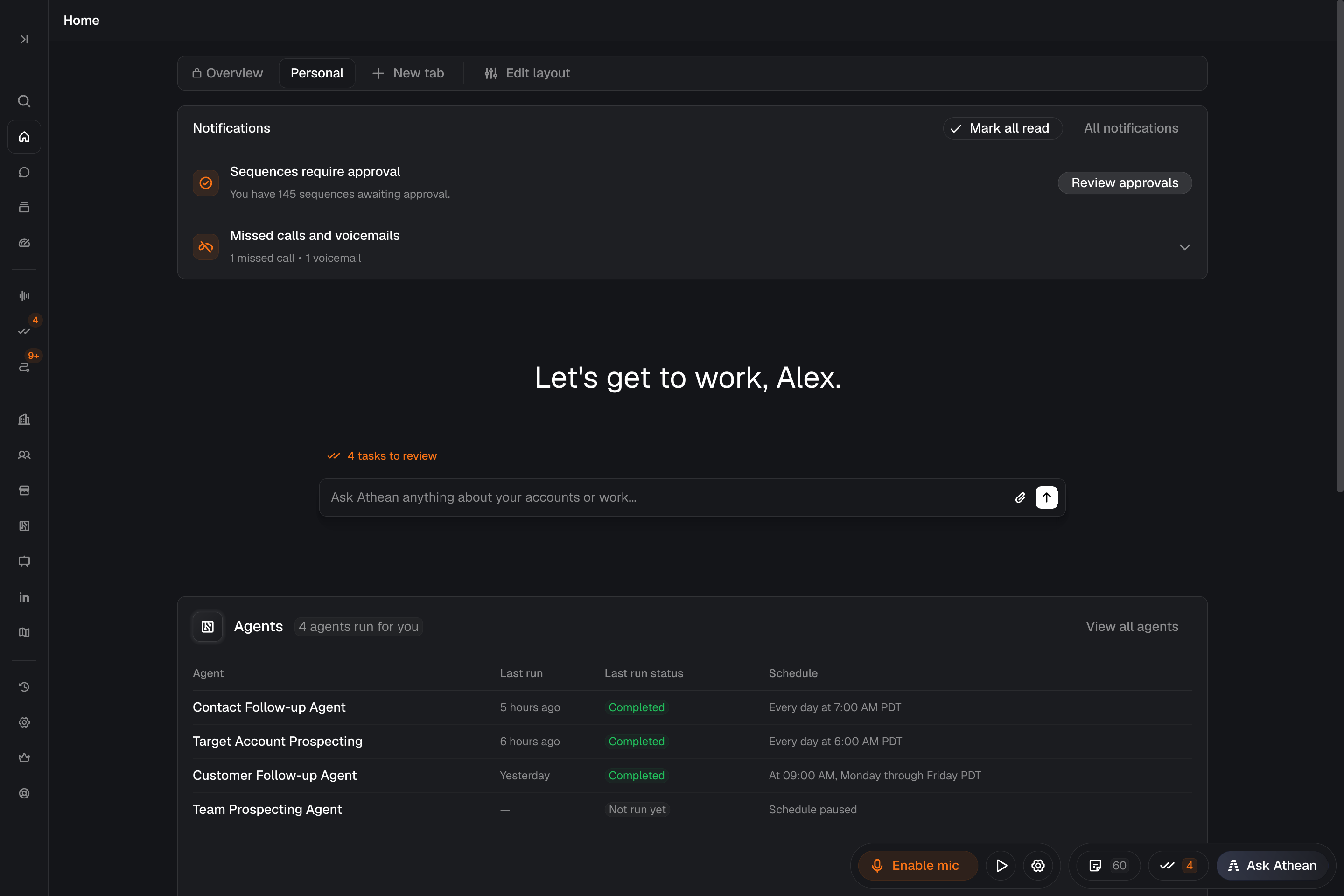
Monitor your agents from the Home block
The Agents block on Workspace → Home shows agents that run for you, directly or through a group, with Last run, Last run status, and Schedule. Owning an agent or having Access to it doesn't put it in this block. The block shows the first few agents; select View N more agents or View all agents for the rest.
Select an agent to open your runs. If the block isn't on your Home tab, add it with Add block (see Layout configuration). A paused schedule and a run waiting for approval need different follow-up, so check the status before acting.
Inspect run outputs and approve paused actions
- Open the agent's Runs tab. Use Manage my runs for your own runs or Manage all runs for the wider history you can see.
- Check Started and Status (Running includes queued runs; Parked means the run is waiting for approval). In the team view, check For to see whose run it is.
- Open the run and read its Output (the brief, table, or summary it produced) and Actions (what it did or attempted).
- For a prospecting brief, check the contact count, target accounts, exclusions, and evidence for fit. Open the linked records or drafts and confirm that outreach is still only proposed, if that's what you asked for.
- If a run is Parked, open it and review the request in its conversation. When your latest run is waiting and you can approve it, the agent's page also shows a Last run is waiting for approval banner with Review & approve, which opens that run. Approval controls appear only for requests you can approve. Owning the agent, having Access, or managing all runs doesn't by itself let you approve.
In the Agents table, Last run and Last run status describe your latest run. The status can be Paused for approval, Failed, Running, Queued, Completed, Stopped, Skipped, Not run yet, or Status unavailable. Schedule status shows separately whether recurring runs are enabled.
While a run is in progress, its details update as work is recorded. Select Stop run to request a stop, then check the final status and actions. The current step may finish first; stopping doesn't undo completed work.
After a run finishes, the person it ran for can open its conversation on the run page when shown. Continue there to ask about the result or request follow-up work. The conversation keeps the model the run started with, even if the agent's Model has changed since. Access to someone else's run history doesn't include their conversation.
A queued run hasn't finished. A completed run still needs checking against what you asked for; its action count alone doesn't show that prospects were enrolled or messages sent. Check the resulting records and drafts before expanding the workflow.
To improve the results, describe the change in the agent's conversation, review the saved definition and schedule, and check the next run. For outreach workflows, use Analyze sequence performance once the sequences have had time to run.
When a run is missing or needs attention
| Problem | What to do |
|---|---|
| An expected run didn't happen | Check Runs for, the person's own schedule, and the shared Schedule status in Manage all runs → Settings. Check the run filters and whether you are viewing your runs or all runs. |
| AI credit limit reached | Open AI usage and credit limits to check your limit and ask for an increase when available. A skipped scheduled run doesn't replay automatically after credits become available; start a new run if the work is still needed. |
| Run history can't load | Select Retry. A loading failure doesn't mean the agent never ran. |
| A run is Paused for approval | On the agent's page, select Review & approve in the Last run is waiting for approval banner, or open the run (Parked) and review its conversation. Approval controls appear only when you can decide the request. Starting a new run with Run now doesn't approve the paused one. |
| Approval status unavailable | Athean couldn't determine the approval state. Reopen the run and check again; this message doesn't mean approval is unnecessary. |
| A run failed | Read Error details and the recorded actions to see which steps finished. Check the affected connection, access, and records before trying again; some work may already be done. |
| Output is unexpected or incomplete | Compare it with the requested audience, evidence, exclusions, and actions. Refine the workflow and check another result before using it more widely. |
If the result is still unclear, contact support with the agent, the run time, who it ran for, the error shown, and what you expected.