
Open the Contacts tab in Discover
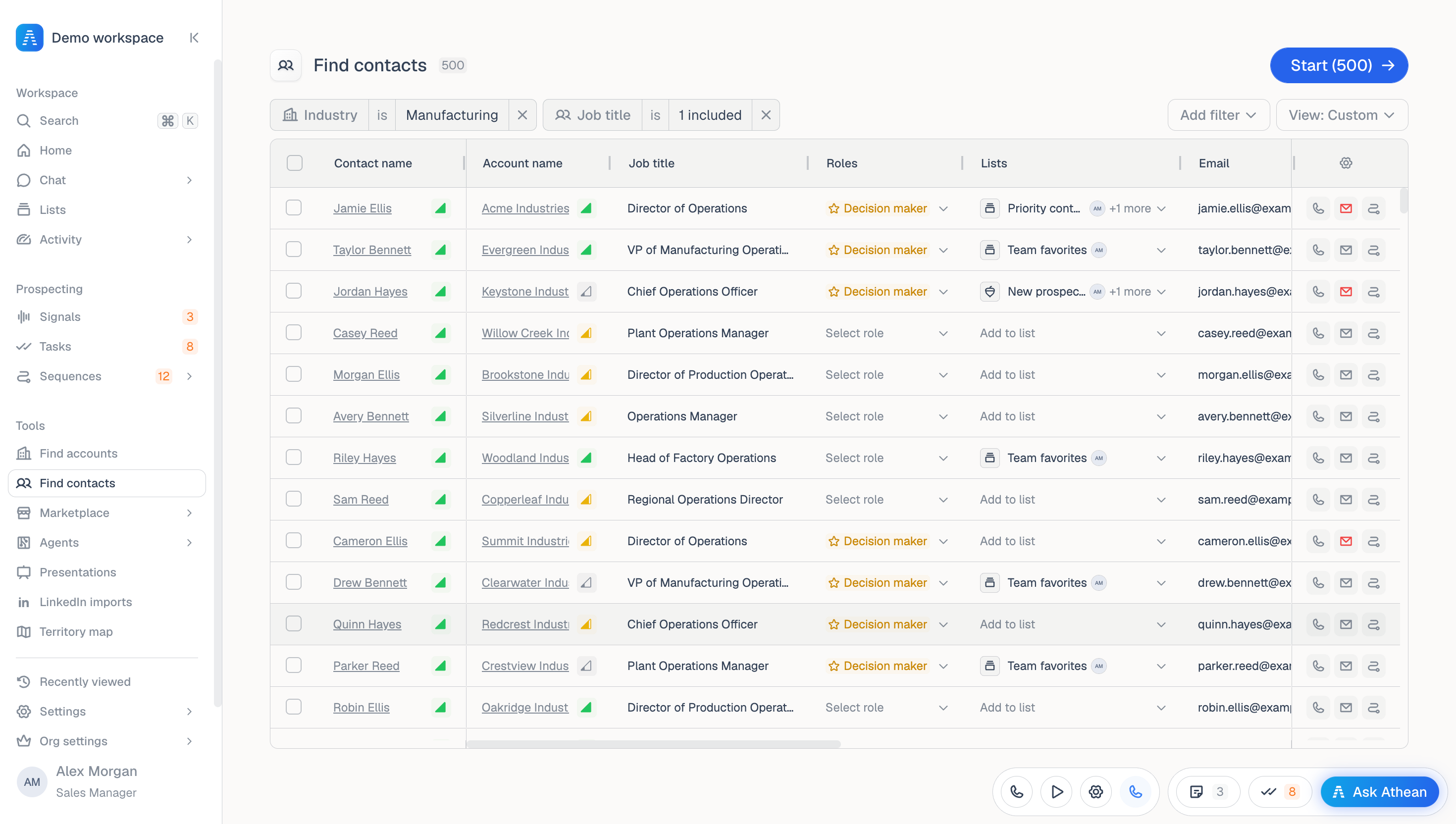
Open Tools → Discover on the Contacts tab to find people across the accounts in your workspace. The filter menu includes Account, Contact, and Signal criteria, so you can describe both the company and the person you want to reach.
The Accounts tab shows the companies that match the same filters; your filters and selected view carry over when you switch. See Find accounts.
Check the selected view before adding filters. Your organization can assign a Discover default view for your group; a link that names a view or filters takes precedence.
Inside an account, its Contacts tab lists the people at that company. Use Discover for a wider search across your target market.
To add people who aren't in your workspace yet, follow Import contacts for Sales Navigator or CSV, or ask Chat or an agent to research external directories and import matching people. Chat asks for your approval before it imports contacts from LinkedIn or ZoomInfo or creates contacts from research, but it can add a single person you name without asking.
Before building the search, decide which roles matter and which contact details your next step needs. A calling workflow and an email workflow may need different records.
Filter contacts by role, availability, and exclusions
- On the Contacts tab, select Add filter.
- Add Account filters, such as Industry, Location, Employee count, or Company, to scope the target companies.
- Add Contact filters:
- Role: Job title, Department, Seniority, and the contact's Location, which is separate from the account's location.
- Field availability: Has email or Has Linkedin.
- Exclusions: Hide opted out, Exclude contacts in active sequence, and Exclude contacts with sequence completed in last 30 days. For the sequence exclusions, choose Any sequence or Selected sequences; Selected sequences needs at least one template or operator.
- Optionally add Signal filters to find people who have a matching signal.
- Review the results and open a few contacts to check that their roles and companies match your intent.
If your team uses Salesforce, an administrator can add reusable filters for accounts, contacts, or both in Org settings → Salesforce filters. Find them in the Account or Contact section of Add filter. See Salesforce filters.
Filter by account or contact heat index
Athean heat index rates accounts and contacts High, Medium, or Low from prospect-side activity in the last 90 days (see Find accounts). On the Contacts tab, Discover offers separate filters for the company and the person:
- Add filter → Account → Athean heat index: Filters contacts by their company's rating.
- Add filter → Contact → Athean heat index: Filters contacts by their own rating.
Records without a rating match neither filter. Select a heat badge in the results to open its Heat index dialog.
Add contacts to a list, sequence, or task batch
Check the Open tasks and Unactioned signals (past 90 days) columns to see whether teammates are already working a contact. Then select contact rows and choose an action:
- Add to list: Adds the contacts to a contact list.
- Assign sequence: Adds the contacts to a template or operator after the Review contact deliverability check (see Approve and manage sequences). An operator creates drafts that wait for review in Approvals.
- Create task: Creates a general or call task for each selected contact.
Save your contact search as a saved view
Select View → Save as new view... to save your contact filters, pinned filters, and optional column layout for later or to share with teammates. See Saved views.
If expected contacts don't appear, check both your Account and Contact filters to see which one excludes them.