View and filter your notification inbox
On Workspace → Home, the Notifications section groups your unread missed calls and voicemails, Email follow-up reminders, and AI credit requests. Select a group to expand it. Other unread notifications appear only in the inbox. To open your notification inbox, select All notifications.
- Unread and All tabs: Unread shows the notifications you haven't marked read, with a count. All also includes the ones you've read.
- Type filter: Choose All types, Missed calls, Voicemails, Email reminders, AI credit requests, or Other. Email reminders are the follow-up reminders you set when sending an email; see Email: sending and tracking. AI credit requests are new requests for a higher monthly AI credit limit, sent to the organization administrators chosen in Notify these admins (see AI usage and credit limits), and decisions on requests you made.
- Open: Opens the related call or email. On an AI credit request notification, Review request opens a new request on the Limit requests tab of Org settings → AI usage, and View request opens your request history in Your credit usage, where the decision is shown. Notifications without a related item have no Open button.
- Call back: On a missed call or voicemail, calls the number back using your dialer.
The inbox loads your most recent notifications, and the type counts cover only the loaded notifications. If the inbox says unread notifications aren't loaded, or it couldn't refresh, select Refresh notifications.
Mark notifications as read
- One notification: Select Mark read on the row. It leaves the Unread tab and stays under All.
- On Home: In an expanded group, select the check mark (Mark read) on a row. The missed calls and voicemails group also has a button that marks the whole group read, such as Mark 3 as read.
- All unread notifications: Select Mark all read, check the count in the confirmation, and confirm. This includes unread notifications outside the current type filter.
Marking a notification as read changes only its inbox status. It doesn't complete the related task or action a signal, and marking an AI credit request notification read doesn't approve or reject the request. On Home, Mark all read under Notifications leaves sequence approvals and connection reminders in place.
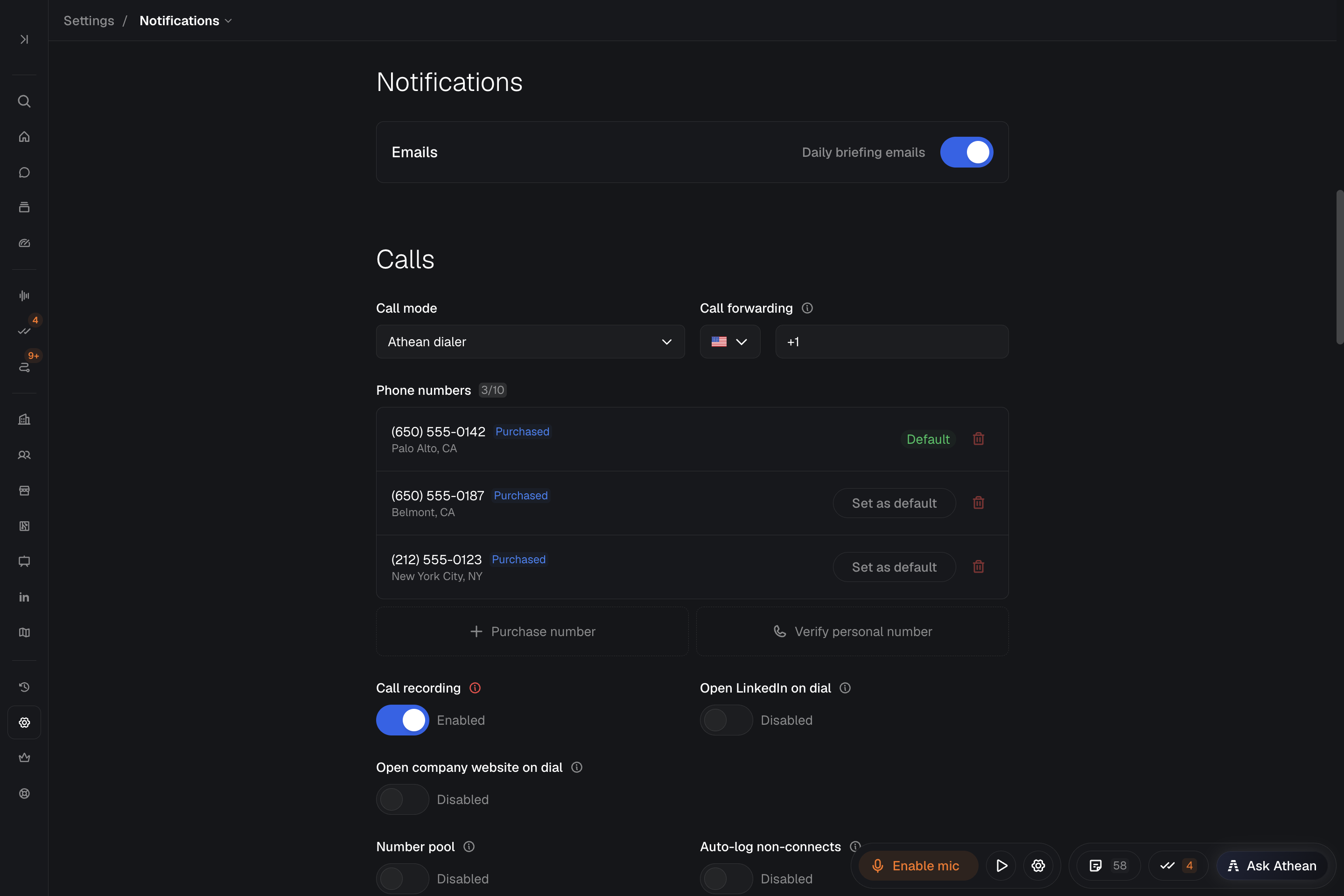
Configure daily briefing emails
- Open Settings → Notifications.
- Under Emails, turn Daily briefing emails on or off.
- Select Save changes.
How daily briefings work:
- Contents: your open tasks due that day and your meetings that day, with AI meeting preparation. Briefings don't include signals.
- Timing: sent on weekday mornings in your time zone, only when you have tasks due or meetings that day. Days with neither are skipped.
- Eligibility: sent only to active users who have used Athean within the last 7 days, so turning the setting on doesn't guarantee an email every day.
- Unsubscribed: if you unsubscribed through a link in an Athean email, you won't receive briefings even with the setting on. To receive them again, contact support.
- AI credits: if your organization's AI credits for the month are used up, the briefing still arrives without its AI meeting-preparation sections and says why. See AI usage and credit limits for checking the shared pool.
If a briefing is missing, check the saved setting, whether you had tasks due or meetings that day, your recent use of Athean, and your email folders.
Daily briefings are separate from Slack. Updates that agents and automations send to Slack are set up separately; see Slack integration.