
Create a presentation or one-page brief
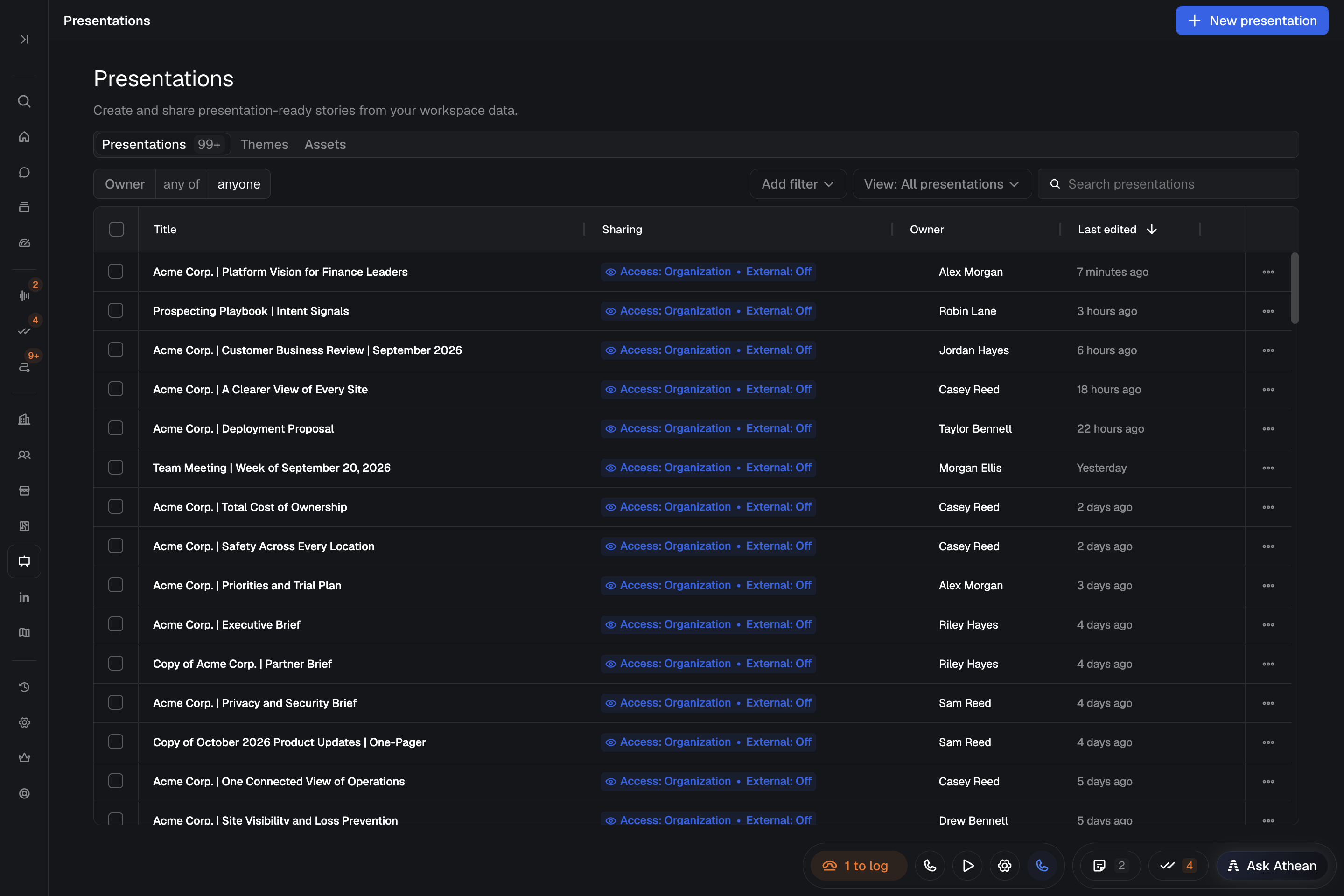
Presentations (Tools → Presentations) builds slide presentations and one-page briefs with Athean. It grounds them in your account and contact records, calls, meetings, emails, and signals.
- Open Presentations and select New presentation. If it's unavailable, ask an administrator for the Presentations Create, edit, and delete own permission (see Permissions and roles).
- Choose a starting prompt (Build a prospect deck, Recap a recent meeting, Build an account review, or Make a one-page brief) or write your own request. To upload logos or images first, select Add brand assets.
- Say who the presentation is for, what it should cover, and which account, meeting, or source material to use. Include the format (slides or a one-page brief), theme, or existing presentation to start from if you know them.
- Review Athean's proposed outline, format, and starting point. It waits for you to confirm any choice you haven't already made, then builds the presentation, which appears beside the chat.
- Check names, claims, numbers, and next steps against your sources before you share it.
When you don't name a format, Athean recommends slides for a live walkthrough and a one-page brief for a leave-behind or summary. For a one-page brief, it looks for a similar presentation you can open. If you choose one, it adapts a copy you own and leaves the original unchanged.
Asking a question such as “Do we have any one-pagers like this?” only searches. Athean suggests matching presentations without creating or changing anything.
Manage brand assets and themes
Use the Assets and Themes tabs in Presentations to manage your organization's shared branding. Tell Athean which assets and theme to use by name when you describe a presentation.
- Assets: select Add assets to upload logos, images, and font files. On a new presentation, Add brand assets adds logos and images before your first request. Uploads go into your organization's asset library, and search and Athean find assets by name and description. Filter the library by Type, Uploaded by, Uploaded, or Missing description. Use Edit name and description to describe an asset. For an image, that dialog also shows Used in: the presentations and theme logo slots that use it. Check it before you remove an image.
- Themes: control a presentation's colors, typography, logo placement, and layouts. Select Duplicate on a built-in theme to customize a copy, or select New theme to build one with Athean. Open a theme to ask Athean for palette, typography, or layout changes. Creating, duplicating, or changing a theme requires the Manage themes permission (see Permissions and roles). Organization admins have it; if New theme or Duplicate is unavailable, ask an administrator for access.
To build a theme that matches an existing deck:
- On the Themes tab, select New theme, enter a Theme name, choose a Starting point (Start from scratch or an existing theme), and select Create and customize. The theme opens beside its chat.
- In the theme's chat, attach the deck as a PDF or PowerPoint file, plus any SVG logos or font files, and ask Athean to match it.
- Athean looks at the deck's pages, fonts, and images, can add its logos and fonts to Assets, saves the theme, and builds a sample presentation beside the chat, which it checks and refines. The match is best-effort, so review the sample and ask Athean for changes.
Fonts embedded in a PDF are often incomplete, so attach the font files when you have them. You can also ask for a new theme from a presentation's chat.
Upload and manage custom brand fonts
Upload your brand fonts once to use them in your organization's presentations. Font files can be WOFF2, WOFF, TTF, or OTF, up to 2 MB each.
- Open Assets in Presentations and select Add assets, or drag the font files into the table. Uploaded files are grouped by font family.
- Open the family's edit dialog to review its styles, previews, and weight or variable weight range. Select Add styles to upload more weights or italics for that family.
- For an older font file that isn't grouped into a family, open its edit dialog and select Identify this font file.
- Select Copy font family name on the family's row, ask Athean to use that family by name, then check the slides in Preview.
If an upload fails, check the file format and size, and review any error shown, before trying again.
Select Remove beside a style to delete that style, or remove the family to delete all its styles. Presentations that use a removed font can fall back to another font, so check them after you remove it.
Edit slides, speaker notes, comments, and version history
A presentation has Preview, Slides, Assets, and Analytics tabs. Ask Athean in the chat to rewrite a slide, add missing context, or review the story and flow. A specific request such as “Shorten slide 3 and make the next step explicit” is easier to check than a request to improve everything.
- Edit text: in Preview, select Edit text below the slide, change the text directly, then select Done editing.
- Slides: move, duplicate, or delete slides, add a blank slide, and edit Speaker notes.
- Comment: leave feedback on a slide. Anyone who can view the presentation can comment and reply; a comment's author or someone who can edit the presentation can Resolve or delete it. Ask Athean to address open comments has Athean edit the slides, which needs edit access. The comments stay open until someone resolves them.
- History: select History below the slide (finish editing first) to open Version history, then select Restore on an earlier version. Restoring saves the current slides first, so you can return to them.
Editing controls depend on your permissions. If someone else is editing, follow the notice in the presentation before making changes.
View presentation engagement analytics
Open the Analytics tab of a shared presentation to review viewer activity. Analytics appear after someone opens the shared link.
- Views and Average time viewing: the number of recent viewing sessions and the average time per session.
- Identified viewers: recipients who completed email verification under Specific people. Views through Anyone with the link are counted but don't identify the viewer.
- Time per slide: total viewing time and visits by slide position, across all viewing sessions and shared versions. A position can hold different content after you reorder slides, so keep reordering in mind when you read it.
- Recent views: recent sessions, newest first. Use Search viewers to find a viewer.
Views, Identified viewers, and Average time viewing cover recent viewing sessions, not the presentation's full history. Use the analytics to plan your next conversation and your follow-up in Tasks.