
Provision new user accounts
To add someone to your Athean organization, email support@athean.com with their work email address, your organization's name, and the team or role they're joining. Athean support creates the account; users can't be created in Admin chat.
Once the account exists, the user signs in at app.athean.com/login with that exact work email, using your organization's sign-in method. Signing in requires an existing, active account. If your organization requires single sign-on (SSO), they must sign in through SSO.
Note: The Batch Update CSV tool in Org settings → User licensing updates existing user accounts only; uploading a CSV there doesn't create accounts or send invitations.
Components of user access
| Layer | Purpose and configuration location |
|---|---|
| Account status (Active / Deactivated) | Whether the user is active in your organization. Deactivated users can't sign in and don't appear in User licensing. To change it, ask Athean in Org settings → Admin chat. |
| License (Enabled / Disabled) | Set in Org settings → User licensing. An enabled license is required to sign in only when your organization requires licensing. |
| Roles & Permissions | Controls feature capabilities and ownership limits in Org settings → Permissions. |
| Groups | Rule-based team memberships in Org settings → Groups. Groups supply roles, shared sequences, agents, and layouts only through the assignments you configure. |
| Personal connections | Each user connects their own Google, Microsoft, and LinkedIn accounts in Settings → Integrations and sets up calling in Settings → Calls. |
Enable or disable licenses and filter the user roster
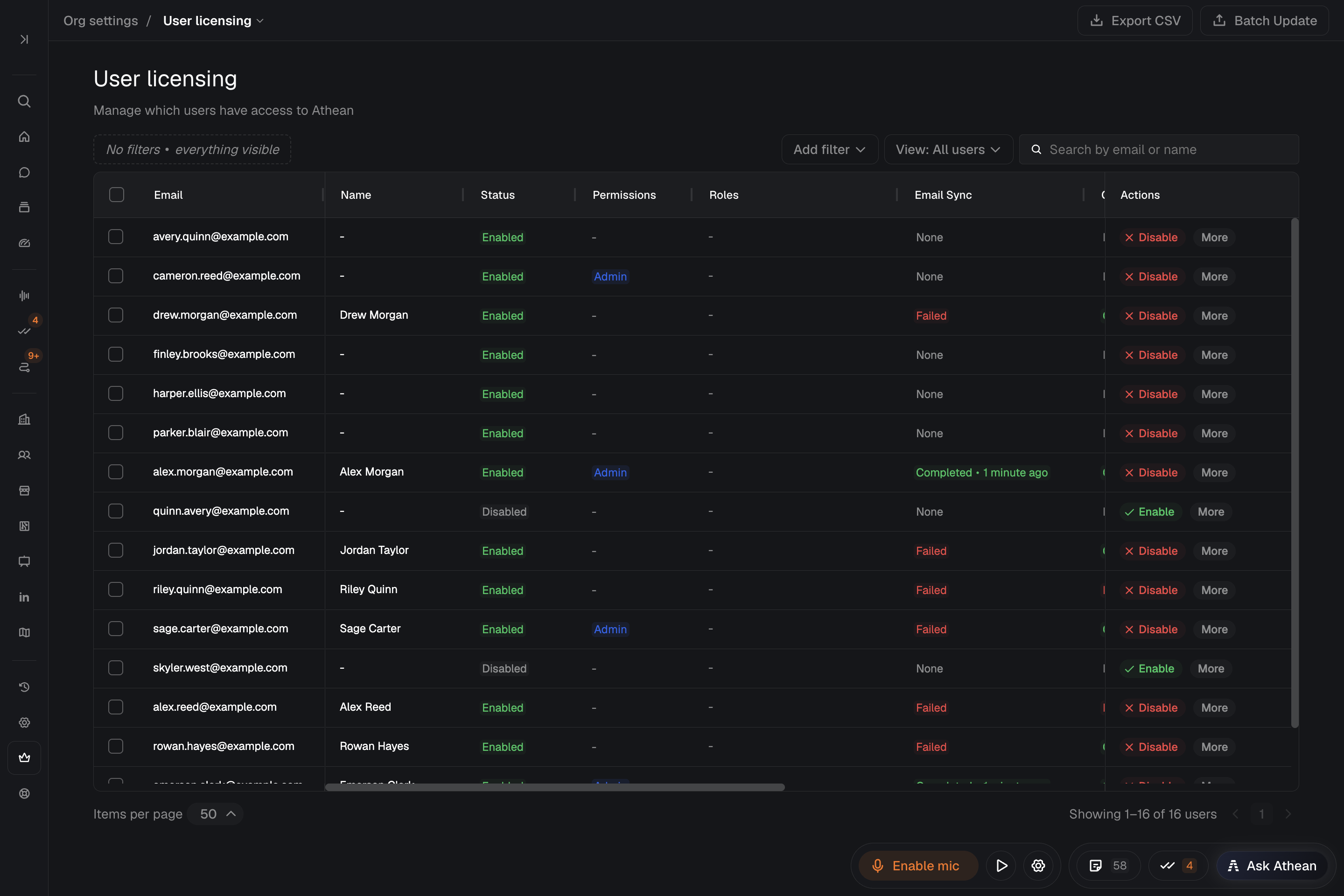
Organization administrators manage licenses in Org settings → User licensing:
- Search by name or email, or filter the table by License Status (Enabled / Disabled), Admin status (Admin / Not admin), Roles, Email Sync, Calendar Sync, or the Team & reporting filters.
- Select Enable or Disable in a user's row to turn their license on or off, then check that Status shows the new value.
- Use the row menu to select Make admin or Remove admin. Make admin gives full organization administrator access, including Org settings.
- Select Export CSV to download the filtered user roster.
Enabled and Disabled describe licensing only; they're separate from active or deactivated status.
Onboarding checklist for a new user
- Verify group membership: Open Org settings → Groups and confirm the user matches their team's group rule and appears in Members (see Groups). If a team or region value is wrong, see Correct the information a group rule uses.
- Assign roles: If the user needs permissions beyond their group's automatic roles, select Manage roles from their row menu in User licensing (see Permissions and roles).
- Verify layout assignment: Open Org settings → Layout configuration and use See what one person gets to preview the Home and Account layouts resolved for the user.
- Connect personal tools: Have the user sign in and complete Connect your tools and Dialer and call settings. A license and roles don't connect their email or LinkedIn accounts.
Bulk-update users via table selection or CSV
To update users directly in the User licensing table, select their checkboxes and use the bulk License, Admin, Set roles, or Clear connections actions.
To apply bulk updates from a CSV list of work email addresses:
- In Org settings → User licensing, select Batch Update → Upload CSV.
- Map the CSV email column to Email.
- In Review & select action, inspect the matched users and any not found email addresses.
- Select the action (Enable License, Disable License, Grant Admin, Revoke Admin, or Clear Connections) and select Apply to N users.
- Review the results. Some updates can succeed while others fail, so follow up on any failures.
The CSV flow can't set roles. To change roles for many users, select them in the table and use Set roles.
Inspect sync status and troubleshoot access
In User licensing, the Email Sync and Calendar Sync columns show each user's mailbox and calendar sync status (None, Processing, Completed, or Failed) for their Google or Microsoft account, while LinkedIn and Last Active show LinkedIn status and recent activity. A sync status doesn't confirm a live connection; the user can check their connections in their own Settings → Integrations.
| Issue | Resolution |
|---|---|
| User is missing from the User licensing roster | Deactivated users don't appear in User licensing. In Org settings → Admin chat, ask Athean to list deactivated users; Athean can reactivate one. If the person never had an account, email support@athean.com to provision it. |
| User cannot sign in | Check that the account is active, that their license is Enabled if your organization requires licensing, and that they sign in with their provisioned work email, through SSO if your organization requires it. |
| User is missing an action or shared content | Review their effective permissions, group membership, and the item's sharing or library assignment. |
| Reset a user's Google or Microsoft connection | Open the user's row menu in User licensing and select Clear connections. This disconnects Google and Microsoft so the user must reconnect; it doesn't disconnect LinkedIn or deactivate the account. |
| User cannot send or sync | Have them follow Connect your tools for the affected provider. |
For help, contact support with the affected work email and the error or missing action.
Handle team changes and departures
When a user changes teams, contact support to correct the user information their group rules read (see Correct the information a group rule uses). Then check their group membership, the roles assigned directly in Manage roles, and their layout assignments.
When a user leaves the organization, reassign their open Tasks and review their active Sequences, the Agents they own or run for, and content they share. Then remove access:
- Deactivate user account: In Org settings → Admin chat, ask Athean to deactivate the user and approve the request. Deactivated users can't sign in and are removed from active-user lists. Athean can also reactivate a deactivated user.
- Disable license: Select Disable on the user's row in Org settings → User licensing. This blocks sign-in only when your organization requires licensing, so deactivate users who leave.
- Remove administrator access: Select Remove admin when the person should keep ordinary access without organization administration.
Ask Athean in Admin chat to confirm the final active status, license, and effective permissions.