
Sequence templates vs. AI operators
In Prospecting → Sequences → My library, select Add to create a sequence or start from one in Marketplace:
| Option | How it works |
|---|---|
| Sequence template | You write each step's message or instructions. Variables such as Contact First Name or Account Name, added with Insert variable, fill in for each contact. Contacts you add are enrolled directly, with no approval step. |
| Athean operator | You give Athean instructions and choose which account and contact context it can read. It researches each contact and writes a personalized sequence. Each contact you add gets a draft in Approvals, and outreach starts only after the draft is approved. |
| Marketplace | Shows operators and templates your team already uses. Save one to your library, or duplicate it to get an independent copy you can edit. |
Creating and editing sequences depends on your role's permissions (see Permissions and roles) or the org-wide Anyone can edit sequences rule. A role can also set a Maximum owned limit for operators and sequence templates. At the limit, you can't create or duplicate another one, or publish a new operator, until an administrator raises it. The limit doesn't stop you from editing sequences you already own.
Create a sequence template
- In My library, select Add → Sequence template and enter a Sequence name.
- Select Add step and choose a step type:
- Automatic email sends through the sender's connected Google or Microsoft mailbox. Manual email creates an email task for a person to send.
- Call creates a call task with your call notes or script. Task creates a general task with your instructions.
- LinkedIn steps: Automatic InMail, Manual InMail, Automatic LinkedIn message, Manual LinkedIn message, Automatic connect request, Manual connect request, Profile view, and Post reaction. Profile views and post reactions are automatic only. Automatic LinkedIn steps need a connected LinkedIn account.
- Write each step's content. Use Insert variable to add fields such as Contact First Name, Account Name, or Sender First Name. A step that contains an invalid variable can't be saved.
- For a manual email, choose Write my own email or Generate personalized email with AI. The AI option writes the email when someone works on the task, and they review it before sending. It isn't available with Send automatically; to generate personalized emails and approve them before they send, use an operator.
- On a manual step, set Assign to if a specific teammate should get the task instead of the sequence sender.
- On a follow-up email, choose an existing thread or New thread. An email in an existing thread keeps that thread's first subject; start a new thread to use a different subject.
- Drag steps to reorder them, set each step's timing, and use Expand all to review the whole sequence.
- Select Create & exit, or Save & exit when editing an existing template.
An InMail subject can be up to 200 characters and its message up to 500. A connect request note or manual LinkedIn message can be up to 300 characters, and an automatic LinkedIn message up to 8,000. Each LinkedIn editor shows a character counter, and a step over its limit can't be saved.
Saving a template doesn't enroll anyone; add contacts separately with Add contacts. Before saving changes to a template others use, see How saving or publishing affects existing sequences.
Configure step timing and LinkedIn channel rules
Each step runs Immediately, after a number of business days at a set time of day, or after a delay in hours and minutes.
- Immediate steps: Automated steps set to Immediately are staggered over about two hours, so they don't send at an exact time.
- Business days: Day-based waits use the sequence's scheduling time zone, which is the contact's time zone when Use contact time zone is on. Weekends, New Year's Day, Independence Day, and Christmas Day are skipped.
- Sending limits: Automatic emails follow the sender's daily and per-domain email limits and the Vary email send times setting. When a day's limit is reached, sends move to the next business day with capacity. See Sending settings and limits.
- Manual steps: A manual step creates a task, and the sequence waits until that task is completed or skipped in Task flow or Tasks. Completing or skipping it advances the sequence, and the next automatic step may run right away. Completing a manual email or LinkedIn task doesn't send anything by itself. Deleting the current task pauses the sequence.
- Automatic emails that can't send: If an automatic email can't send, for example because the sender's mailbox disconnected, the step becomes a manual email task for the sender.
LinkedIn steps have their own rules:
- Automatic LinkedIn message: Sends only to a 1st-degree connection, checked when the step is due. An earlier connect request step doesn't make it wait for the invitation to be accepted. If the sender isn't connected with the contact when the message is due, the step is skipped and the sequence continues.
- Automatic InMail: Uses the sender's LinkedIn InMail credits, checked when the step sends. Without credits, the step retries on later days, then is skipped.
- Automatic connect request: If LinkedIn temporarily limits requests, the step retries on later days, then is skipped.
- Profile view and post reaction: If one fails, the sequence continues.
- Daily limits: LinkedIn actions have automatic per-user daily limits. When a day is full, the action moves to the next open day.
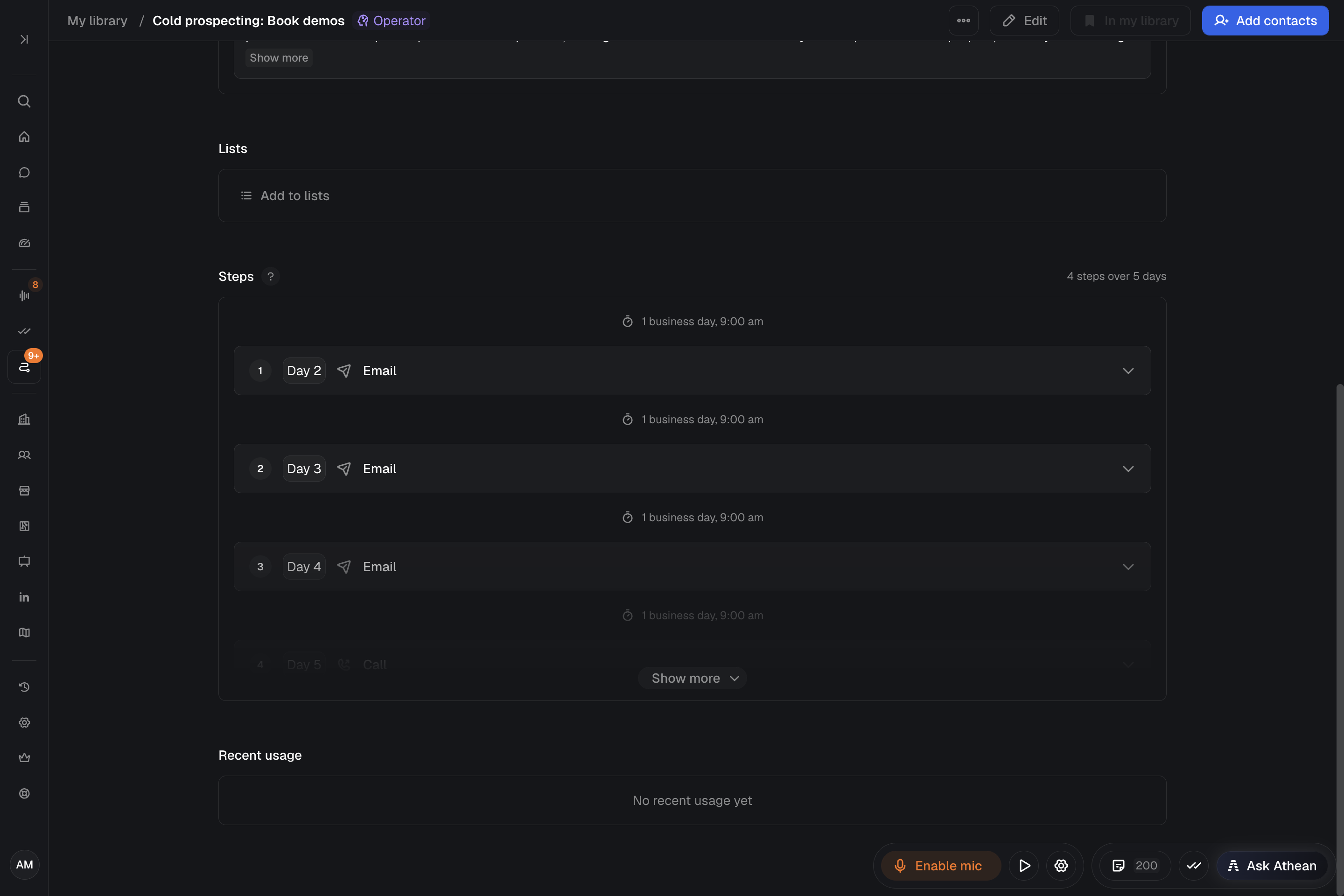
Create an AI operator
- In My library, select Add → Athean operator. In Set up your operator, enter an Operator name and select Start building.
- In the builder chat, describe the target persona, the outreach goal, the steps and channels to use, and messaging rules, such as which claims need evidence.
- Open the Edit details tab to review and edit the operator directly:
- Operator instructions: Rules for tone, formatting, evidence, and structure that apply to every step.
- Sequence steps: Step types, wait times, and instructions for individual steps.
- Context settings (under Advanced settings): The sources the operator reads when it writes drafts: Email threads, Notes, Opportunities, Signals, Calls, Meetings, LinkedIn profile, Company context, and Case studies.
Call steps produce call notes in a default format. If the operator instructions or a call step's instructions describe a structure, such as sections, required opening lines, or an objection format, that structure replaces the default. Call notes can link to sources when your instructions ask for it and a link is available.
An operator can also choose Cc recipients for individual email steps from the contact's context. Describe who to copy and how to find their email address, for example the account's assigned specialist when that person's email is available. These recipients are saved with each generated sequence and added to any Cc set at enrollment. Changing the source data doesn't update an existing draft; to change the recipients, regenerate the draft and review the new one. Check Cc recipients in each draft before approving; the preview doesn't show them.
Edits save to a draft automatically, shown by Draft saved. The live operator doesn't change until you select Publish draft. If Couldn't save appears, select Retry and wait for Draft saved before leaving.
Preview sample contacts and publish an operator
- In the operator builder, open the Preview tab and select Select contacts.
- Pick up to 5 sample contacts and select Run preview on N. Athean generates a sample sequence for each one without enrolling them.
- Check the generated subjects, messages, and call notes. The preview doesn't show Cc recipients; check them in each draft in Approvals. If you change the instructions or steps afterward, Edits not yet previewed appears; select Re-run preview to see the effect.
- Select Publish draft, review the confirmation, and select Publish.
Publishing a new draft makes it a live operator. Publishing a draft of an existing operator replaces that operator's live configuration. Publishing doesn't enroll the preview contacts; to enroll contacts, use Add contacts on the live operator.
To delete unpublished changes, select Discard and confirm Discard draft. The draft and all its edits are deleted, and this can't be undone.
How saving or publishing affects existing sequences
| Target | Effect of saving a template or publishing an operator |
|---|---|
| Future enrollments on the same sequence | Use the newly saved template steps or the newly published operator configuration, including enrollments by teammates who have the sequence in their library. |
| Duplicated copies | Unaffected. A duplicate is an independent sequence. |
| Drafts waiting in Approvals | Not rewritten. To apply the new configuration, regenerate the draft with Regen in Approvals, then review the new draft before approving it. |
| Contacts already in Active sequences | Unaffected. Active enrollments keep the steps they had when they were enrolled or approved. To move a contact to a different sequence, use Reassign (see Approve and manage sequences). |