
What CRM sync covers and where to configure it
CRM sync sends records and activities from Athean to Salesforce. Importing contacts can create or match Salesforce records; after that, ongoing sync sends supported record changes and activities according to your organization's settings.
Organization administrators configure what Athean writes in Org settings → CRM sync mappings and review sync attempts in Org settings → CRM sync logs. Record mappings, update modes, and activity writebacks are for Salesforce. CRM sync logs also list sync attempts to HubSpot when your organization has it connected. To connect Salesforce, see Connecting Athean with Salesforce. HubSpot and other CRMs are set up with Athean's help, so contact support to connect one. There is no Org settings page for connecting a CRM.
Related settings in Org settings:
- Athean custom fields (Org settings → Athean custom fields): fields your team keeps on accounts and contacts in Athean. They aren't available in CRM sync mappings. See Athean custom fields.
- Salesforce live fields (Org settings → Salesforce live fields): which Salesforce fields people see and edit on account, contact, and lead records, set up as field sets, plus the Organization default fields. Only org admins can change the Organization default fields. Field sets can also be created and assigned to groups in Org settings → Layout configuration. See Layout configuration.
- Salesforce filters (Org settings → Salesforce filters): reusable search filters built on Salesforce data for Discover and Signals. See Salesforce filters.
Configure Contact and Account field mappings and update modes
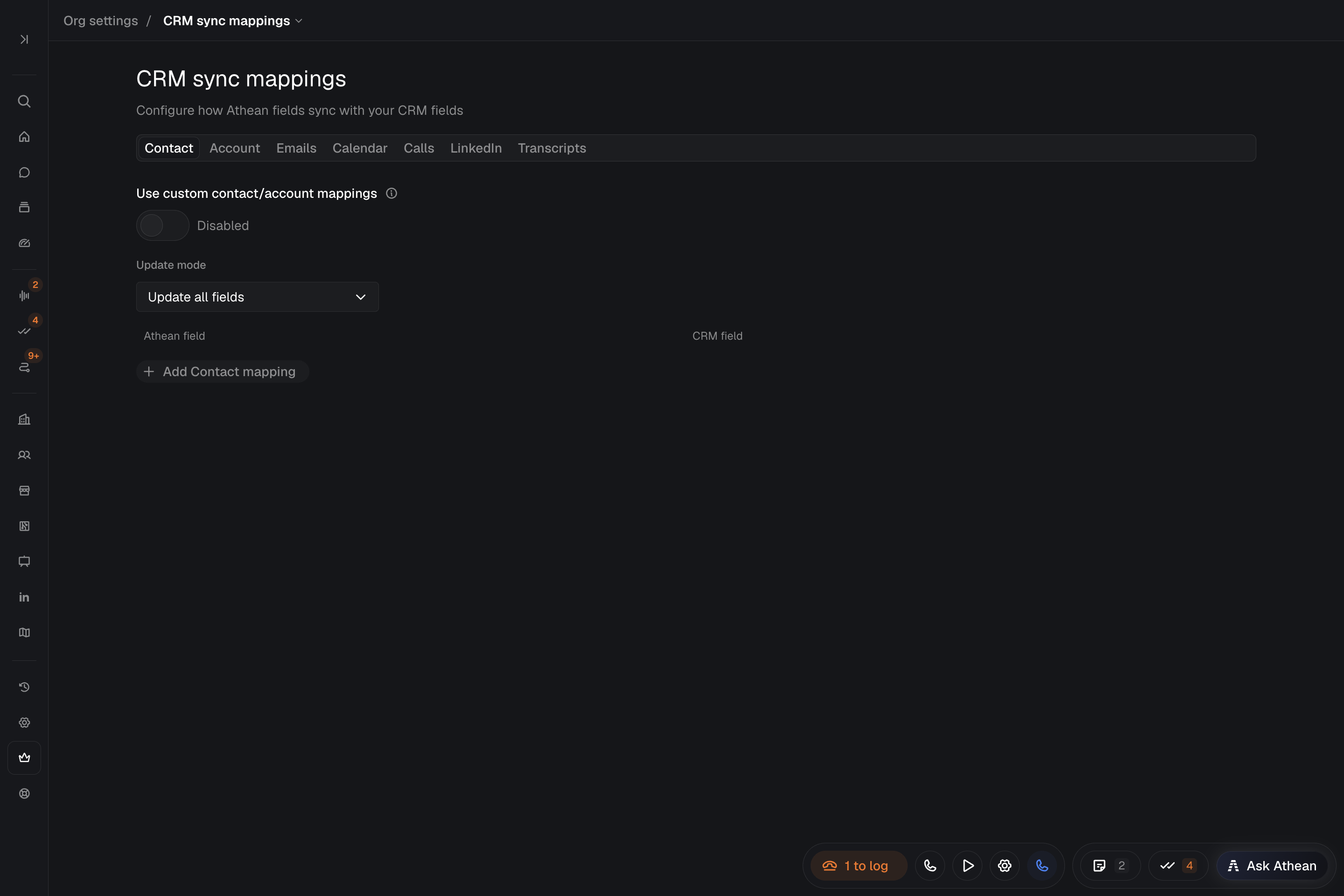
- Open Org settings → CRM sync mappings and select the Contact or Account tab.
- Turn Use custom contact/account mappings on or off. This one switch applies to both the Contact and Account tabs. When it is on, Salesforce Contacts and Accounts use the mappings you configure here. When it is off, Athean uses its default mappings and sync continues.
- Select Add Contact mapping or Add Account mapping to pair an Athean field with a destination CRM field. Choose Constant Value to send a fixed value instead.
- Choose the Update mode for the record type:
- Never update (immutable after creation): sends the mapped fields when Athean creates the CRM record and never updates them on existing records.
- Update all fields: updates every mapped field on existing records during sync.
- Update selected fields only: sends all mapped fields when creating a record, then updates only the fields chosen in Fields to update on sync.
- Resolve any field validation messages, then select Save changes.
The Athean field list is fixed. Contact mappings can send a contact's LinkedIn URL, email opt-out, and no-longer-at-company status to compatible Salesforce fields. Email opt-out always sends true or false. No-longer-at-company sends true when the person has left, false when employment is confirmed, and no value when it is unknown. Athean custom fields aren't in the list; see Athean custom fields.
Incoming Salesforce sync always reads the standard Salesforce email opt-out field, even when custom mappings are on, and also respects a mapped opt-out field. Changing outgoing mappings doesn't opt a contact back in.
Salesforce Lead updates don't use these Contact mappings; Leads use their own built-in set of fields.
Confirm the destination field names and your Salesforce required fields before saving. After saving, check a resulting Salesforce record and its sync log.
Configure activity writebacks (Emails, Calendar, Calls, LinkedIn, Transcripts)
In Org settings → CRM sync mappings, open the Emails, Calendar, Calls, LinkedIn, or Transcripts tab. Activity mappings are separate from record mappings: turning off Use custom contact/account mappings doesn't affect them.
- Writebacks enabled: each activity tab has its own switch. Turn it off and select Save changes to pause Salesforce writebacks for that activity type while the other types keep syncing. You can still edit the tab's mappings while writebacks are paused, and removing a mapping doesn't turn writebacks back on.
- Destination and fields: on a tab that isn't set up yet, select its Configure button, such as Configure Calls. Enter the Salesforce object in SF object type (for example, Task or Event), use Add field mapping to fill each CRM Field with a Template Value that can include activity variables, and choose the Update mode.
- Event owner: on the Calendar tab, choose Creator (default) or Organizer to set which internal attendee owns the synced Salesforce Event when several internal users attend.
Mapping and writeback changes apply to activity synced afterward; they don't resend past activity. Activity from a paused period is marked skipped and isn't sent when you turn writebacks back on. While an activity type is paused, Retry sync in CRM sync logs doesn't work for it.
If a contact's Salesforce Lead has been converted, Athean logs Emails, Calendar, Calls, and LinkedIn activity against the Contact the Lead became. If no other Athean contact is linked to that Contact, Athean relinks this contact to it and moves the contact to the account chosen at conversion, adding the account to Athean if needed.
Inspect CRM sync logs
CRM sync logs record attempts to send records and activities from Athean to your CRM. They don't cover data coming from Salesforce into Athean. If CRM data is missing from Athean, check the shared CRM connection and your account or contact filters first, then contact support if the record is still missing.
- Open Org settings → CRM sync logs.
- Filter by Entity type, Date, and, when known, Entity ID. Add Status (Success, Failed, or Skipped) or CRM operation (Create, Update, or Skip) to narrow the results.
- Check Entity, CRM Operation, and CRM ID to confirm the record and its destination.
- Read the row's details:
- Time and Activity Time: Time is when the sync attempt ran; Activity Time is when the call, email, or meeting happened. Use both when older activity synced later.
- Skip Reason and Error: why a record was skipped (for example, writebacks paused or a missing prerequisite) or why the CRM rejected the write. Read a skip reason before changing mappings; it can reflect your configured rules.
- Request Body: the fields sent in that attempt.
No matching log? Widen the date range, clear the Status and CRM operation filters, and confirm the record or activity exists in Athean. No matching row doesn't mean a sync succeeded, and some writes don't appear in these logs, such as edits to Salesforce live fields on a record or Salesforce updates made by an automation. If you still can't find it, contact support with the Athean record or activity, the time, the destination CRM record if known, and the change you expected.